Timesheets · Day to day
How do I change who authorises a worker’s timesheets?
Add, swap or remove the people who approve someone’s timesheets, and choose who gets emailed.
For admins · Updated 14 October 2026
Using SaveTrees v2? This works differently there. See the v2 guide
Authorisers are set for each worker on each assignment, so you change them from that worker’s page. Timesheets and expenses each have their own authorisers.
Add an authoriser
- 1Open Workers in your account(opens SaveTrees in a new tab)
Click Workers in the menu on the left, then click the worker’s name.
- 2
Under What’s required on this assignment, click Timesheet to open it.
- 3
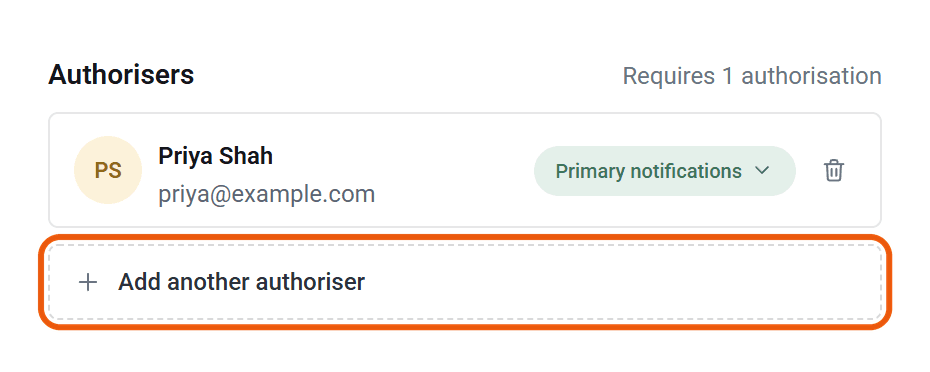
Under Authorisers, click Add authoriser (or Add another authoriser).
- 4
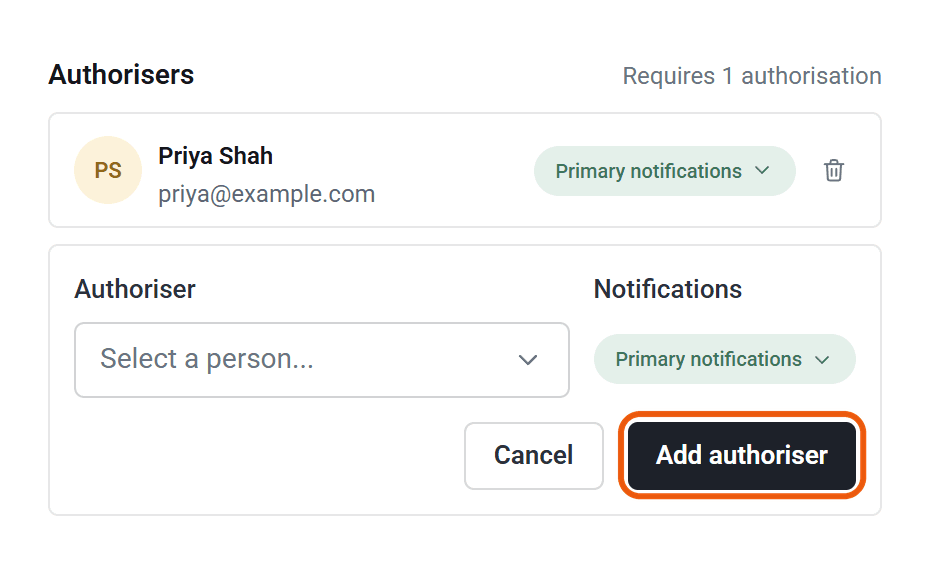
Choose them from the list. Not there? Click Add someone new… at the bottom of the list and type their name and email address.
- 5
Choose how they’re notified (see below), then click Add authoriser.
They can approve straight away. If they’re new to SaveTrees, we email them an invitation to set up their account. If they already use it, we let them know they’ve been made an authoriser. Either way, that only happens the first time they become an authoriser with you.
Adding someone doesn’t email them about timesheets that are already waiting. Those appear in their list straight away. To nudge them, click Remind authoriser under Actions on the worker’s page.
Primary, backup or access
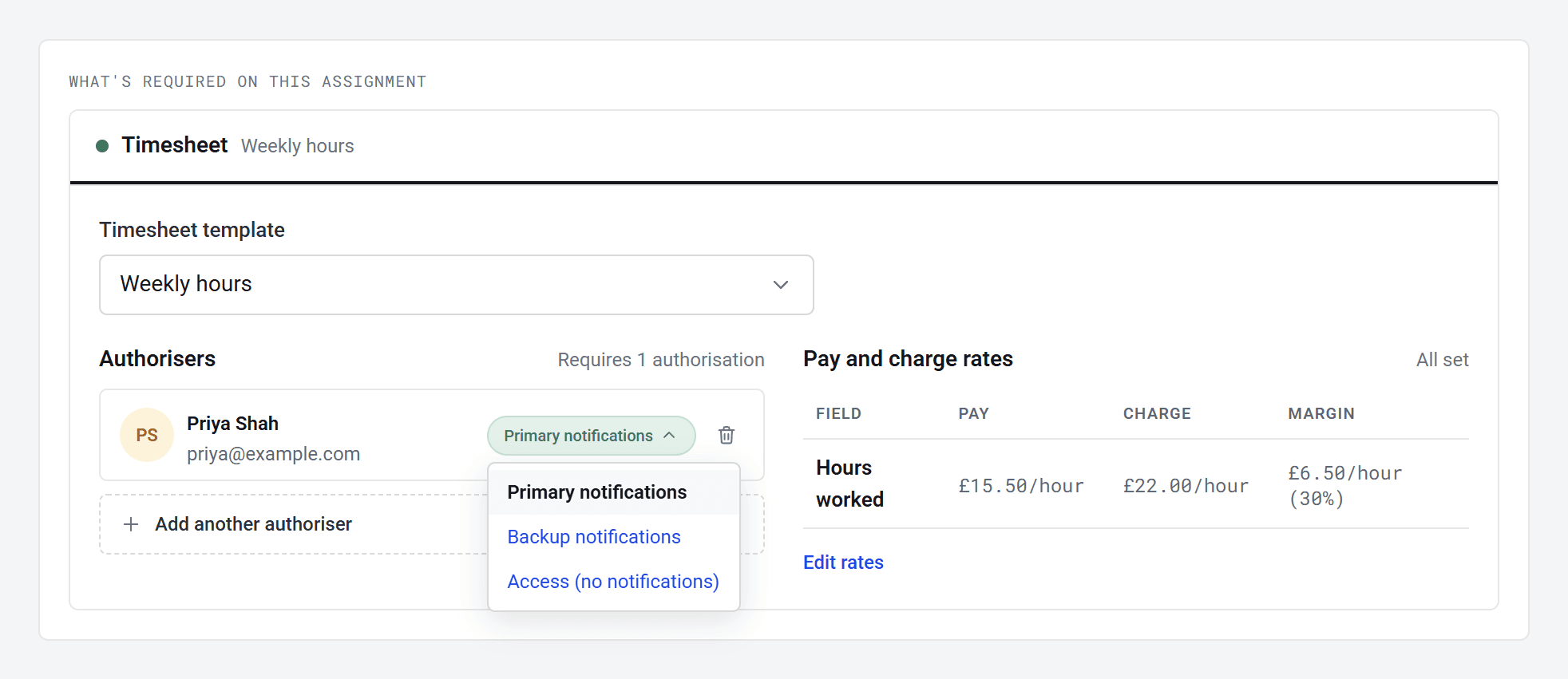
- Primary notifications: emailed when a timesheet needs them.
- Backup notifications: not emailed when a timesheet is sent. They’re emailed by reminders you’ve set up to include backups, and when you click Remind authoriser. See How do I set up timesheet reminders?
- Access (no notifications): never emailed.
All three can accept or reject. Keep at least one primary, or nobody will be told when timesheets come in.
To change it, click the coloured label next to their name and pick another. It saves straight away.
Remove an authoriser
Click the bin next to their name, then Remove authoriser. You’ll get a warning if that leaves nobody, or not enough people, to approve.
How many people have to approve
That comes from the worker’s timesheet template: one person, several people in turn (in stages), or several people at once. With stages, you choose the stage when you add each authoriser.
Whatever the setup, one rejection sends the timesheet back to the worker.
A template’s approval setup can’t be changed once it’s made. To change it, move the worker onto a template set up the way you want. See How do timesheet templates work?
When an authoriser leaves
There isn’t a way to change authorisers for lots of workers at once. If someone is leaving, archive them from People and switch on Replace with another authoriser. Their replacement takes over every worker they authorised, with the same notifications and stage. See How do I change someone’s details or remove them?
Who can do this
Your account owner, and admins whose permission group includes Manage the Workers list. Other admins can see the controls, but get Not authorised. when they try to save. Archiving someone with a replacement needs Manage the Users list.