Timesheets · Get set up
How do I set up timesheet reminders?
Let SaveTrees chase missing timesheets and slow approvals for you, or send a reminder yourself.
For admins · Updated 13 October 2026
Chasing timesheets takes up time you could spend on something else. SaveTrees can do it for you: tell it when you want timesheets in, and it emails people before or after that. It can also nudge authorisers about timesheets waiting for them. Nothing goes out until you set it up.
Remind workers
- 1Open Automated timesheet reminders in your account(opens SaveTrees in a new tab)
Click Settings at the bottom of the menu on the left, then Timesheets, then Automated timesheet reminders.
- 2
On Worker reminders, click the kind of timesheet to set up: Daily, Weekly (which covers fortnightly and 4-weekly too) or Monthly.
- 3
Next to Cut-off, choose when you’d like those timesheets in by. For daily and weekly ones that’s a day and a time. For monthly ones, it’s a date or a day of the month after.
- 4
Click Add reminder, then choose how many days or hours before or after the cut-off it goes. You can add up to three.
- 5
Check the example underneath, then click Save changes at the bottom of the page.
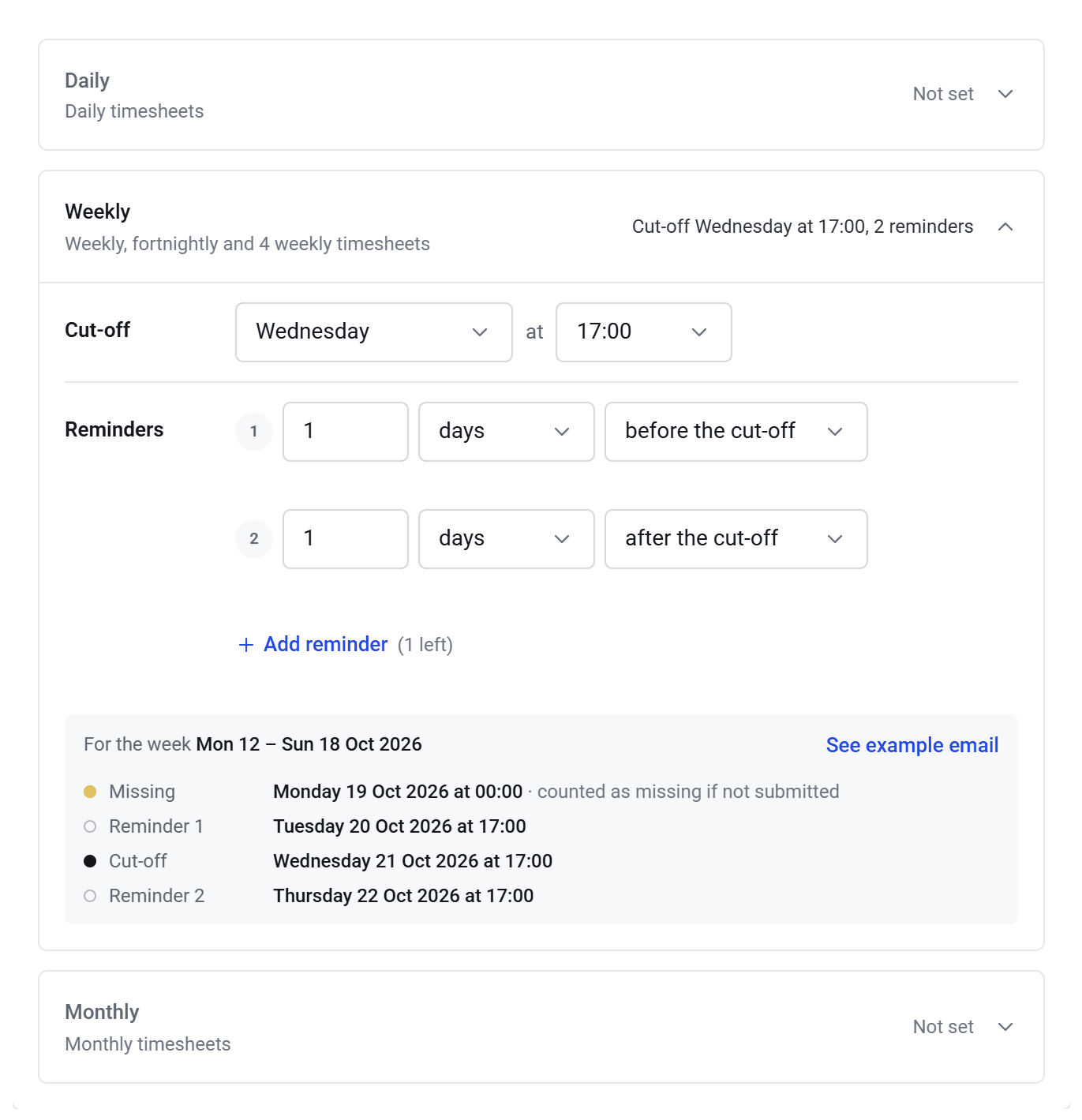
The cut-off falls after the period ends. With a Monday to Sunday week and a Wednesday cut-off, the week’s timesheet is due on the Wednesday after it.
Reminders only go out once there’s a cut-off. When you save, any reminder time from the last 24 hours goes out within a few minutes, and older ones are skipped.
Each worker gets one email covering the timesheets that reminder is for. If it’s about one, it has a Submit now button. If it’s about several, the button is View your timesheets. If the period hasn’t finished yet, the email gives the cut-off. Once it has, it asks them to send it as soon as they can.
Remind authorisers
- 1
On the same page, click Authoriser reminders.
- 2
Click Add reminder, then choose how long after a timesheet is sent the reminder goes, and who it goes to: the primary authorisers, the backups, or both.
- 3
Click Save changes.
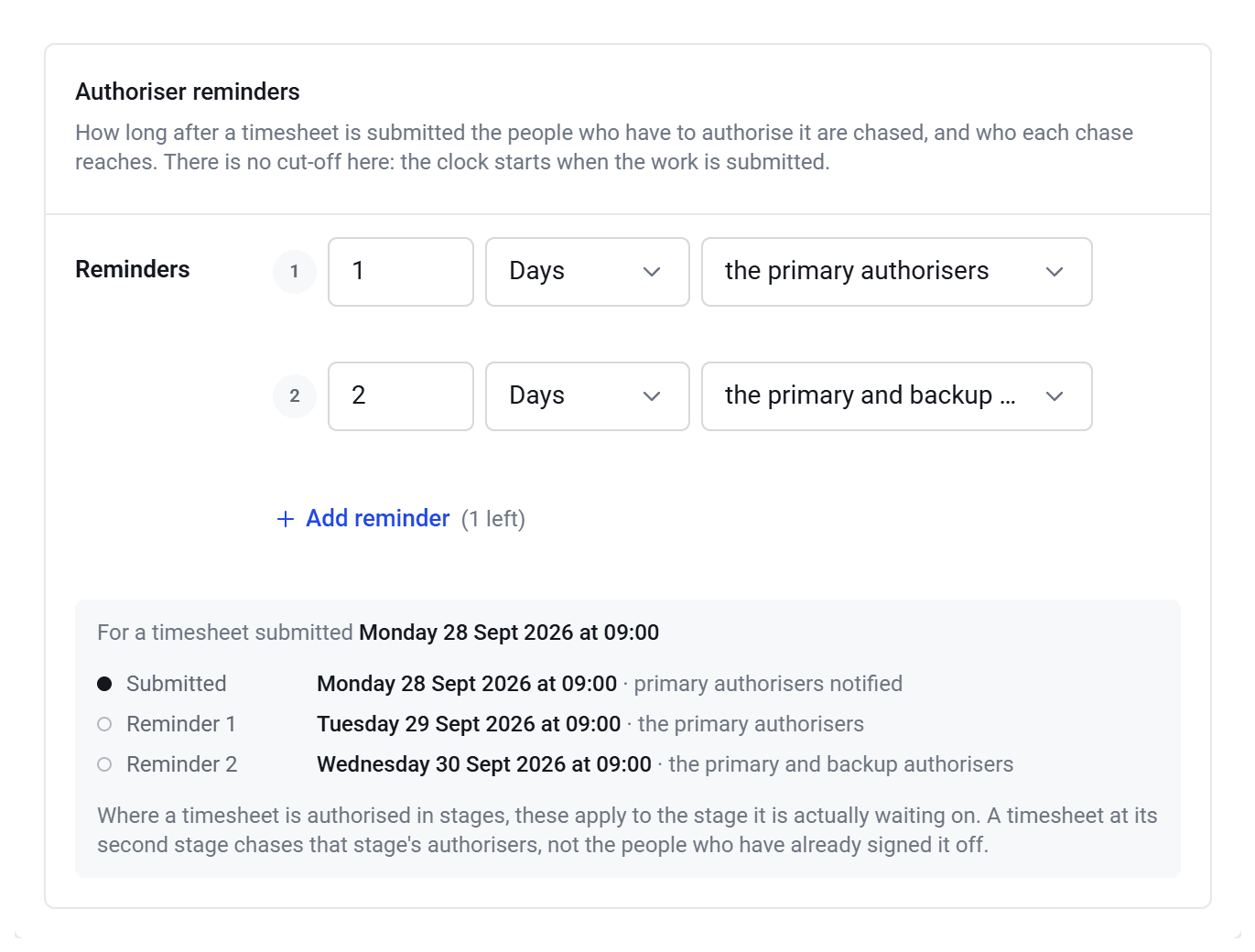
- The clock starts when the timesheet is sent, and runs round the clock, so 1 day means 24 hours later.
- Choose the primary and backup authorisers unless every timesheet has a backup. If a reminder goes to backups only and there isn’t one, nobody gets it.
- If a timesheet is approved in stages, reminders go to whoever it’s waiting on now.
Chase people yourself
Click Reminders in the menu to see who’s behind and remind them straight away.
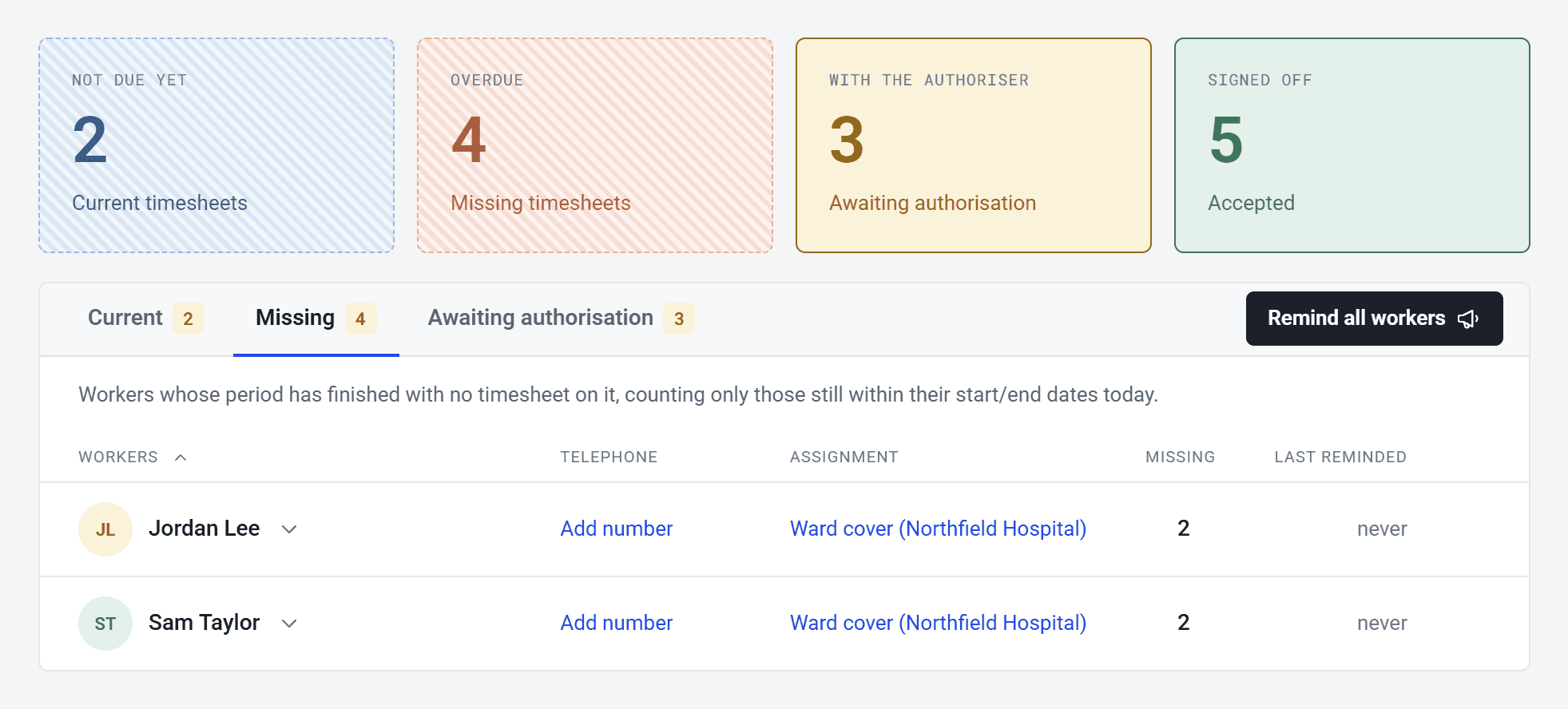
- Missing lists people whose period has finished without a timesheet. Current lists people part-way through one. Awaiting authorisation lists timesheets waiting for approval.
- Click the paper plane next to someone to remind them about everything on that tab, or click their name to see each timesheet.
- Remind all workers (or Remind all authorisers) emails everyone on the tab. It sends straight away, so check the list first.
- The page shows the last 90 days. To see older ones, change Period to All time.
- You can only chase from the Current tab once you’ve set a cut-off.
Why didn’t someone get a reminder?
- They’ve switched reminders off. You’ll see Disabled next to their name. A worker’s Allow admins to send me reminders for late submissions switch, in their own Settings, turns off every reminder about missing timesheets, including the automatic ones. An authoriser who turns off either of their email switches stops getting automatic reminders.
- Their assignment has ended. People are only chased while they’re still on the assignment.
- Their timesheet was rejected. Rejected timesheets aren’t chased, so let them know yourself.
Saved a timesheet as a draft but not sent it? That still counts as missing, so they’ll still be reminded.
Expenses have their own reminders for authorisers, in Settings under Expenses, then Automated expense reminders. There aren’t any worker reminders for expenses.