So, you’ve chosen SaveTrees?
Welcome aboard!
Onboarding can be done in one of two ways. Either you onboard yourself using the steps below, or you can book an onboarding session where we run you through things.
We recommend the latter — when you add real people, you tend to have real questions, and if we’re there to answer them in real time, it makes the whole process a lot easier.
Signing up your agency
It's pretty self-explanatory, but this video explains how your URL is created and what to do if you plan to have multiple agencies on the system and want to switch between each without having to log out and back in.
- 1Head over to app.savetrees.io/create-account (linked from the SaveTrees homepage).
- 2Use a friendly nameDon't use your legal entity name — e.g. use "Rocket Recruitment" not "Rocket Recruitment Partners Limited". This name becomes part of your URL and signs off your emails ("Thanks, the Rocket Recruitment Team").
- 3Multiple agencies?If you're setting up more than one agency and want to log in with one email address, use the same email address for each signup.
- 4Accept the Terms of Use, click 'Sign up your agency', then wait for the confirmation email and follow the instructions.
Setting up your agency branding
Get the system looking like it's your own. Set your URL, brand colours, and logos before you invite anyone — that way every email that goes out arrives fully branded.
- 1Your URLLinkable from your main website. When people click it, they're taken to your branded login page.
- 2Brand coloursPrimary main → dashboard top bar, login page background, email headers, PDFs. Primary text → text on top of Primary main. Secondary main → left-hand menu. Secondary text → text on top of Secondary main.
- 3LogosYou'll need both a square and a rectangular version of your logo.
- 4Do this firstSet branding up before inviting anyone — then every email sent on your behalf arrives in your colours.
Changing other agency-specific settings
These are global defaults for the whole agency — but everything can be overridden at the contract or contractor level if needed.
- 1Week or monthSet whether you work on a week/month beginning or ending, and which day the week starts on.
- 2Rate defaultsSet whether contractors submit hourly rates, day rates, or neither — if neither, you choose at the contract level.
- 3Hours entrySet whether contractors explicitly enter hours, or whether timesheets default to 9:00–17:00 / Monday to Friday.
- 4Holidays & nightsSet whether contractors can submit holidays or night shifts. These default to No to keep things simple.
- 5Email settingsRoute all accepted timesheets to a central payroll inbox — toggle to Yes and enter the email address.
- 6Agency URLIf you ever change your web address, update the logo link here so it doesn't break in outgoing emails.
Adding your first contractor
Once you've got the system set up, it's time to get your first contractor and their line manager onboarded so the first timesheet can be submitted.
- 1UsersAny person in the system — contractor, line manager, or administrator. Only a name is required.
- 2ClientsAny business you place with. Add a client name; leave the other fields blank to start.
- 3ContractsThis ties clients and contractors together. Each contractor can have their own authoriser, and you can have many contractors on one contract.
- 4Adding the contractorSelect from existing users or add them on the fly, assign a line manager, set a start date, adjust rates if needed, then click 'Invite users'.
- 5What the contractor receivesAn email: "[Recruiter] has invited you to submit timesheets for [contract] with [client]." They click, set a password, and have immediate access.
Video guides for your team
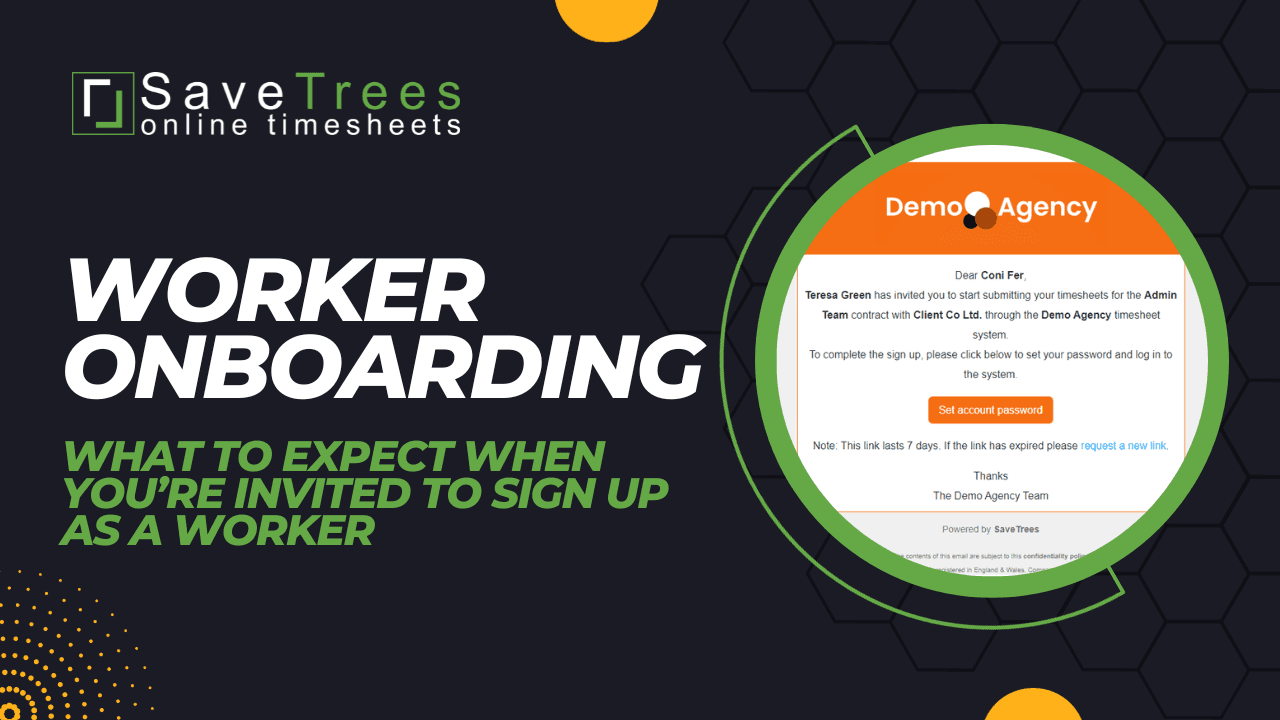
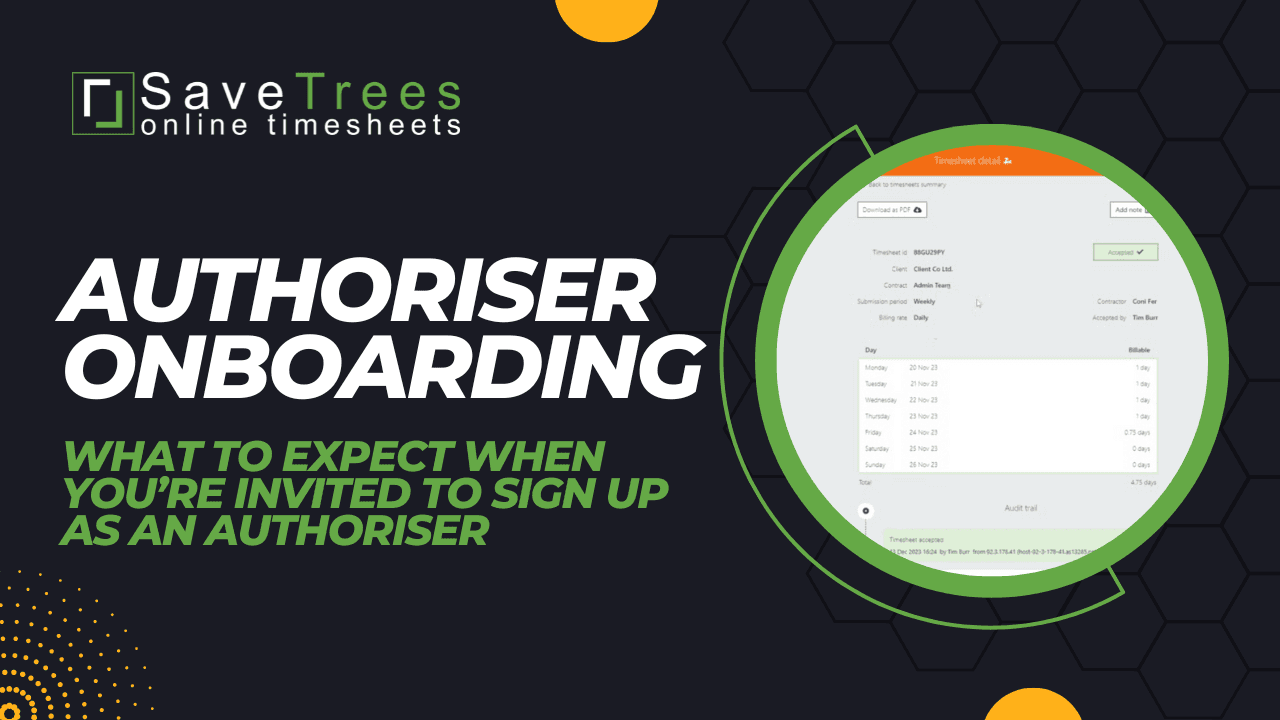
Share these with workers and authorisers before they sign up.
Email templates
Signing up is simple, but it’s good practice to give people a heads-up. Copy and paste these templates to introduce your team to the system.
For authorisers
RE: Online timesheet system for {your agency name}

Hi {name},

As part of our process for paying {contractors/workers/temps} on time, we have streamlined our timesheet submission and authorisation process. To facilitate this, we have adopted the user-friendly SaveTrees Online Timesheet system and I am reaching out to provide you with the necessary information.

What to expect

In the coming days, you'll receive an email from [email protected]. When you receive it, please follow the instructions to set your account password which will complete your sign up. The next time you hear anything will be when there is a timesheet ready to approve.

Video walkthrough

For your convenience, a brief video offers insights into the sign up process and guides you on how to accept and reject timesheets. You can access the video here: https://savetrees.io/help/v2/how-to-sign-up-as-an-authoriser/

Help for authorisers

While the system is designed to be straightforward, we understand that you may have questions along the way. There is a dedicated help site for timesheet authorisers, which you can find here: https://savetrees.io/help/v2/authorisers/

Should you have any questions or require further assistance, please don't hesitate to reach out to myself or the team.

Kind regards
{your name}
For workers
RE: Online timesheet system for {your agency name}

Hi {name},

As part of our process for paying you on time, we have streamlined our timesheet submission process. To facilitate this, we have adopted the user-friendly SaveTrees Online Timesheet system and I am reaching out to provide you with the necessary information.

What to expect

In the coming days, you'll receive an email from [email protected]. When you receive it, please follow the instructions to set your account password which will complete your sign up.

Once you have completed your first {weeks/months} work, please log in and submit your time worked.

Video walkthrough

For your convenience, a brief video offers insights into the sign up process and guides you on how to submit your timesheets. You can access the video here: https://savetrees.io/help/v2/how-to-sign-up-as-a-worker/

Help for {contractors/workers/temps}

While the system is designed to be straightforward, we understand that you may have questions along the way. There is a dedicated help site for {contractors/workers/temps}, which you can find here: https://savetrees.io/help/v2/workers/

Should you have any questions or require further assistance, please don't hesitate to reach out to myself or the team.

Kind regards
{your name}
Arrange a face-to-face onboarding session
Recommended. Free of charge — we’ll walk you through everything and answer questions in real time.
Have any other questions?
We’re happy to help.