Timesheets · Get set up
How do I add a worker?
Put someone on an assignment, choose their template and authoriser, and send their invitation, all from one form.
For admins · Updated 14 October 2026
Using SaveTrees v2? This works differently there. See the v2 guide
Adding a worker puts someone on an assignment. In one form you choose who they are, when they start, the timesheet they’ll fill in and who approves it. If they’re new to SaveTrees, we email them an invitation.
Add a worker
- 1Open Workers in your account(opens SaveTrees in a new tab)
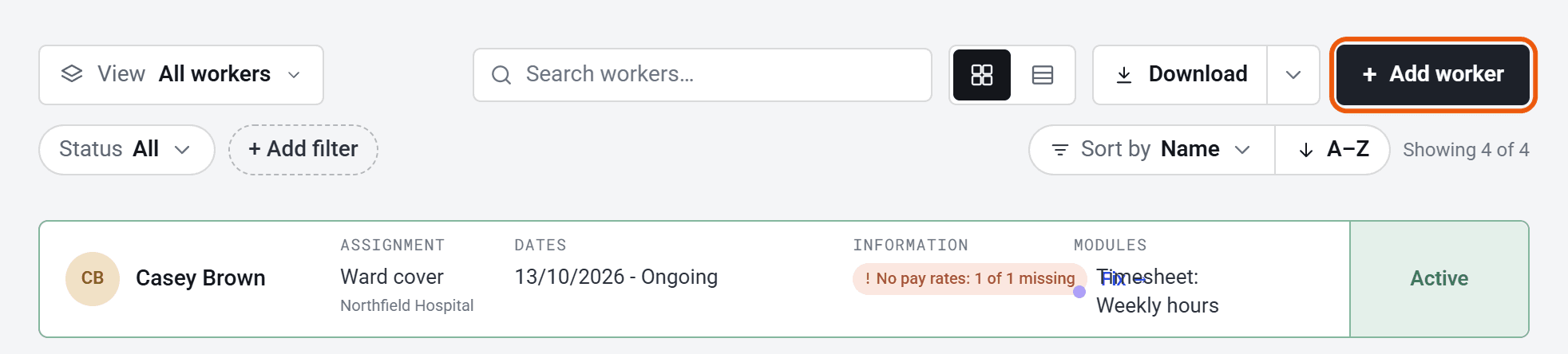
Click Workers in the menu on the left, then Add worker.
- 2
Choose the Assignment. Not there yet? Click Add assignment… at the bottom of the list.
- 3
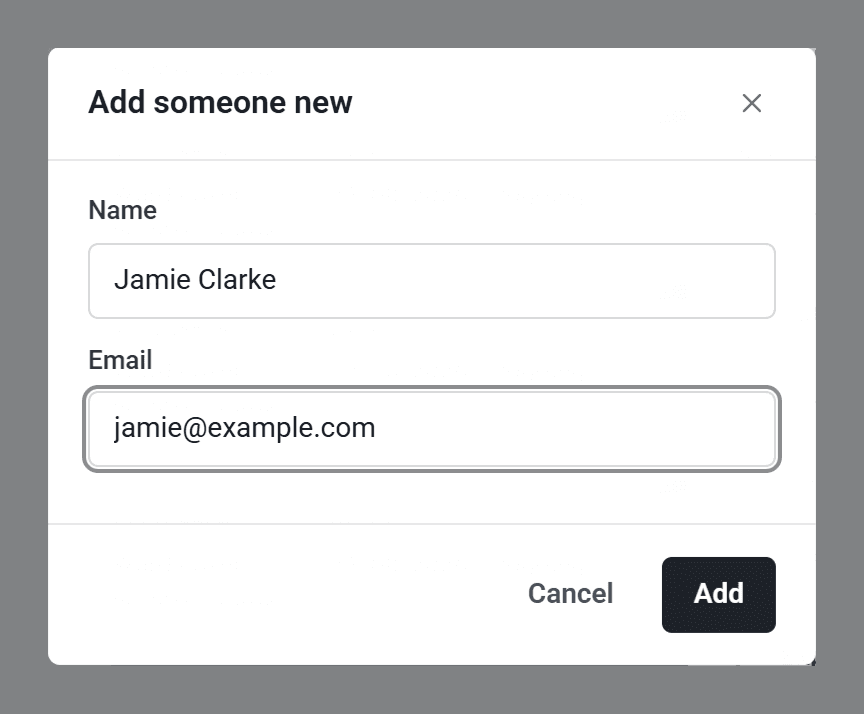
Choose them under Worker. If they’re new, click Add someone new… and type their name and email address.
- 4
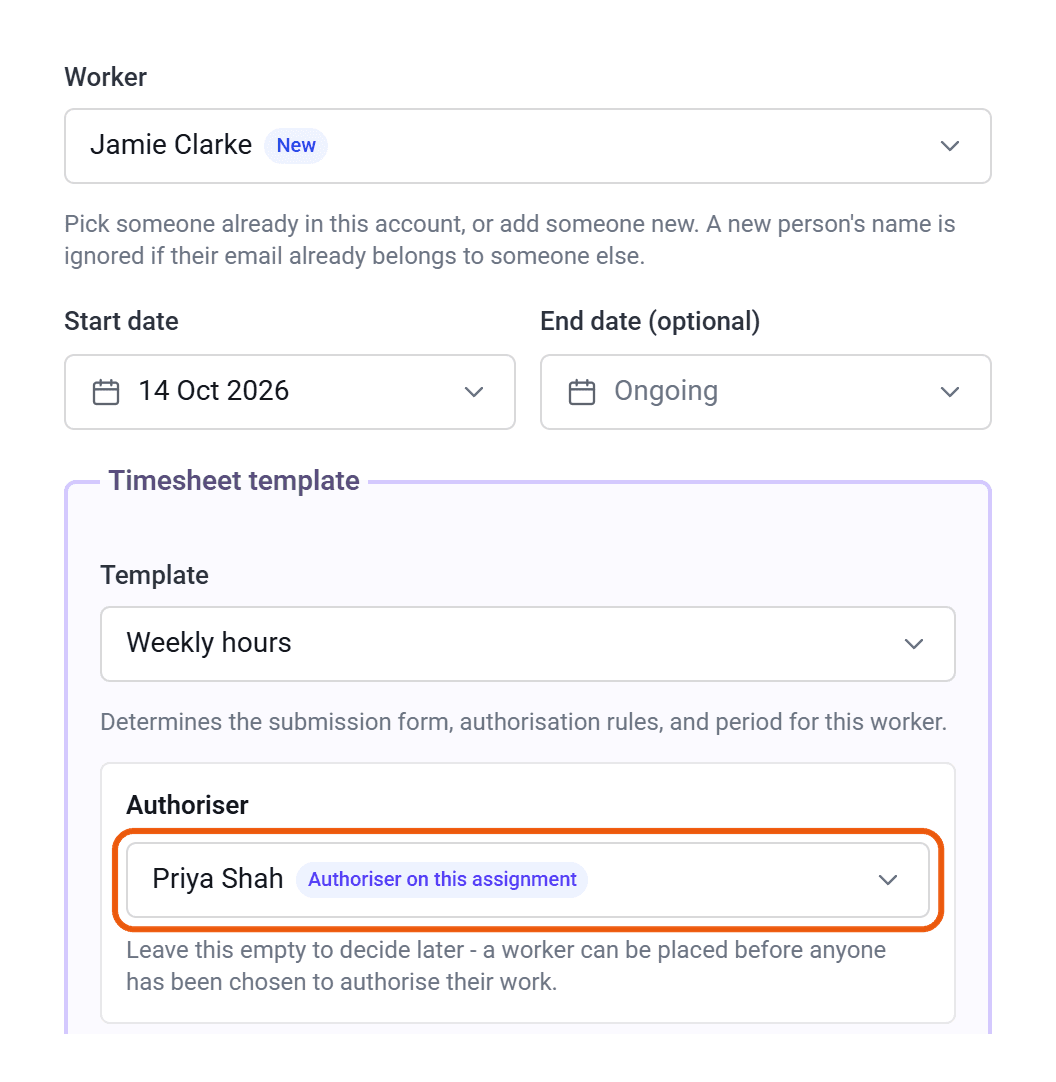
Check the Start date. It’s today unless you change it. Leave End date (optional) empty if they’re ongoing.
- 5
Under Timesheet template, choose their Template. Then choose their Authoriser, and fill in their pay and charge rates if you use them.
- 6
Click Add Worker.
You’ll land on their worker page. If you add from an assignment’s page, the assignment is already filled in.
If your account uses expenses, there’s an Expense template box too. Choose a template there for them to claim expenses, or leave it empty.
If you don’t choose an authoriser
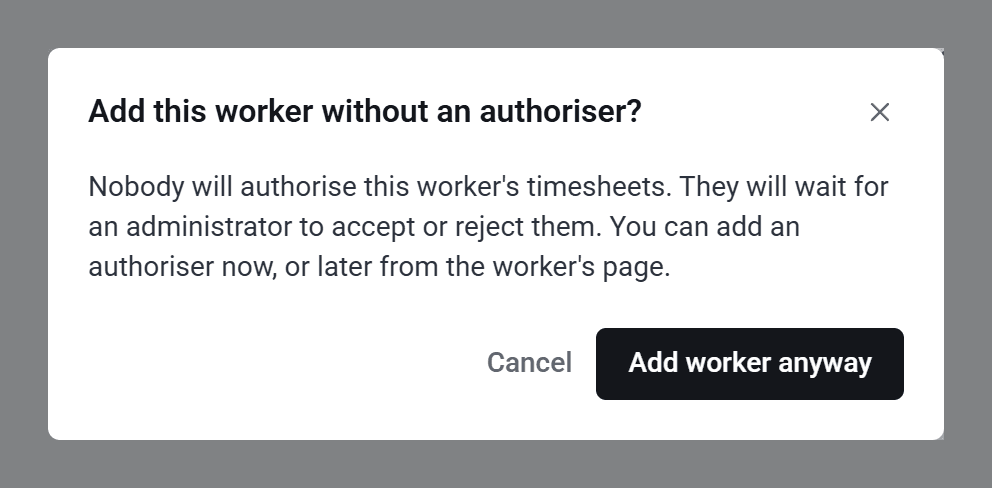
SaveTrees checks with you first. Their timesheets will then wait for an admin to accept or reject them. Click Add worker anyway to carry on, or Cancel to go back and choose someone. You can add an authoriser later from their worker page.
What they receive
- Someone new to SaveTrees gets an invitation email with a Set account password button. The link lasts 7 days.
- Someone who already uses SaveTrees is told they’ve been added to the assignment, and signs in as usual.
- Their authoriser is emailed the first time they become an authoriser with you.
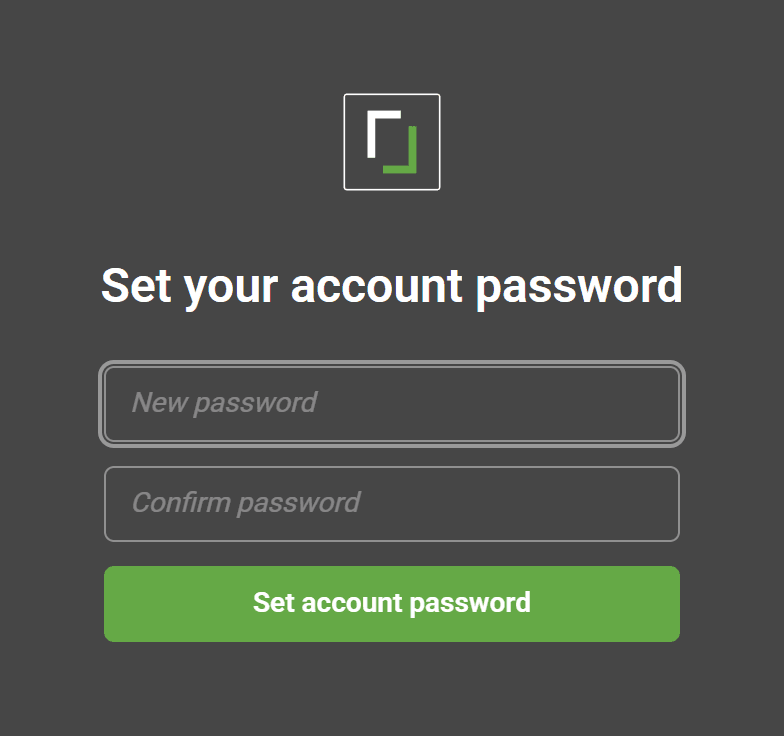
The invitation opens a Set your account password page. Once they’ve chosen a password, they sign in and can start filling in timesheets.
Check they’ve joined, or send it again
Go to People and click their name. Until they’ve set up their account, Last active says Never. To send the invitation again, click Resend request for Worker under Actions.
Typed their email address wrong? Click the pencil next to it on their People page and correct it. We send a new invitation to the new address, and the one sent to the wrong address stops working.
Good to know
- Someone can only be on each assignment once, so they’re greyed out in the list if they’re already on it. To bring back someone whose time has ended, click Restart assignment on their worker page.
- The same person can be on more than one assignment. Add them again and choose the other assignment.
- To add expenses for someone already on the assignment, use Set expense template on their worker page.
- If the template is set to Decide per worker, you choose how this worker’s timesheets are approved as you add them.
- Add Worker stays greyed out until you’ve chosen an assignment, a template and a start date.
Who can do this
Your account owner, and admins whose permission group includes Manage the Workers list. Other admins can fill in the form but get Not authorised. when they click Add Worker. See How do admin permissions work?