Timesheets · Get set up
How do I set pay and charge rates?
Set what you pay each worker and what you charge for them, so SaveTrees can work out costs and margins.
For admins · Updated 14 October 2026
Using SaveTrees v2? This works differently there. See the v2 guide
Give each worker a pay rate and a charge rate, and SaveTrees works out what every timesheet costs you, what you bill for it and the margin in between. Workers and authorisers never see any of it.
Set a worker’s rates
- 1Open Workers in your account(opens SaveTrees in a new tab)
Click Workers in the menu on the left, then click the worker’s name.
- 2
Under What’s required on this assignment, click Timesheet to open it.
- 3
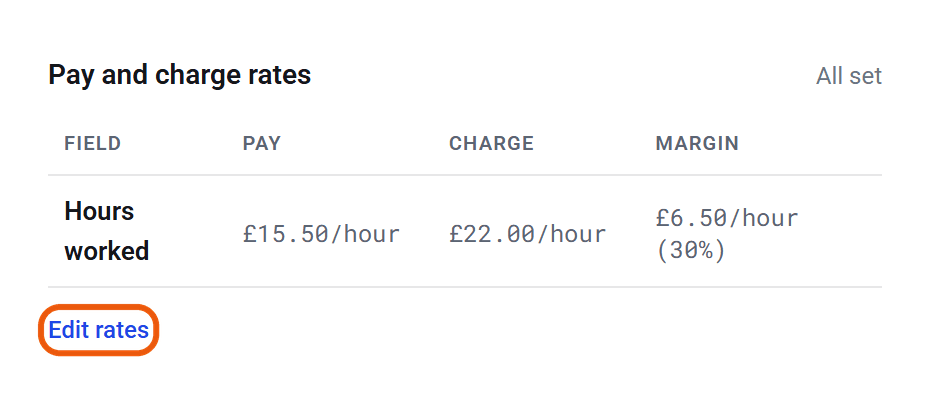
Under the Pay and charge rates table, click Edit rates.
- 4
Type a pay rate and a charge rate for each field. Use numbers only, and fill in both boxes for each field (0 is fine).
- 5
Click Save rates. It appears once you’ve changed something.
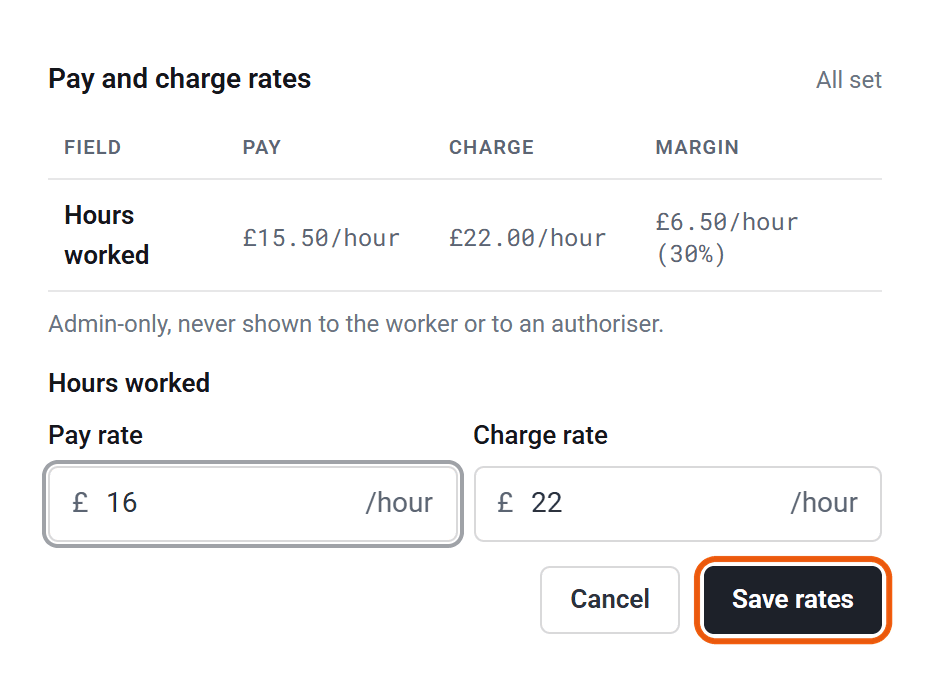
The table then shows each rate and your margin. A field with no rate says Not set. Timesheets still work without rates, they just can’t be costed.
You can also set rates when you add a worker, in the Pay and charge rates part of the Timesheet box.
Several workers at once
On the Workers list, tick the workers you want and click Change rates in the bar at the bottom of the screen. The rates are grouped by template. Fill in both boxes for each field you want to change, leave the rest empty to keep them as they are, and click Update rates. The boxes start empty rather than showing anyone’s current rates.
Which fields have rates
Only fields that capture financials can have rates. On a new account, Hours worked, Overtime and Day rate already do.
To add rates to another field, go to Settings, Timesheets, Timesheet templates, then Fields. Edit the field, switch on Capture financials, choose the currency and fill in the pay and charge account codes.
Expenses work differently. Mileage has one rate for everyone, set on the field, and other expenses use the amount the worker enters.
Where you’ll see the money
On the Timesheets list, switch to the Table detail view with the buttons next to the search box. It shows Pay amount and Charge amount for every line, with totals. Click the + at the end of the headings to add Margin, Margin % and the rates. A Detail download includes them too. See How do I download a list of timesheets?
Rates and amounts aren’t shown on the timesheet itself or its PDF.
Changing rates later
A timesheet keeps the rates it was sent with, so a new rate only affects drafts and timesheets sent from now on. A rejected timesheet picks up the new rate when it’s sent again. Timesheets sent before a field had any rate use the worker’s current one.
- Don’t change a field’s currency once it’s in use. Every rate and amount on it would be relabelled, with the same numbers. Make a new field instead.
- When your mileage rate changes, edit the rate on the mileage field. Claims already sent keep the rate they were sent with.
Who can do this
Your account owner, and admins whose permission group includes Manage the Workers list. Setting up which fields carry rates needs Manage Timesheet Fields & Templates.