Timesheets · Day to day
How do I download a list of timesheets?
Get your timesheets as an Excel or CSV file for payroll or invoicing, or have one emailed to you every week.
For admins and authorisers · Updated 13 October 2026
Using SaveTrees v2? This works differently there. See the v2 guide
Need your timesheets in a spreadsheet for payroll or invoicing? You can download whatever’s on your Timesheets list as an Excel or CSV file. If it’s something you need every week, SaveTrees can email it to you instead.
Download the list
- 1Open Timesheets in your account(opens SaveTrees in a new tab)
Click Timesheets in the menu on the left.
- 2
Narrow the list down to what you want in the file. For payroll, that’s usually Status, then Ready to export, so you only get accepted timesheets. Add a Date filter for the weeks you’re paying.
- 3
Click the arrow next to Download and pick a format.
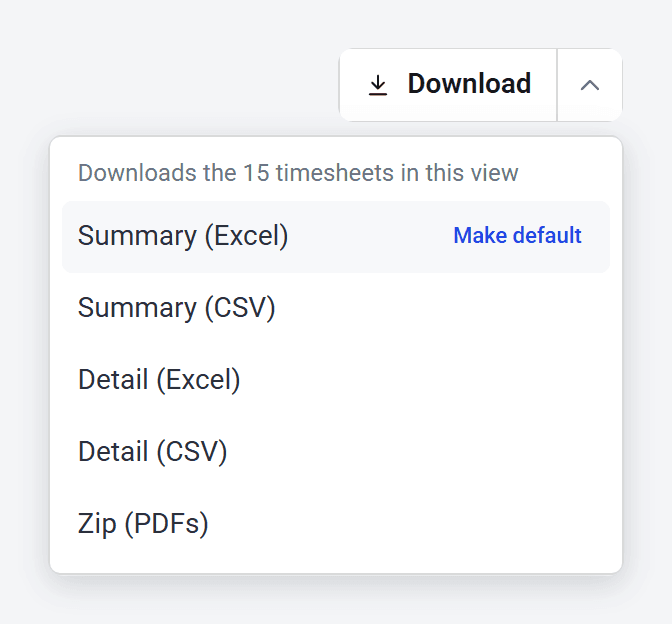
The file matches your list exactly: the same filters, search, order and columns. It includes everything that matches, not just the timesheets you’ve scrolled past.
If you leave Status on everything, a Summary file includes Missing and Current weeks too, with no hours. That’s why it’s worth filtering first.
Summary or detail?
- Summary has one row per timesheet, with its total.
- Detail has one row per entry, so each day’s hours, times and breaks are on their own line, with a total at the bottom.
- Excel keeps dates, times and money as proper values you can add up. CSV is plain text, for importing into payroll or accounts software.
The first line of each file is a heading, and the column names are on the second line. If your payroll software expects the column names first, delete the top line of the CSV before you import it.
Which formats you see depends on how the list is laid out, using the three buttons next to the search box. Cards offer everything, the summary table offers Summary files, and the detail table offers Detail files. For a zip of the PDFs themselves, see How do I download a timesheet as a PDF?
Save it as a view
If you download the same thing often, save your filters as a view and pick a favourite format, so it’s one click next time.
- 1
Set the list up the way you want it.
- 2
In the Download menu, point at your usual format and click Make default. The button now says, for example, Download Summary (Excel).
- 3
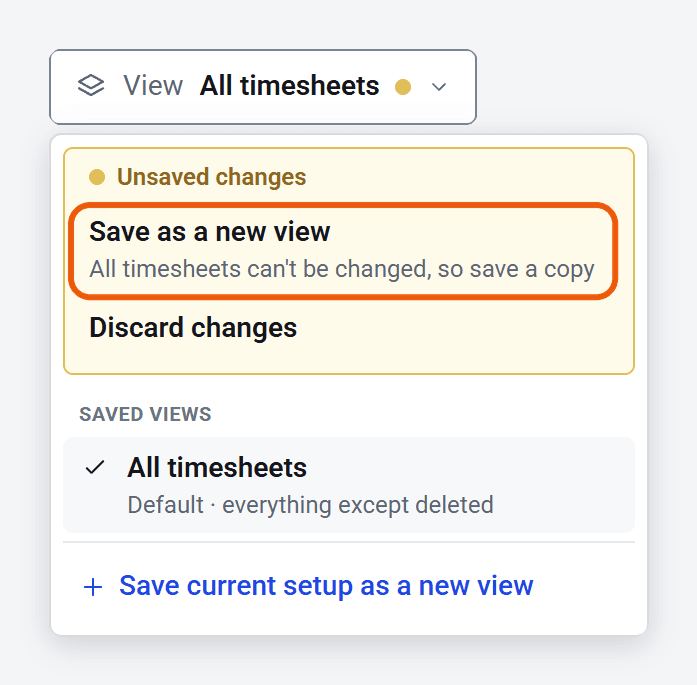
Click View at the top left. You’ll see Unsaved changes. Click Save as a new view.
- 4
Give it a name, check the Default download, and click Save view.
Your view is now in the View menu whenever you need it. Admins can choose All admins under Who can use it to share it with the other admins.
If you click Make default but don’t save the view, it’s forgotten when you leave the list.
Have it emailed to you
When you save a view, switch on Email the results to get the file by email on a schedule.
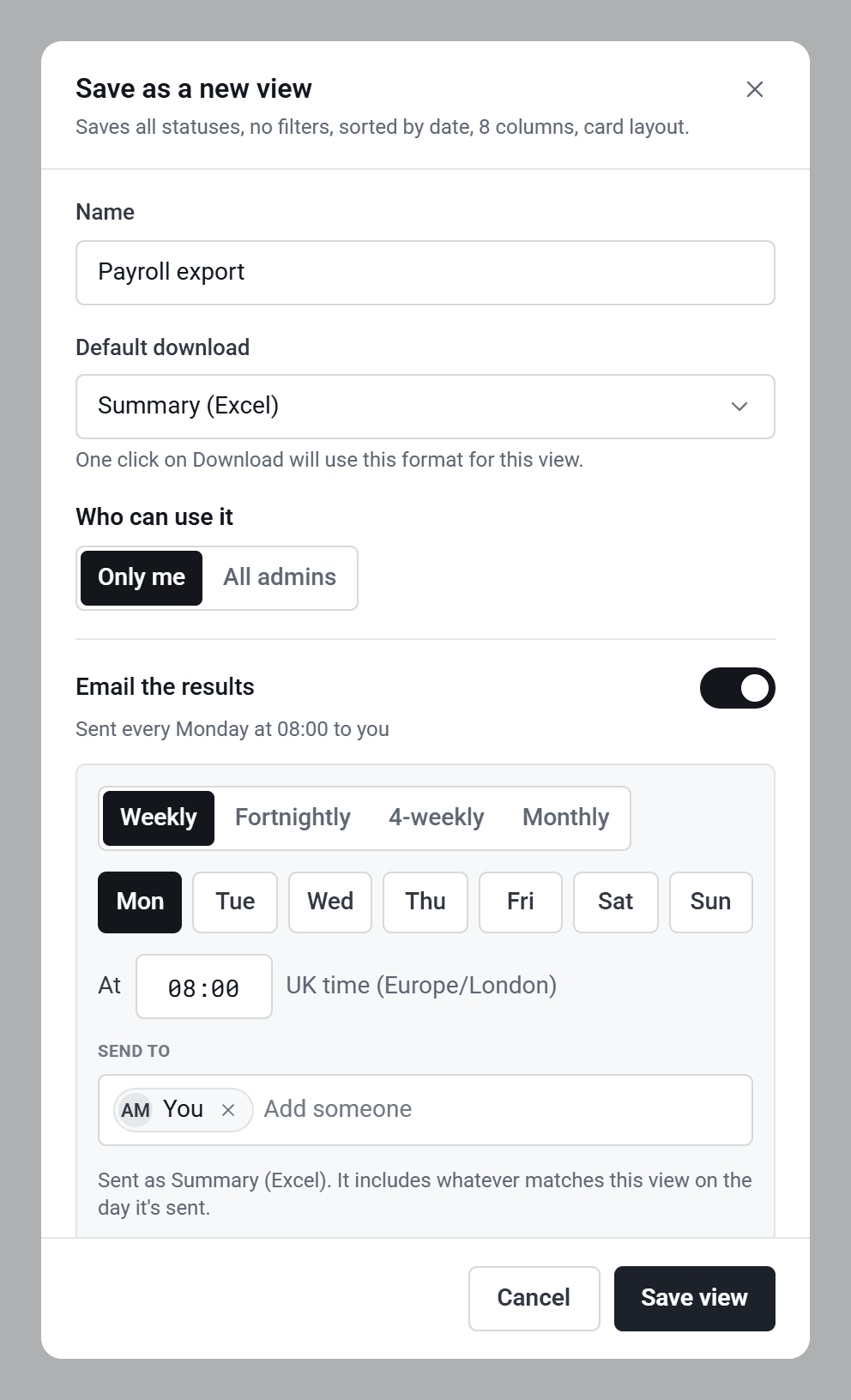
- Choose Weekly, Fortnightly, 4-weekly or Monthly, the day and the time.
- Each email has the view’s default download attached, with whatever matches the view on the day it’s sent.
- If the view uses fixed dates, every email would have the same timesheets in it. You’ll get a note with a button to switch to a rolling range, like last week, instead.
- Admins can add other people under Send to. If you add someone who isn’t an admin, or someone outside your organisation, you’ll be asked to confirm, because they’ll get pay and charge rates too if those columns are in the view.
Authorisers can have a view emailed to themselves only. Admins can see every emailed view, and stop any they made, in Settings under Saved views.
Who gets what
- Admins download every timesheet in the account. Only admins see pay and charge rates.
- Authorisers download the timesheets they approve. Their list starts on Pending, so change Status first if you want the others.
- Workers can download their own timesheets in the same way.
Stuck?
- “There are no timesheets in this view to download.” Nothing matches your filters. Click Clear filters and try again.
- “That download could not be prepared. Try again.” Try again in a moment. If it keeps happening, sign out and back in.
- I can’t see the format I want. Switch the list to cards, using the buttons next to the search box. Cards offer every format.
- On a phone, the Download button is under the ⋯ button at the top of the list.