Timesheets · Day to day
How do I submit a timesheet?
Pick the period, fill in your days, and send it to your authoriser.
For workers · Updated 14 October 2026
Using SaveTrees v2? This works differently there. See the v2 guide
Each timesheet covers one period, such as a week or a month, depending on how your organisation has set you up. Fill it in as you go, then send it to your authoriser when it’s done.
Open your timesheet
- 1Open Timesheets in your account(opens SaveTrees in a new tab)
Click Timesheets in the menu on the left.
- 2
Find the period you want. The one that’s running now says Current, and any you haven’t sent for past periods say Missing. Click it, or click its +.
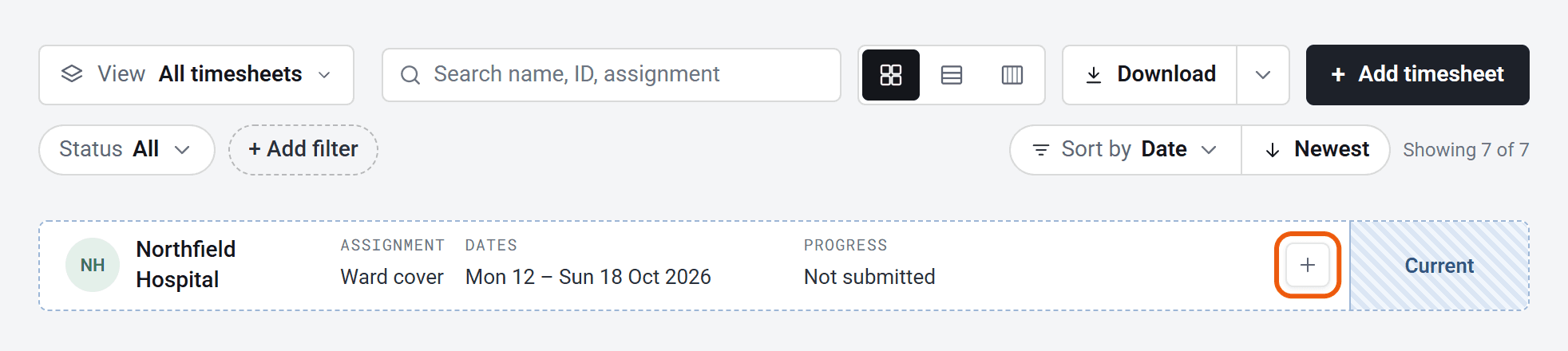
Can’t see it? Click Add timesheet, choose the assignment if you have more than one, then click the period. Only periods without a timesheet are listed, and periods that haven’t started yet aren’t shown.
Fill it in
There’s a card for each day. What you fill in depends on your organisation: start and finish times, hours, part of a day, or miles.

- Type times as 9, 0930 or 9:30. A dot or am/pm, such as 9.30 or 9am, won’t be read.
- Type seven and a half hours as 7:30 or 7.5, whichever you prefer.
- On a phone, tap a box, turn the wheels, then tap Done.
- To add something that isn’t showing on a day, such as overtime, click Add row under that day.
- To copy a day, point at its date and click the copy icon, then click the paste icon on the day you want it on.
The Totals at the bottom add everything up.
Save or send it
Click Save as draft to carry on later. When it’s complete, click Send for authorisation. You need at least one day filled in.

You’ll go back to your list and see Timesheet sent for authorisation. We don’t email you a copy.
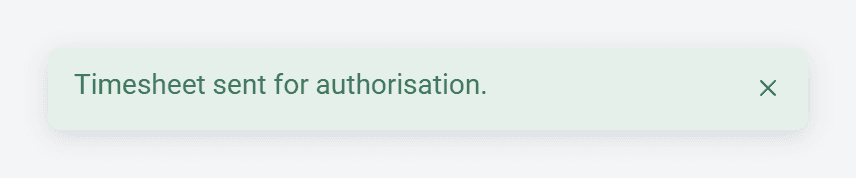
If you click away with changes you haven’t saved, SaveTrees asks whether to save them first. Your browser’s Back button doesn’t ask, so save before you use it. Cancel changes puts your timesheet back to how it was when you last saved.
After you send it
- Pending: waiting for your authoriser. You can’t change it now, but you can delete it if you sent it by mistake. That clears what you entered, so you’d fill it in again.
- Accepted: approved, and nothing more to do. We email you a copy as a PDF.
- Rejected: sent back to you with a reason, and we email you. See below.
- A timesheet you’ve saved but not sent still says Current or Missing, with a small Draft label.
Once you’ve sent it, you can click Download PDF at the bottom of the timesheet.
If your timesheet is rejected
- 1
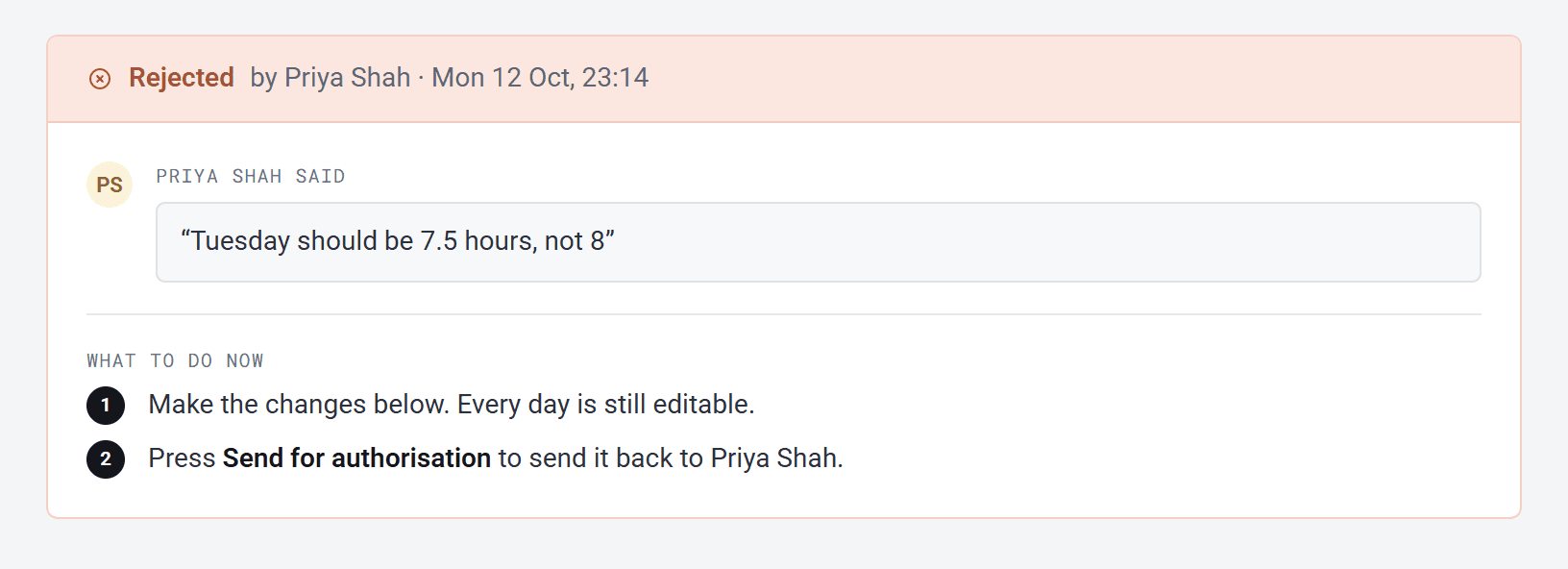
Open it from the email (Open timesheet) or from your list. The reason is shown under the timesheet details.
- 2
Make the changes. Every day can still be edited.
- 3
Click Send for authorisation to send it back.
If you save it as a draft in the meantime, it stays Rejected and the reason stays on the page until you send it again. A rejected timesheet can’t be deleted.
You can turn the accepted and rejected emails off in Settings, under Email preferences.