Timesheets · Day to day
How do I change a worker’s dates, give them a break or end their assignment?
Move someone’s start or end date, pause them for a holiday, or finish their time on an assignment.
For admins · Updated 13 October 2026
Using SaveTrees v2? This works differently there. See the v2 guide
Everything about one person’s time on an assignment lives on their worker page. Click Workers in the menu on the left, then click their name. If they’re on more than one assignment, they have a row for each.
Change their dates
- 1Open Workers in your account(opens SaveTrees in a new tab)
Open the worker’s page.
- 2
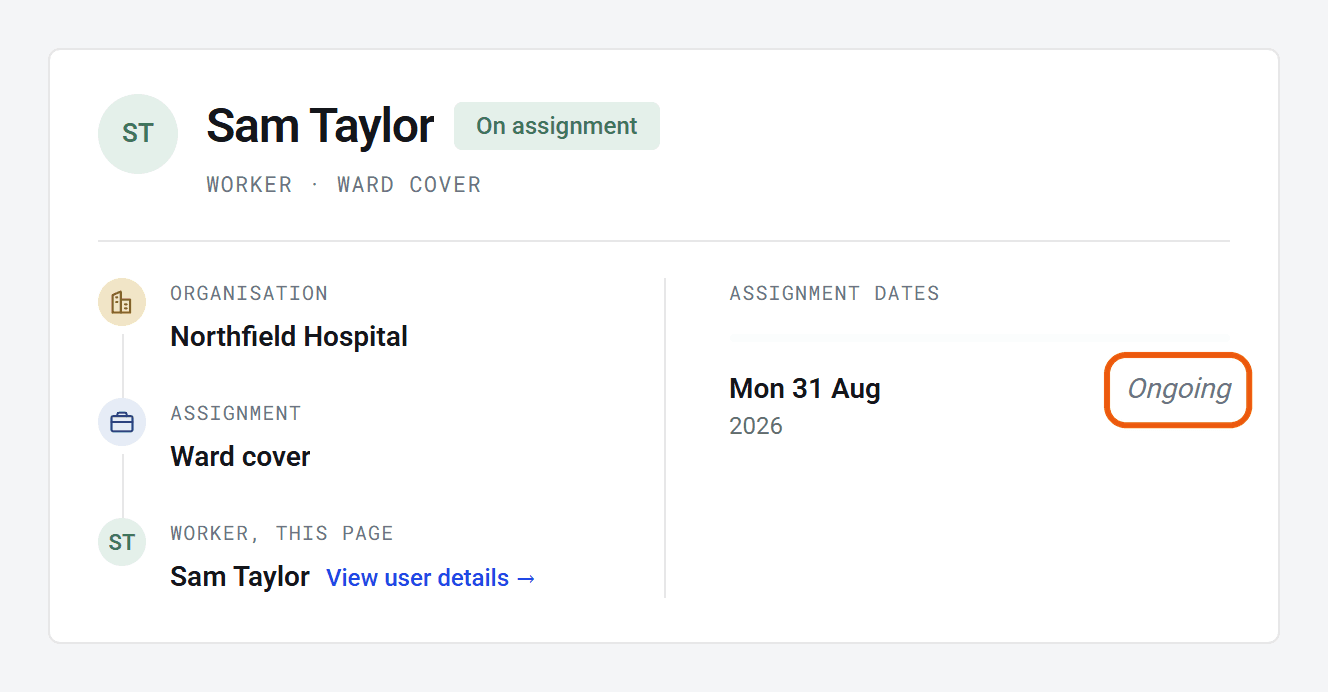
Under Assignment dates, click the start or end date.
- 3
Pick the new date. It saves straight away, so there’s no Save button. To make the assignment ongoing again, open the end date and click Clear.
- Nobody is told about the change, so let the worker and their authoriser know if it matters to them.
- Moving the start earlier adds weeks for them to fill in. Moving the end earlier, or the start later, takes away empty ones. Timesheets they’ve already sent stay as they are.
- Their expenses use the same dates, so they move too.
- If they have a break booked, check it still falls inside the new dates.
When the end date arrives
Letting the end date pass is the usual way to finish someone’s time on an assignment. On that date their worker page shows Ended (the Workers list says Archived), and SaveTrees stops sending them reminders. Any timesheets they haven’t sent stay on the Timesheets list as Missing until they send them, so chase those yourself.
Give them a break
For holidays or other time off, add a break. The days in a break are taken off their timesheet, and if a break covers a whole week (or whatever period they fill in), that week isn’t expected or chased.
- 1
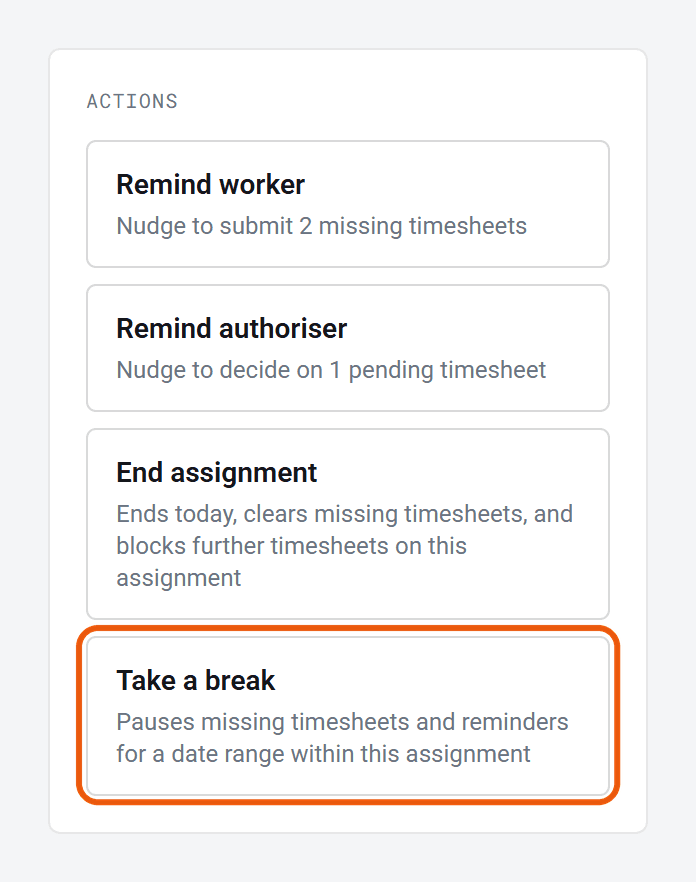
On the worker’s page, click Take a break under Actions.
- 2
Choose the First day away and the Last day away, then click Add break.
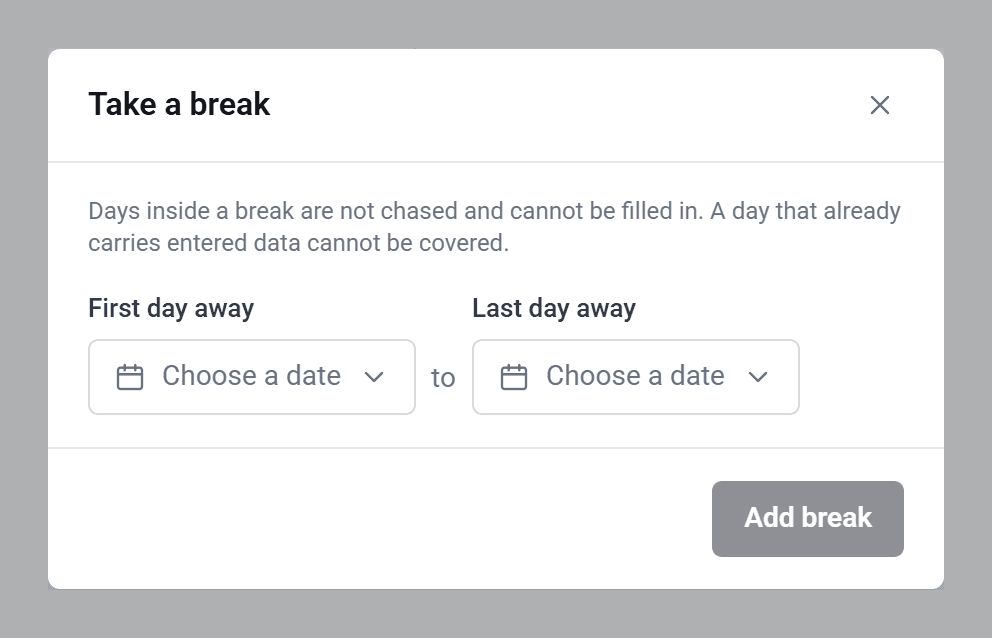
A break only lets someone off a whole period. A three-day break in the middle of a weekly timesheet still leaves that week to send, just without those days. You can’t add a break over days that already have hours on them, even in a draft.
Breaks are listed under Assignment dates. Click either date to change it, or click Delete to remove the break.
End their assignment
End assignment finishes their time on the assignment today. Any timesheets they haven’t sent are cleared, so they no longer show as Missing, and they can’t send anything else for it. Use it when you don’t expect anything more from them.
- 1
On the worker’s page, click End assignment under Actions.
- 2
Click End assignment to confirm.
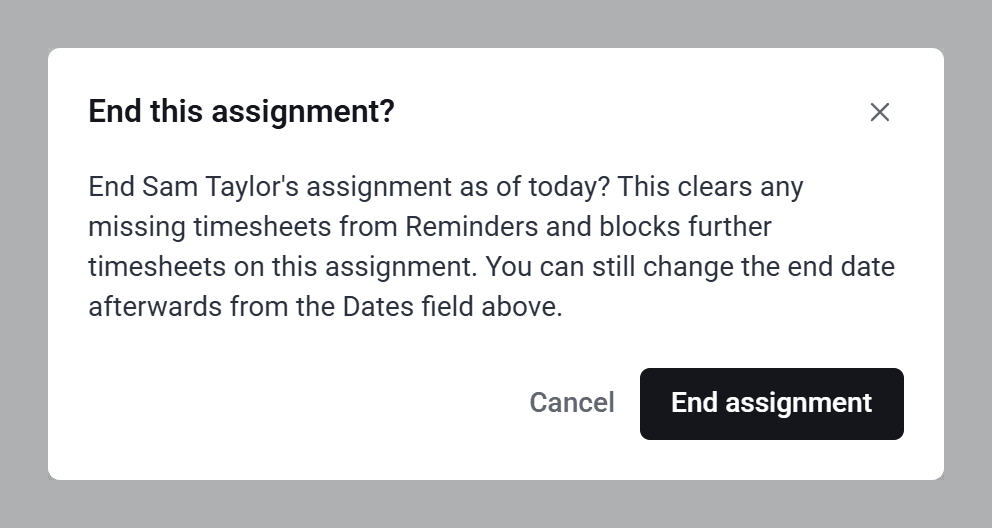
If you change their dates after ending the assignment, the cleared weeks come back as Missing.
Bring someone back
Once an assignment has ended, Restart assignment appears in its place. Choose the new dates and click Restart assignment. They keep their template and history, but their authorisers and pay and charge rates are cleared, so add those again. Nobody is told.
Several workers at once
On the Workers list, tick the workers you want, then use the bar at the bottom of the screen: Change dates or End assignment. Breaks and restarts are one worker at a time.
Who can do this
Your account owner, and admins whose permission group includes Manage the Workers list. Other admins can see these controls, but get Not authorised. when they try to save. If you end several workers at once and nothing changes, check you have this permission. See How do admin permissions work?