Timesheets · Day to day
What do the timesheet statuses mean?
Missing, Current, Pending, Accepted, Rejected: what each one means and what to do next.
For workers, authorisers and admins · Updated 13 October 2026
Using SaveTrees v2? This works differently there. See the v2 guide
Every timesheet in your list has a status, so you can see at a glance where it’s got to. Here’s what each one means.
Before it’s sent
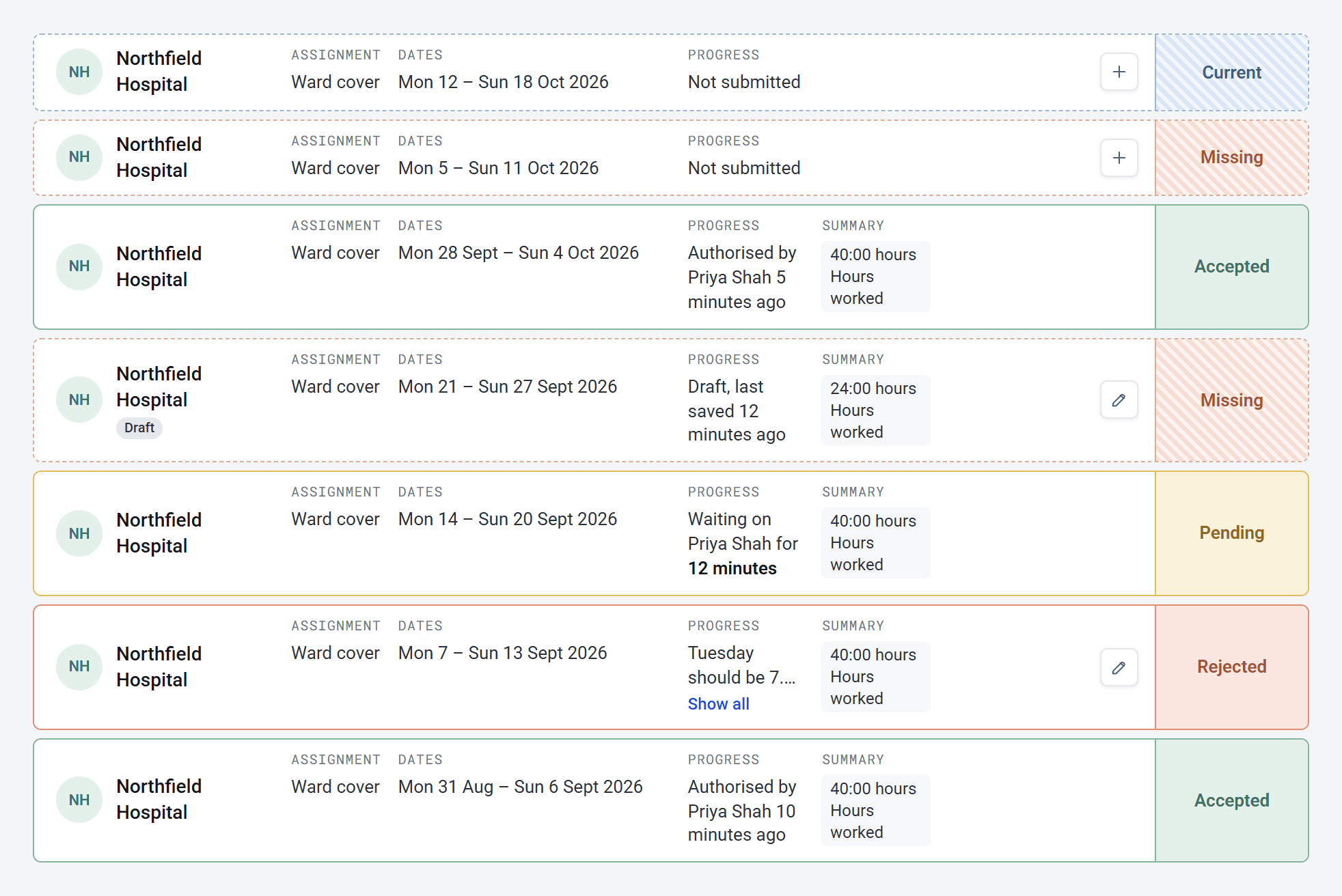
- Current is the week you’re in right now, with nothing sent for it yet. You can start filling it in whenever you like.
- Missing is a week that’s finished without a timesheet being sent. These are the ones to catch up on.
- Draft means you’ve started it and saved it, but haven’t sent it yet. The week still shows as Current or Missing, with a small Draft label under the organisation’s name. Only you can see it.
After it’s sent
- Pending means it’s been sent and is waiting for your authoriser. Your list says who it’s waiting on and for how long. You can’t change it now, but you can delete it if you sent it by mistake.
- Accepted means it’s been approved. There’s nothing more to do, and you’ll get an email with a PDF copy.
- Rejected means it’s been sent back to you. The reason is shown on the timesheet. Make the changes and send it again.
Your timesheets might not be weekly. Your organisation decides how long each one covers, so for you a week might be a fortnight, a month or a single day.
If you approve timesheets
Your list opens on Pending, showing what’s waiting for you. You won’t see drafts or missing weeks. Those are between the worker and their organisation until something is sent.
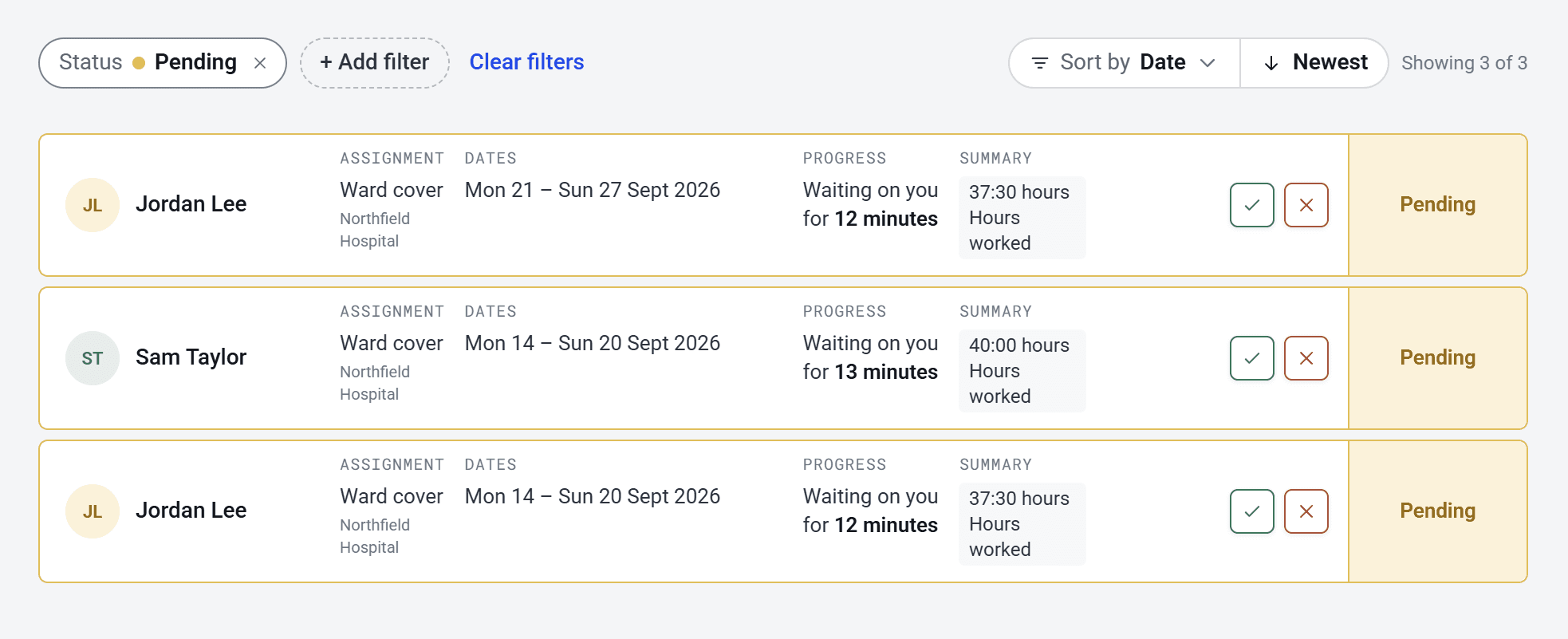
If a timesheet has more than one authoriser, it stays Pending until everyone who needs to has accepted it. A single rejection sends it straight back.
If you’re an admin
You see everyone’s timesheets. Drafts stay private until they’re sent, so a week someone has started but not sent still shows to you as Missing or Current.
Showing just one status
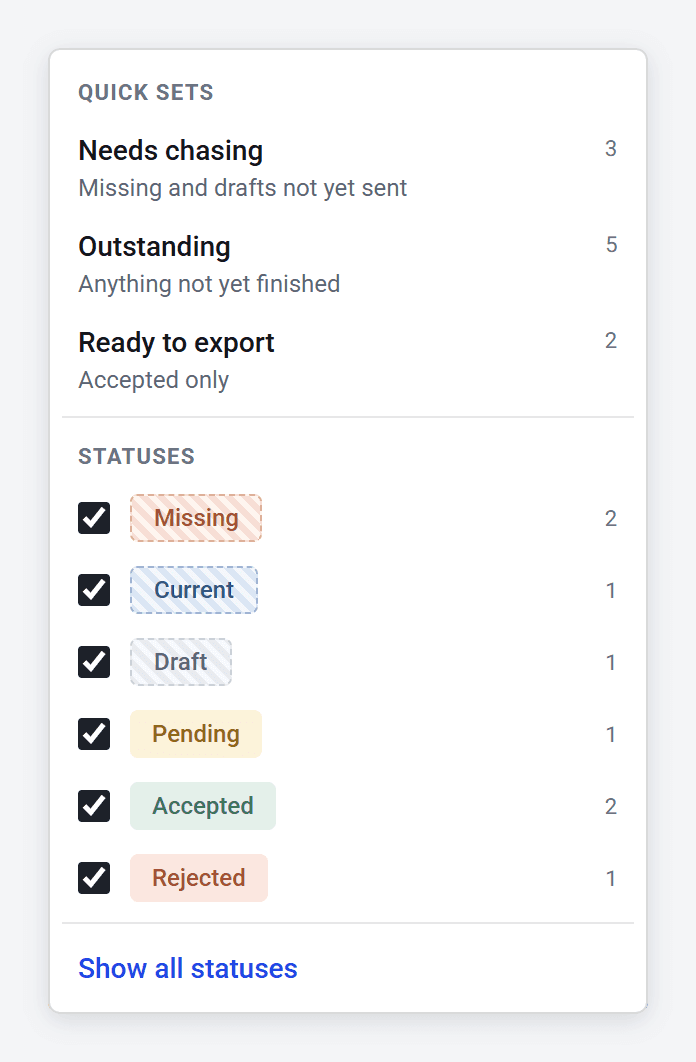
Use the Status filter at the top of your Timesheets list to pick the ones you want. It also has a couple of handy shortcuts: Needs chasing shows everything missing or still in draft, and Outstanding shows everything missing, current, in draft or pending. Outstanding leaves out rejected ones, so tick Rejected as well if you want to see those.