Timesheets · Day to day
How do I accept or reject a timesheet?
Find what’s waiting for you, accept it, or send it back with a reason. Several at once, too.
For authorisers · Updated 14 October 2026
Using SaveTrees v2? This works differently there. See the v2 guide
When a timesheet needs you, we email you to say so. Click Review now in the email and you’ll go straight to it. If you’re not signed in, you’ll sign in first and then land on it.
Find what’s waiting for you
- 1Open Timesheets in your account(opens SaveTrees in a new tab)
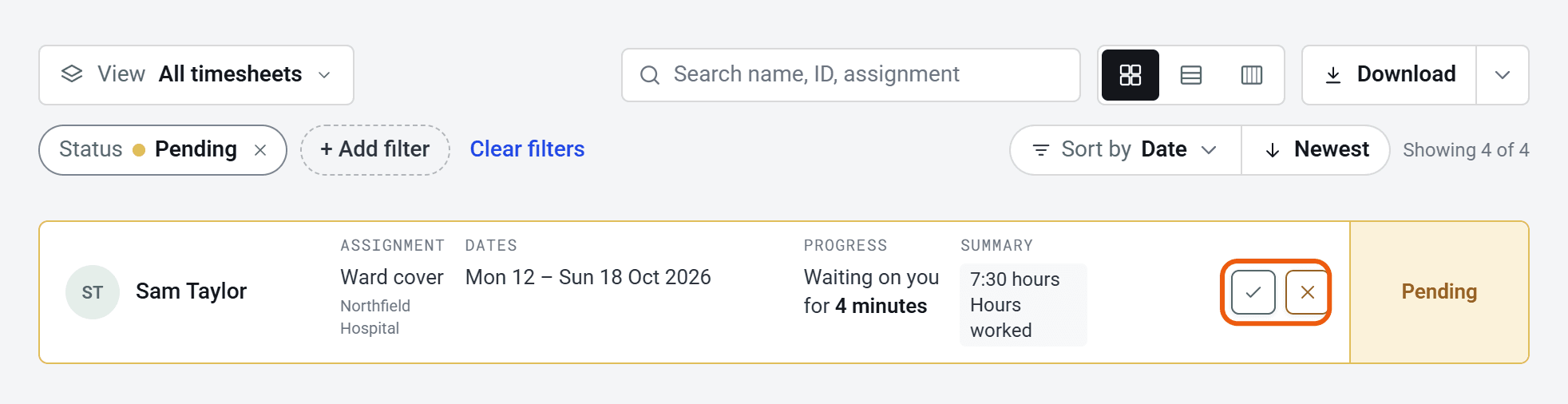
Click Timesheets in the menu on the left. It opens on the ones that are Pending.
- 2
A card that’s waiting on you says so, for example Waiting on you for 2 days, and has a tick and a cross at the end.
Your Dashboard also shows how many are pending authorisation.
Accept it
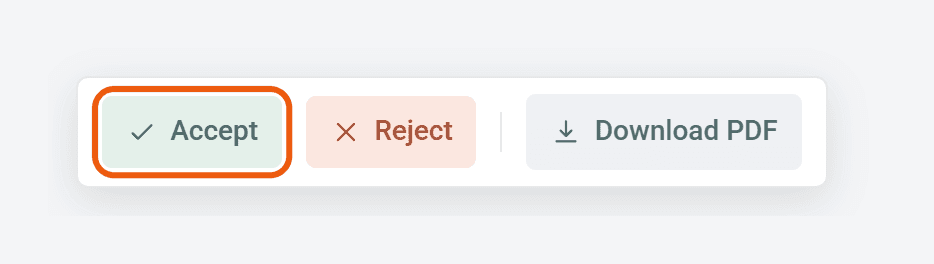
Open the timesheet, check it, then click Accept at the bottom. You can also click the tick on its card. There’s nothing to confirm, and it’s done.
Once enough people have accepted it, the worker is emailed a copy.
Reject it
- 1
Click Reject at the bottom of the timesheet, or the cross on its card.
- 2
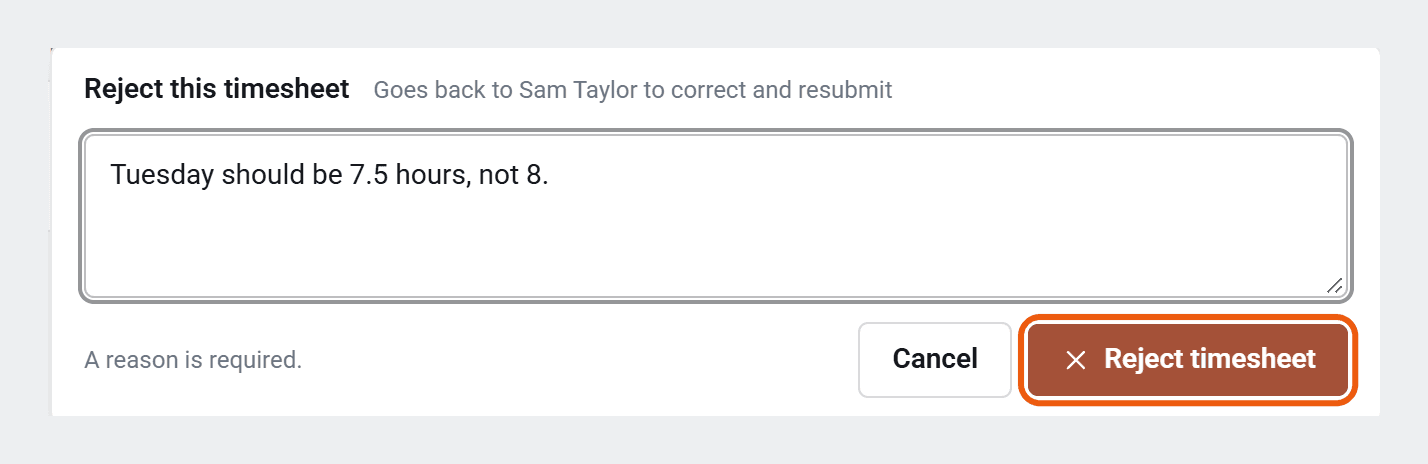
Type what needs changing. You have to give a reason.
- 3
Click Reject timesheet.
It goes back to the worker straight away, and we email them your reason. When they’ve fixed it and sent it again, we email you again.
Several at once
On a computer, tick the boxes on the cards you want, then click Accept or Reject in the bar at the bottom of the screen. When you reject several, the same reason goes to each worker. Any that aren’t waiting on you are skipped.
When more than one person approves
- If a timesheet needs several approvals, it stays Pending until it has enough. Each card shows who it’s waiting on.
- If approvals go in stages, wait until the stage before yours has accepted. If you click Accept too early, you’ll see It isn’t this stage’s turn to authorise yet.
- You can reject at any stage, and one rejection sends it back to the worker.
Your role on each assignment decides which emails you get: Primary gets every notification, Backup is notified if the primary doesn’t act, and Access can view and authorise but gets no emails. You’ll see your role on the assignment’s page under Assignments.
Changed your mind?
You can’t undo a decision yourself. Ask an admin: they can undo an acceptance. A rejection can’t be undone, but the worker can send the timesheet again.
Downloads and emails
- Click Download PDF at the bottom of a timesheet, or Download above your list for a spreadsheet.
- To change which emails you get, go to Settings and Email preferences. Turning off Email me immediately when something needs my authorisation also stops the follow-up reminders.
Approve expense claims too? See How do I accept or reject an expense claim?