Expenses · Day to day
How do I accept or reject an expense claim?
Check a claim that’s waiting for you, then accept it or send it back with a reason.
For authorisers · Updated 14 October 2026
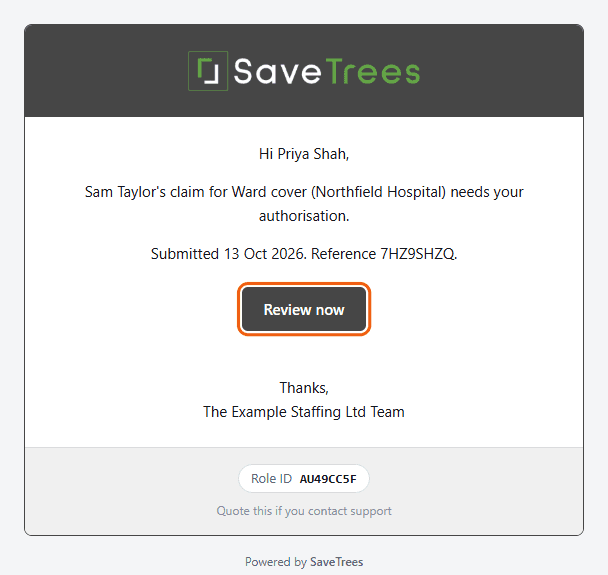
When someone sends you an expense claim, we email you. Click Review now in the email and you’ll go straight to the claim. If you’re not signed in, you’ll sign in first and then land on it.
Find what’s waiting for you
- 1Open Expenses in your account(opens SaveTrees in a new tab)
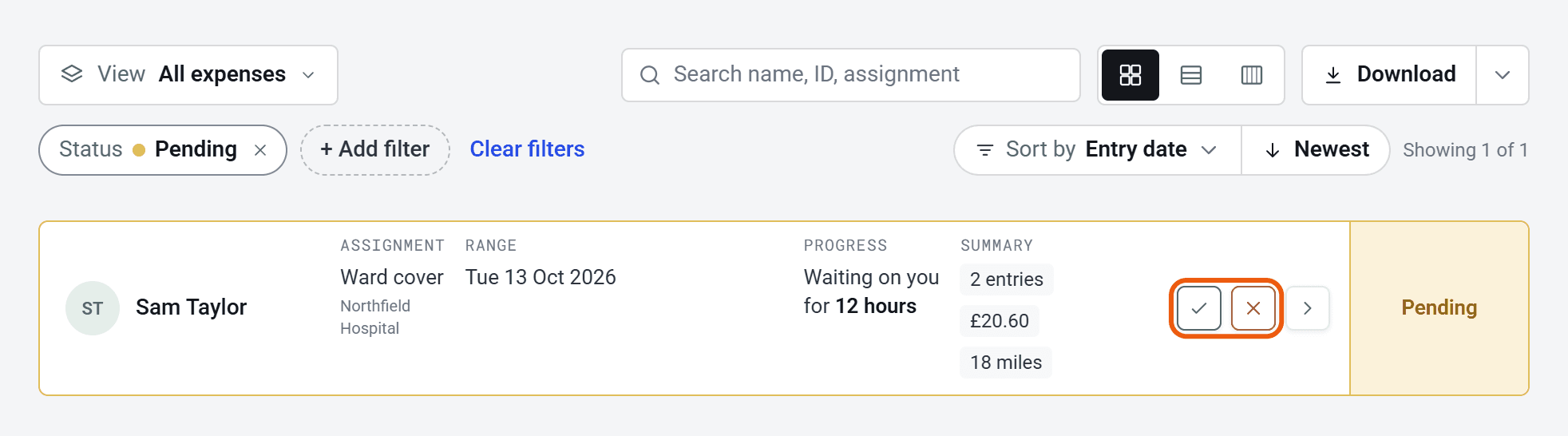
Click Expenses in the menu on the left. It opens on the claims that are Pending.
- 2
A claim that’s waiting on you says so, for example Waiting on you for 2 days, and has a tick and a cross at the end.
Accept it
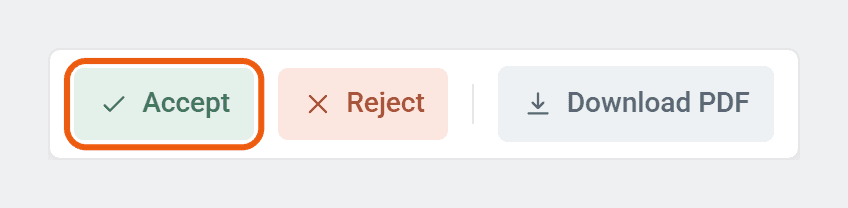
Open the claim and check what was spent on each day and the total. If it’s right, click Accept at the bottom, or the tick on its card. There’s nothing to confirm, and it’s done.
Once it’s accepted, we email the worker a copy.
Reject it
- 1
Click Reject at the bottom of the claim, or the cross on its card.
- 2
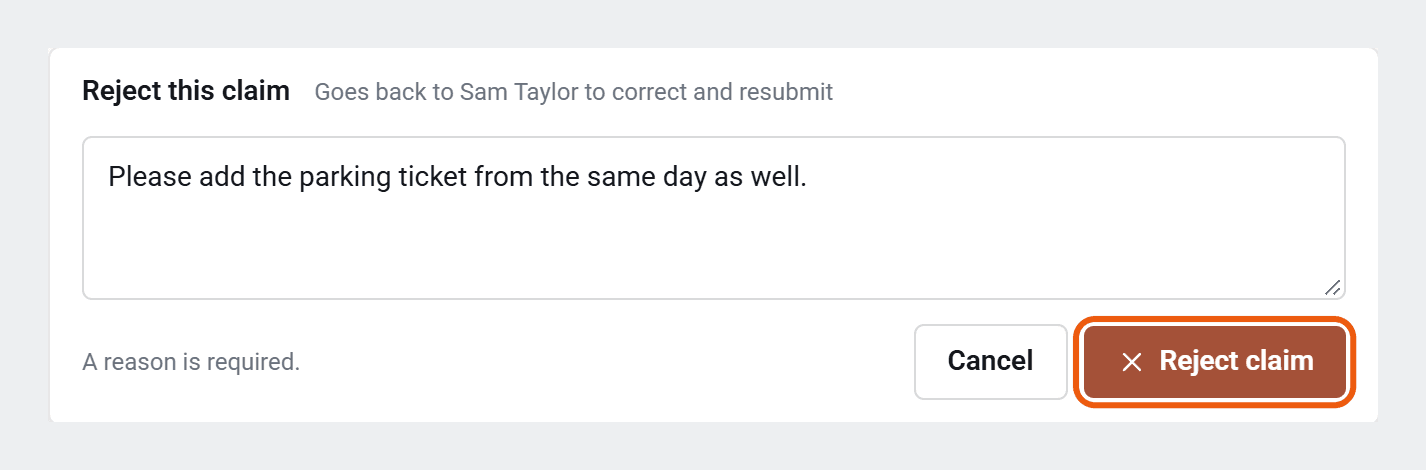
Type what needs changing. You have to give a reason.
- 3
Click Reject claim.
It goes back to the worker straight away, and we email them your reason. When they’ve fixed it and sent it again, we email you again.
Changed your mind?
You can’t undo a decision yourself. Ask an admin: they can undo an acceptance, or reopen the claim so it can be changed. If you rejected it, the worker can fix it and send it again.
Good to know
- Click Download PDF at the bottom of a claim for a copy to keep.
- Your role on the assignment decides which emails you get, just as it does for timesheets. See Getting started as an authoriser.
- Your Email preferences in Settings cover expense claims and timesheets together.
- Approve timesheets too? See How do I accept or reject a timesheet?