Your account · Get set up
Getting started as an authoriser
Been asked to approve timesheets or expense claims? Set up your account and approve your first one.
For authorisers · Updated 14 October 2026
Someone has asked you to check and approve timesheets, expense claims or both in SaveTrees. It only takes a minute to get set up, and after that we’ll email you whenever something needs you.
Set up your account
- 1
Look for an email inviting you to become an authoriser on their timesheet or expense system, and click Set account password.
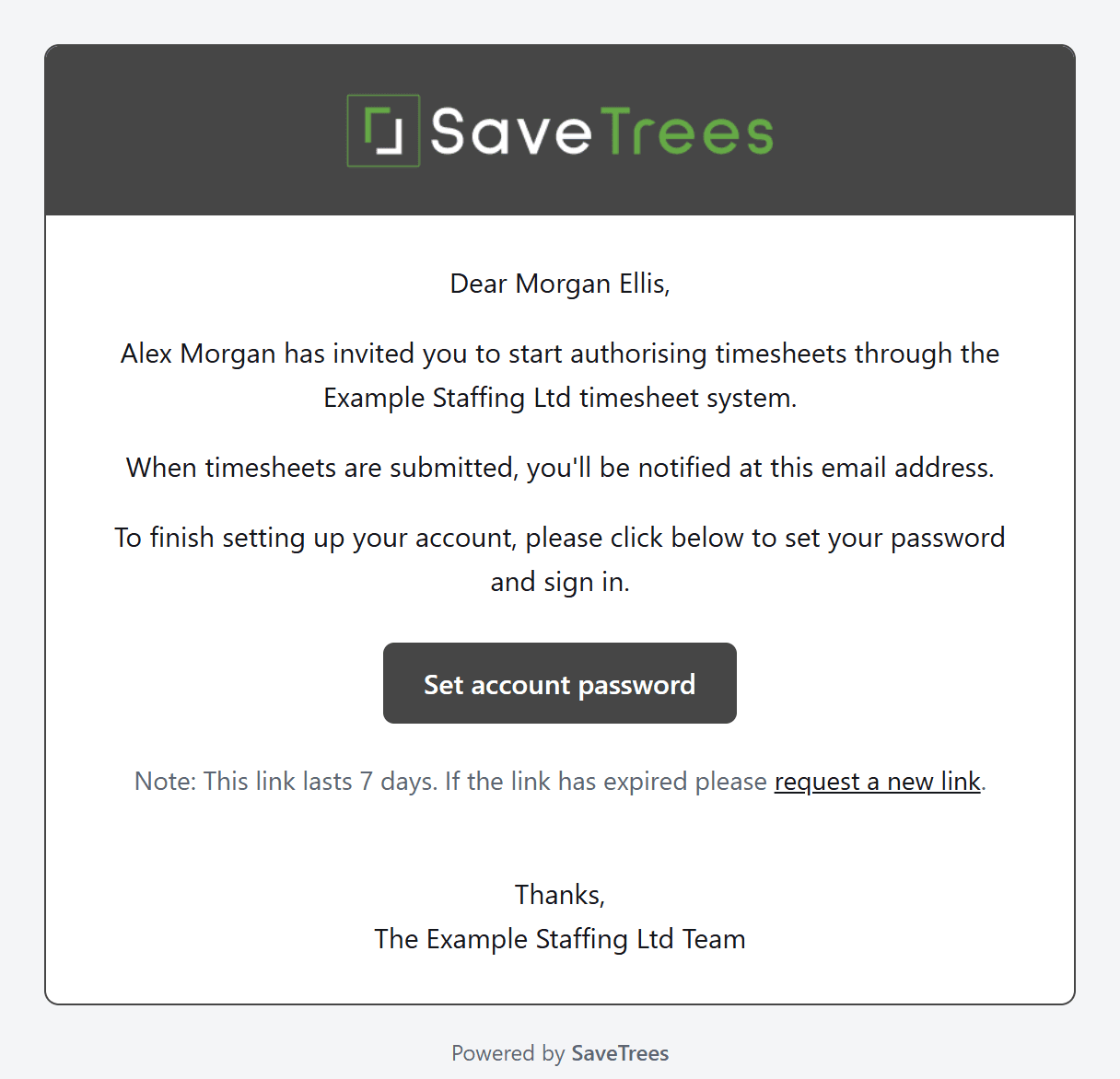
- 2
Choose a password at least 12 characters long, type it into both boxes and click Set new password.
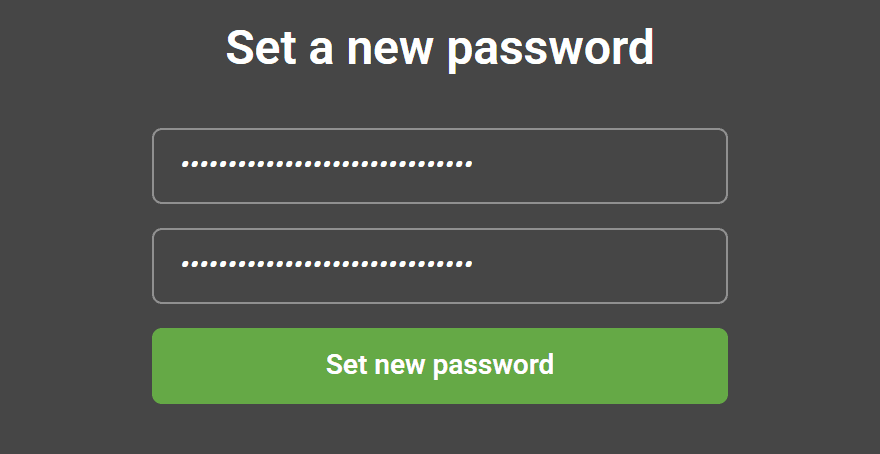
- 3
Sign in with your email address and your new password.
The link in the email works for 7 days. If it’s run out, ask whoever invited you to send a new one.
Already use SaveTrees with a password? Then you’ll get a shorter email saying you’ve been made an authoriser, and you just sign in as normal. If you have more than one role, see How do I switch between accounts or roles?
When something needs you
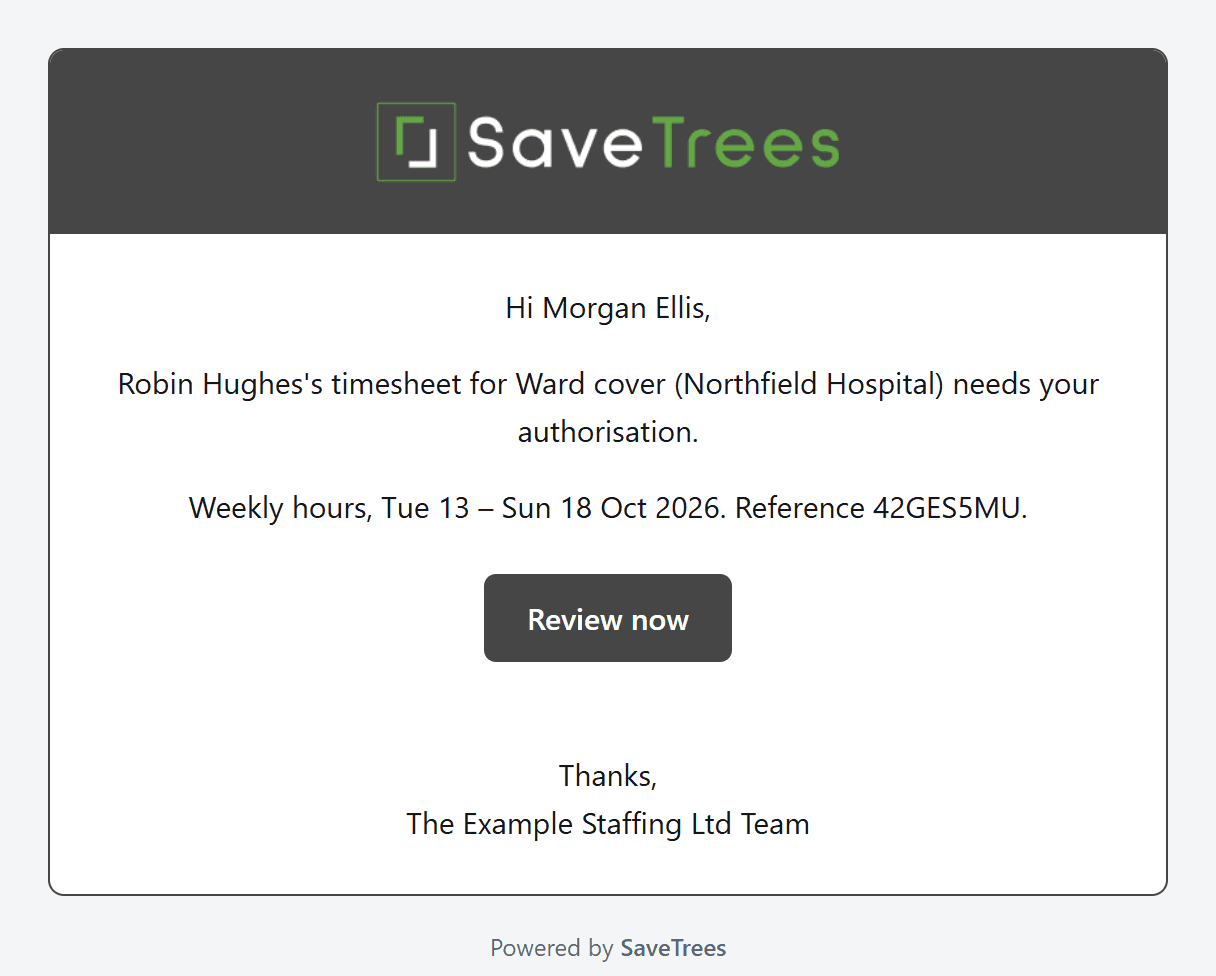
When someone sends you a timesheet or an expense claim, we email you. Click Review now in the email to open it. If you’re not signed in, you’ll sign in first and then go straight to it.
You can also sign in whenever you like. You start on what’s waiting for you: your Timesheets list, or Expenses if you only approve expense claims. If you approve both, expense claims are under Expenses in the menu, which opens the same way.
Accept or reject it
- 1
Open the timesheet or claim and check it.
- 2
If it’s right, click Accept.

- 3
If something needs changing, click Reject, say what needs changing and click Reject timesheet or Reject claim. You have to give a reason.
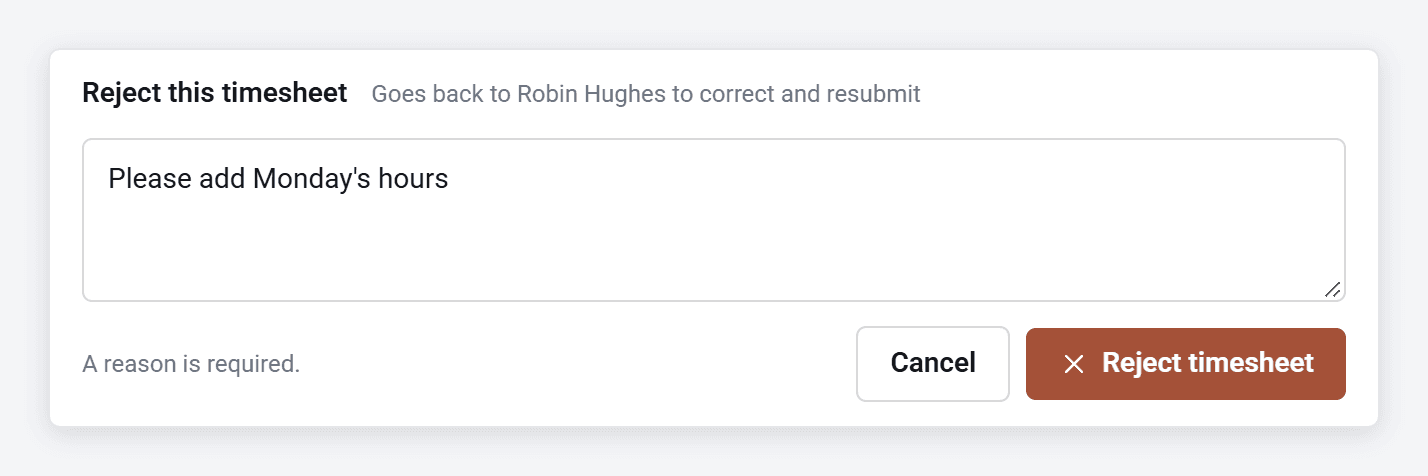
When you accept, its status changes to Accepted and the worker is emailed a copy. When you reject, the worker is emailed your reason, makes the changes and sends it back to you.
Check before you click Accept, because you can’t undo it yourself. If you accept something by mistake, ask an admin at the organisation, who can undo it for you.
There’s more detail in How do I accept or reject a timesheet? and How do I accept or reject an expense claim?
Your role on each assignment
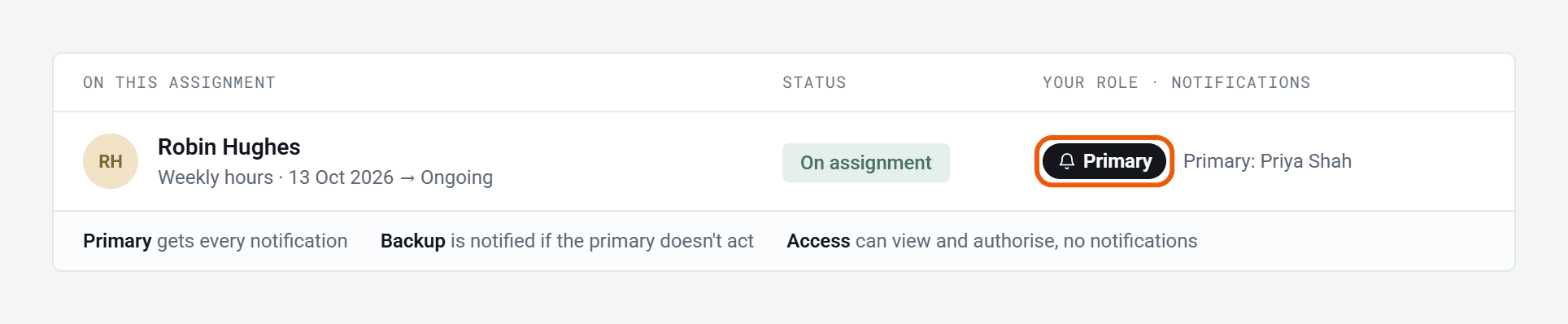
Click Assignments in the menu on the left to see the work you approve for, and your role on each. That list shows Access as Observer:
- Primary: we email you whenever something needs you.
- Backup: you step in if the primary authoriser can’t. Depending on how the organisation has things set up, you may be reminded when something’s been waiting a while.
- Access: you can see what they send and approve it, but you won’t get emails about it.
If you approve both timesheets and expense claims for someone, they’re listed twice on the assignment’s page, once for each, and your role can be different on each.
Choose your emails
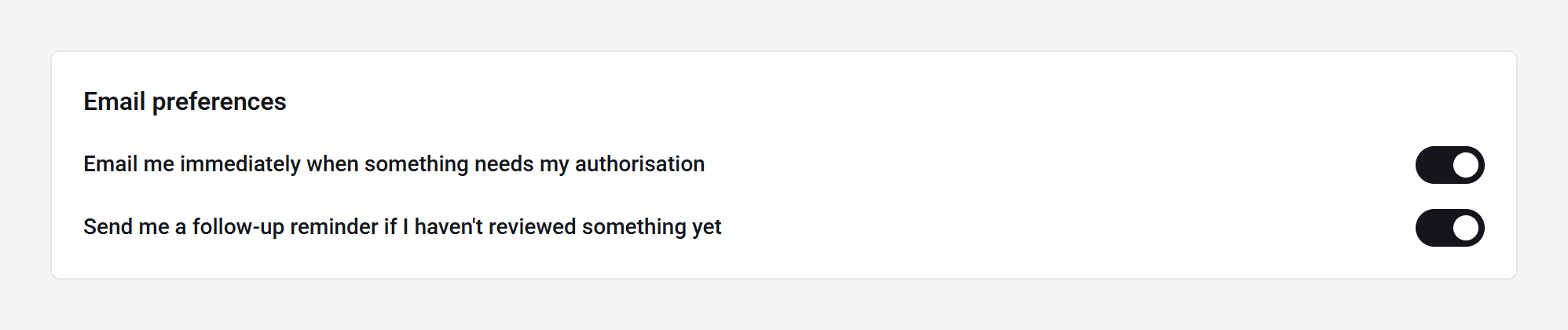
In Settings, under Email preferences, you can choose whether we email you as soon as something needs you, and whether we remind you about anything you haven’t looked at yet. If you turn off the first one, the reminders stop too. These cover timesheets and expense claims together.
Stuck?
Search this help site, or ask whoever invited you to SaveTrees. They set up the assignments you approve for and can sort out most things.