Timesheets · Fix a problem
I’ve sent a timesheet for the wrong week. What do I do?
Delete it, then send it again for the right week. If it’s already been accepted, your admin can help.
For workers · Updated 13 October 2026
Using SaveTrees v2? This works differently there. See the v2 guide
It happens. As long as it still says Pending, you can delete it and send a new one for the right week.
Delete the wrong one
- 1
Open the timesheet from your Timesheets list. It’ll say Pending.
- 2
Click Delete at the bottom of the page.

- 3
Click Delete timesheet to confirm.
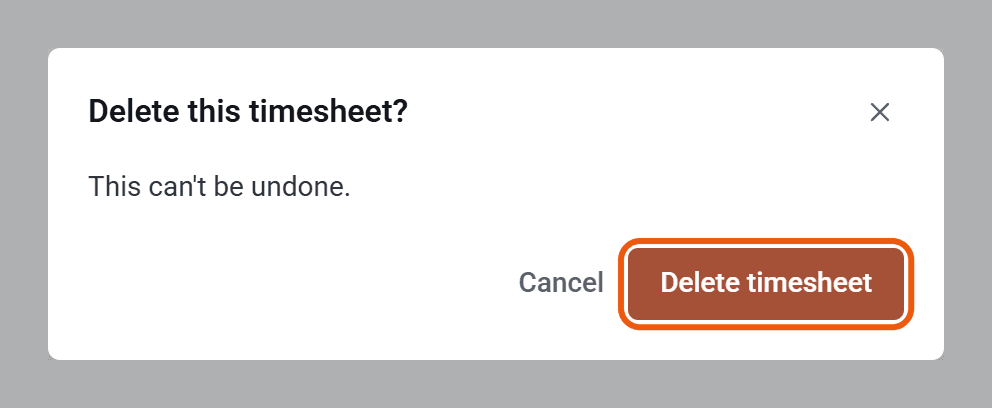
That week goes back to Missing, or Current if it’s this week, ready to fill in properly. Your authoriser isn’t told it’s been deleted, so if they were expecting it, it’s worth letting them know.
Send it for the right week
- 1
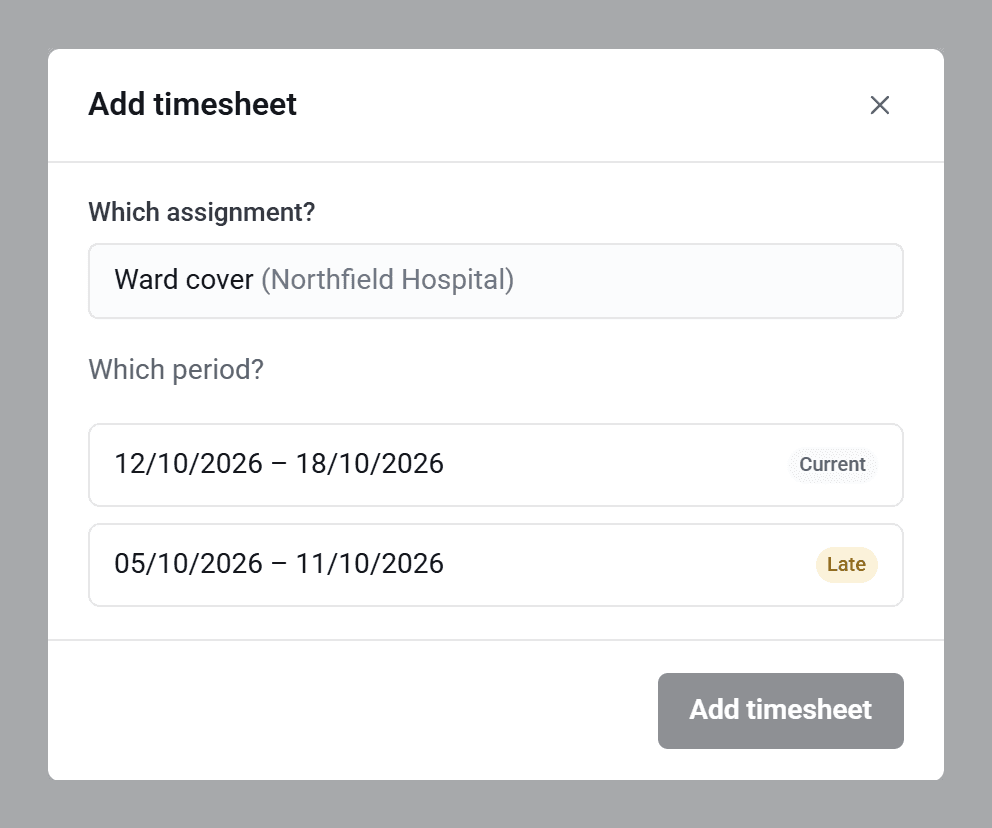
Click Add timesheet at the top of your Timesheets list.
- 2
If you’re asked, choose the assignment. Then click the right week under Which period?
- 3
Fill it in and click Send for authorisation.
Don’t fancy typing it all in again? Before you delete the wrong one, hover over it in your list. If a small copy icon appears, click it (point at it and it says Duplicate the timesheet for, then the dates) and pick the right week. You’ll get a copy as a draft, ready to check and send. Then go back and delete the wrong one.
If it’s already been accepted
You can’t delete an accepted timesheet yourself. Ask your admin. They can undo the approval and remove it for you, and then you can send the right one.
If it’s been rejected
You can’t delete a rejected timesheet, and its dates can’t be changed. If it was rejected because it was for the wrong week, ask your admin to remove it, then send a new one for the right week.