Timesheets · Fix a problem
Why can’t I see my missing timesheet?
The week you want isn’t in your list? It’s usually one of these.
For workers · Updated 13 October 2026
Using SaveTrees v2? This works differently there. See the v2 guide
Looking for a week to fill in and it isn’t there? It’s usually one of these.
It hasn’t started yet
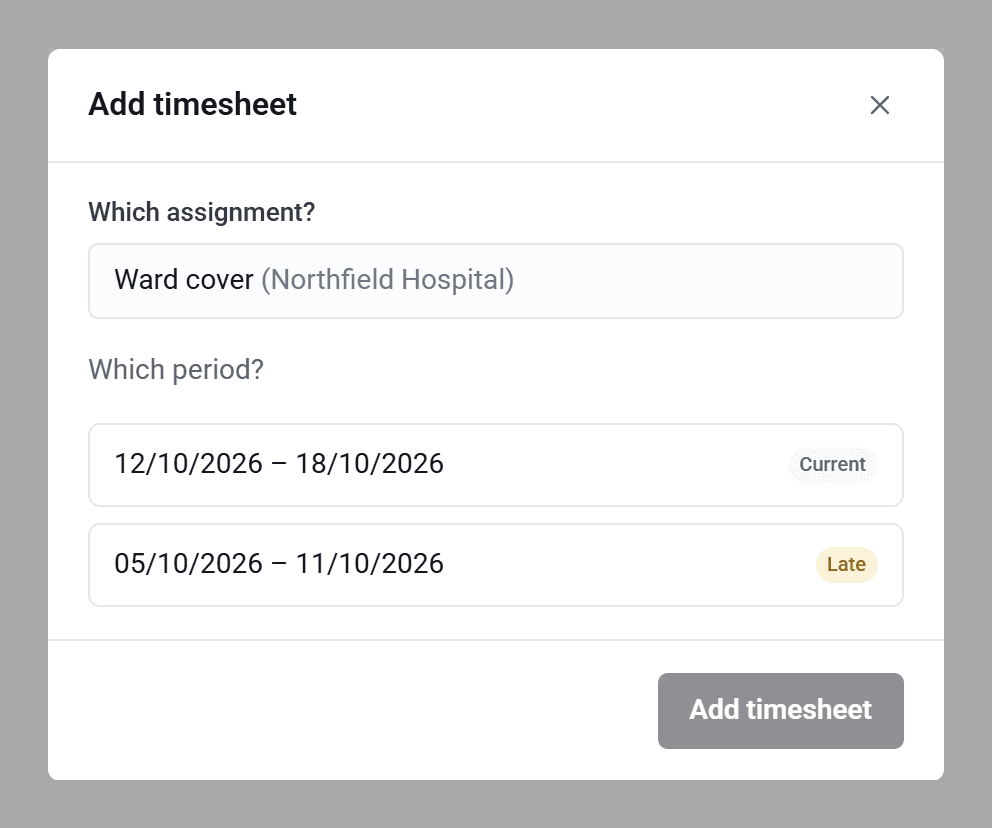
You can only start a timesheet once its week has begun. Next week’s appears on the first day of next week. When you click Add timesheet, the weeks you can start are listed under Which period?
You’ve already sent it
Once a timesheet has been sent, that week shows the timesheet itself, as Pending, Accepted or Rejected, so it won’t be offered under Add timesheet again. Look for it in your list.
If you started it but didn’t send it, it’s still in your list with a small Draft label under the organisation’s name. Click it to carry on.

Your list is filtered
Check that the Status filter at the top of your list includes Missing and Current, or click Show all statuses. A date filter can hide weeks that haven’t been sent yet too, so try clearing that as well.
There’s nothing to fill in
If you were on a break for the whole week, there’s no timesheet to send for it, so it won’t show. The same goes for weeks after your assignment’s end date, and for any unsent weeks once your admin has ended the assignment.
Still can’t find it?
Your admin sets your start date, how long each timesheet covers and which day your week starts. If the weeks look wrong, ask them to check those.