Timesheets · Fix a problem
How do I change, undo or delete a timesheet as an admin?
Send a timesheet back to the worker, reopen an accepted one, approve on someone’s behalf, or delete it.
For admins · Updated 13 October 2026
Using SaveTrees v2? This works differently there. See the v2 guide
As an admin you can step in at any point in a timesheet’s life. Open it from the Timesheets list, and the buttons at the bottom of the page change with its status.
- Draft (not sent yet) or Rejected: you can edit it, save it, send it for the worker, or delete it.
- Pending: you can send it back to the worker with Undo submission, accept or reject it if you have permission, or delete it.
- Accepted: you can reopen it with Undo authorisation, or delete it.
Send a timesheet back to the worker
- 1Open Timesheets in your account(opens SaveTrees in a new tab)
Open the timesheet from your Timesheets list.
- 2
Click Undo submission, then Undo submission again to confirm.

It becomes editable again, by the worker or by you, and will need sending and approving again. The worker isn’t told, so let them know. On the Timesheets list it has a small Draft label.
Reopen an accepted timesheet

Click Undo authorisation, then confirm. The timesheet goes back to Pending, and the last approval stops counting. If it has more than one stage, you choose which stage to send it back to. Earlier decisions stay in its history.
The authoriser isn’t told it’s waiting for them again, so let them know. Emails already sent when it was accepted can’t be taken back.
To change an accepted timesheet, undo the authorisation first, then undo the submission.
Accept or reject on someone’s behalf
If an authoriser is away, an admin with the Accept/reject Timesheet submissions as an Admin override permission can decide instead. Your account owner always can.
- Accept takes effect straight away, without asking you to confirm.
- Each press stands in for one authoriser. On a timesheet with two stages the button reads Authorise stage 1, then Authorise stage 2, so it takes two presses.
- Reject asks for a reason, and the worker is emailed it.
Delete a timesheet
- 1
Open the timesheet and click Delete.
- 2
Type a reason, unless it’s a draft, then click Delete timesheet.
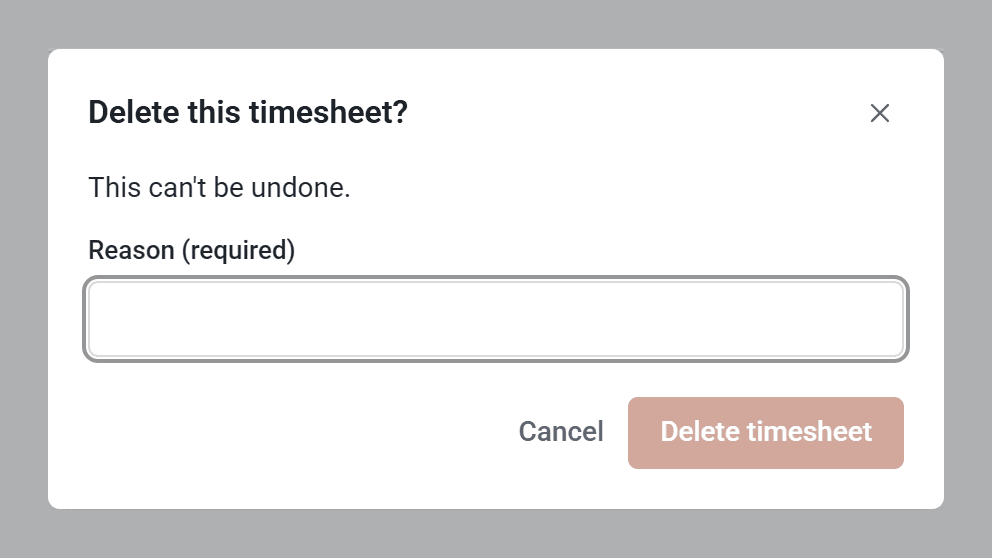
It disappears from every list and can’t be brought back, but nothing on it is erased and its history is kept. That week is free to fill in again. Nobody is told.
To delete several, tick them on the Timesheets list and click Delete in the bar at the bottom of the screen.
Add a timesheet for a worker
Click Add timesheet on the Timesheets list, then choose who it’s for, the assignment and the week. Fill it in and click Send for authorisation, and their authorisers are emailed as usual.
If the worker has already started that week themselves, you won’t be able to open it until they send it.
See what happened
The Audit trail at the bottom of each timesheet shows when it was sent, approved, sent back or deleted, by whom and when. Edits to an unsent timesheet only show once it’s sent.
Who can do this
Any admin can undo, delete and add timesheets. Accepting or rejecting on someone’s behalf needs the permission above. See How do admin permissions work?