Timesheets · Get set up
How do I add an organisation or an assignment?
Add a new client, and the work you’re doing for them, before you put people on it.
For admins · Updated 14 October 2026
Using SaveTrees v2? This works differently there. See the v2 guide
Before you can put anyone to work, SaveTrees needs to know who for. That’s an organisation, like Riverside Clinic, and an assignment under it, like Night shifts. Not sure how they fit together? See How do organisations, assignments, workers and authorisers fit together?
Add an organisation
- 1Open Organisations in your account(opens SaveTrees in a new tab)
Click Organisations in the menu on the left, then Add organisation.
- 2
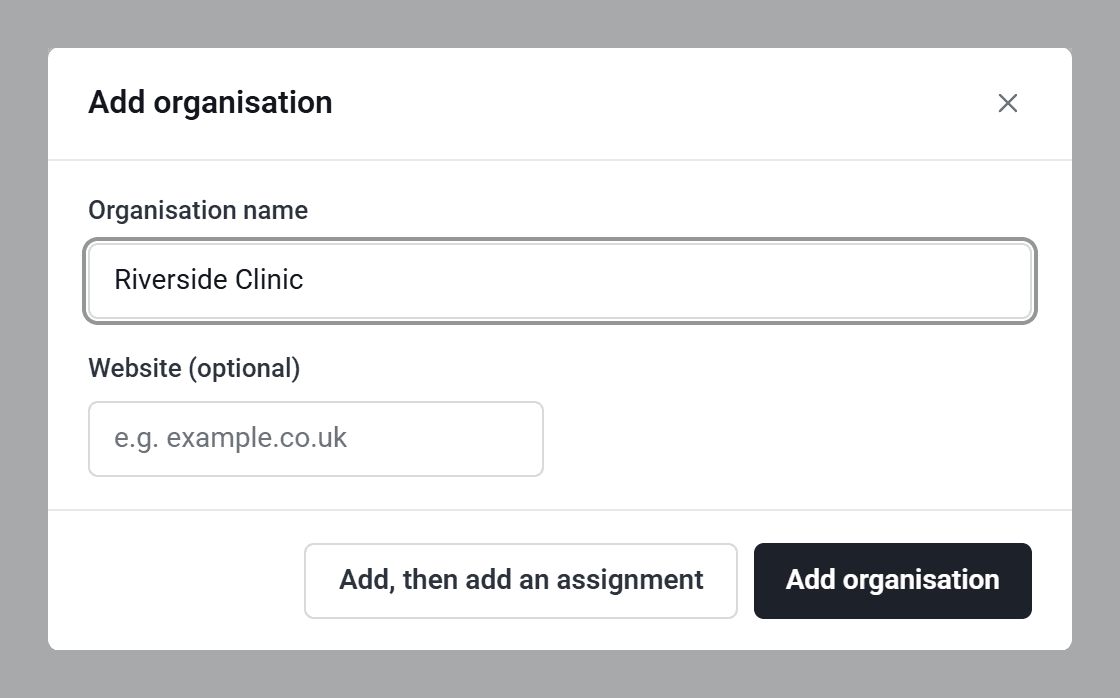
Type the organisation’s name. Fill in anything else you’d like, such as its website.
- 3
Click Add organisation to open its page. Or, if you’re ready to carry on, click Add, then add an assignment.
If you add a website, the organisation’s logo from that website becomes its picture in SaveTrees.
Want to record more about each organisation, like a phone number, address or your own reference? Switch those boxes on in Settings, under Entity fields.
Add an assignment
- 1
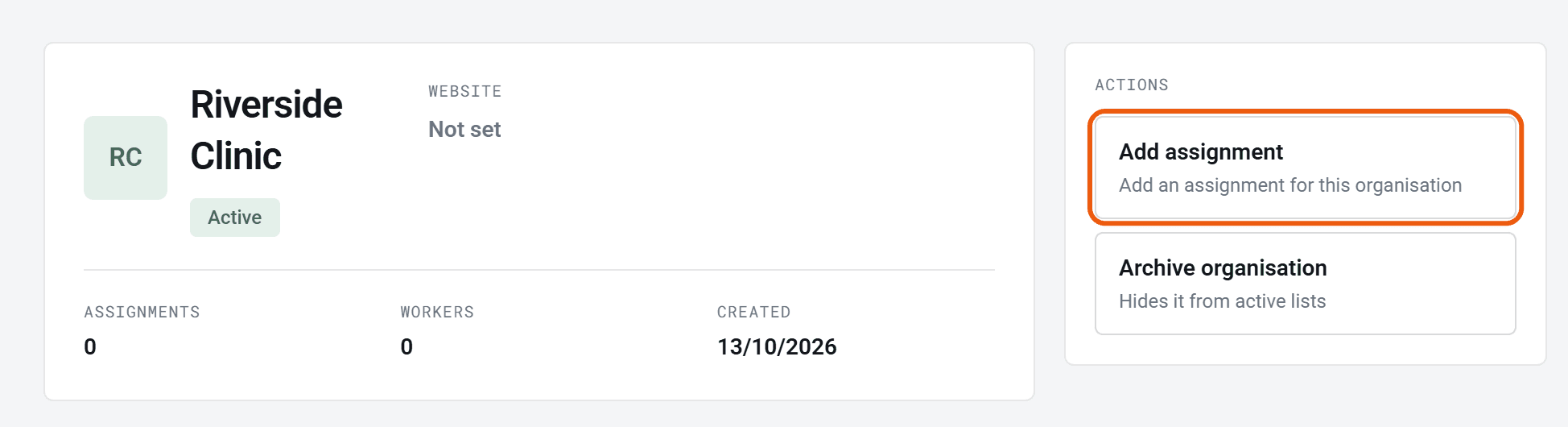
Open the organisation’s page and click Add assignment.
- 2
Type the assignment’s name and click Add assignment.
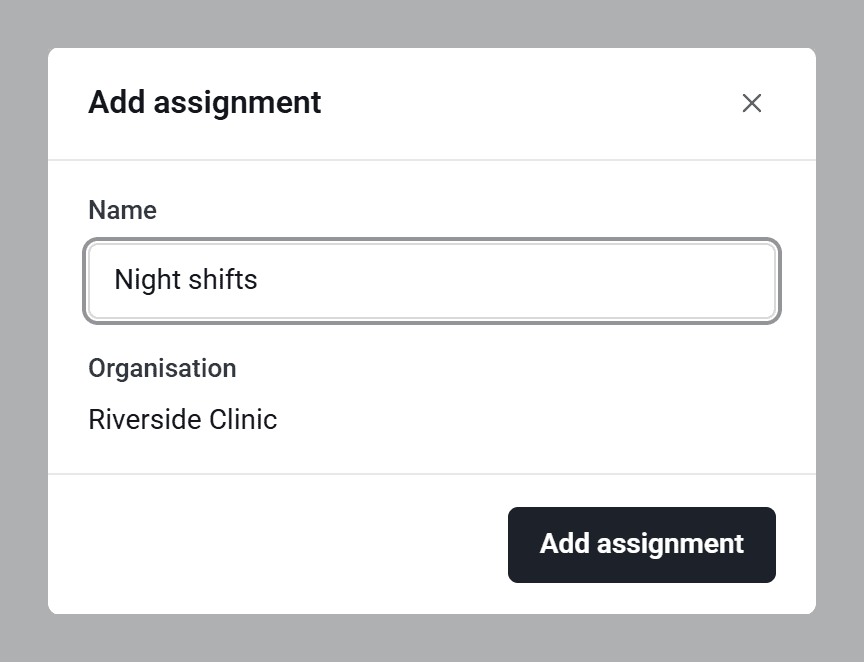
You can also click Assignments in the menu, then Add assignment, and choose the organisation from the list. Only active organisations are listed. If yours isn’t there yet, click Add organisation… at the bottom of the list to add it without leaving the form.
Once it’s added, you’ll land on the assignment’s page. Click Add Worker there to start putting people on it.
Change a name or move an assignment
- To rename an organisation, click the pencil next to its name on its page, type the new name and click Save.
- To rename an assignment, click the pencil next to its name, type the new name and click Save name.
- To move an assignment to a different organisation, point at the organisation’s name on the assignment’s page and click the pencil that appears. If it already has timesheets, you’ll be asked to confirm, and they move with it.
Archive one
Archive assignment, on the assignment’s page, ends the assignment today for everyone on it and hides it from your lists. Unarchiving it later doesn’t give people their dates back.
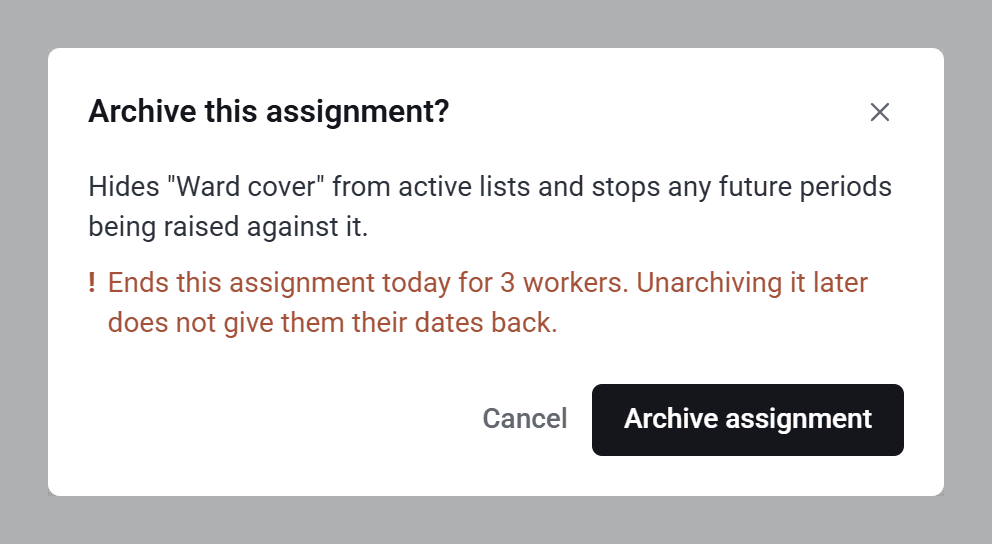
Archiving doesn’t clear weeks nobody sent, so they still show as Missing. If you’d rather they disappeared, click End assignment on each worker’s page first.
Archive organisation, on the organisation’s page, only hides the organisation. Its assignments carry on as normal, so archive them as well if the work has stopped. You can’t archive an organisation while any of its timesheets are waiting to be approved. To bring either back, open it and click Unarchive organisation or Unarchive assignment.
Who can do this
Your account owner can do both. Other admins need Manage Organisations in their permission group to add organisations, and Manage Assignments to add assignments. Adding an assignment from an organisation’s page needs both. Without them, the pages say Not authorised. See How do admin permissions work?
Stuck?
- “You need an active Organisation before you can create an Assignment.” Add an organisation first, or unarchive the one you want.
- The Add button is greyed out. Type a name first, and for an assignment, choose an organisation.
- “Enter a valid website address, e.g. example.co.uk” Check the website for typos. It needs a dot, like example.co.uk.