Timesheets · Get set up
How do timesheet templates work?
What a template is, how to make or change one, and how to put workers on it.
For admins · Updated 14 October 2026
Using SaveTrees v2? This works differently there. See the v2 guide
A template is the timesheet a worker fills in: what they enter each day, how often it’s due, and how many people approve it. Every worker on an assignment has one.
New accounts start with five ready-made templates, such as Weekly hours and Monthly day rate, so you may not need to make your own.
Find your templates
- 1Open Timesheet templates in your account(opens SaveTrees in a new tab)
Click Settings at the bottom of the menu on the left, then Timesheets, then Timesheet templates.
- 2
The page opens on Fields. Click Templates at the top to see your templates.
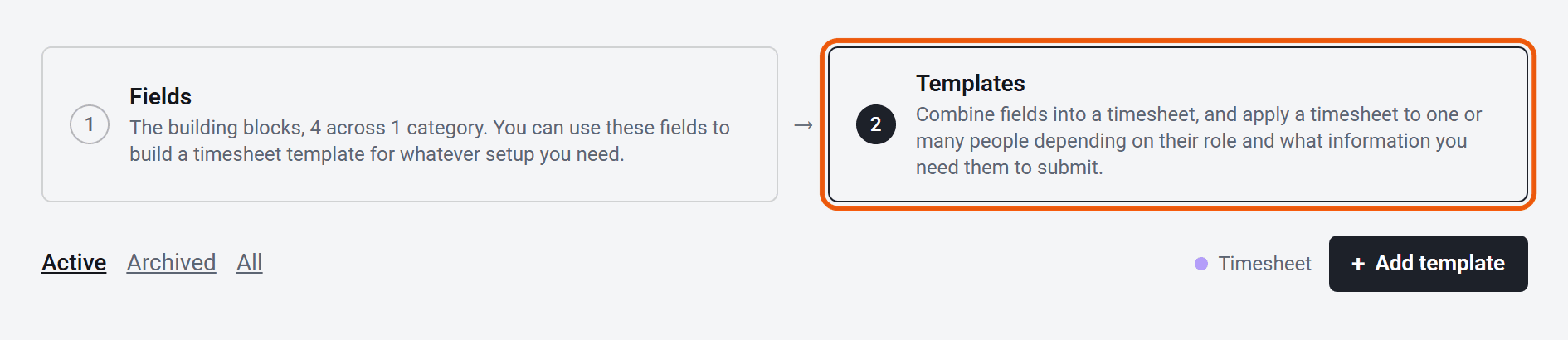
Each template shows how often it’s due, who approves it, and how many workers are on it. Click that number to see who they are.
The template at the top is your Default, and it’s picked first when you add a worker. Drag a template up or down to change the order.
Make a new template
- 1
Click Add template.
- 2
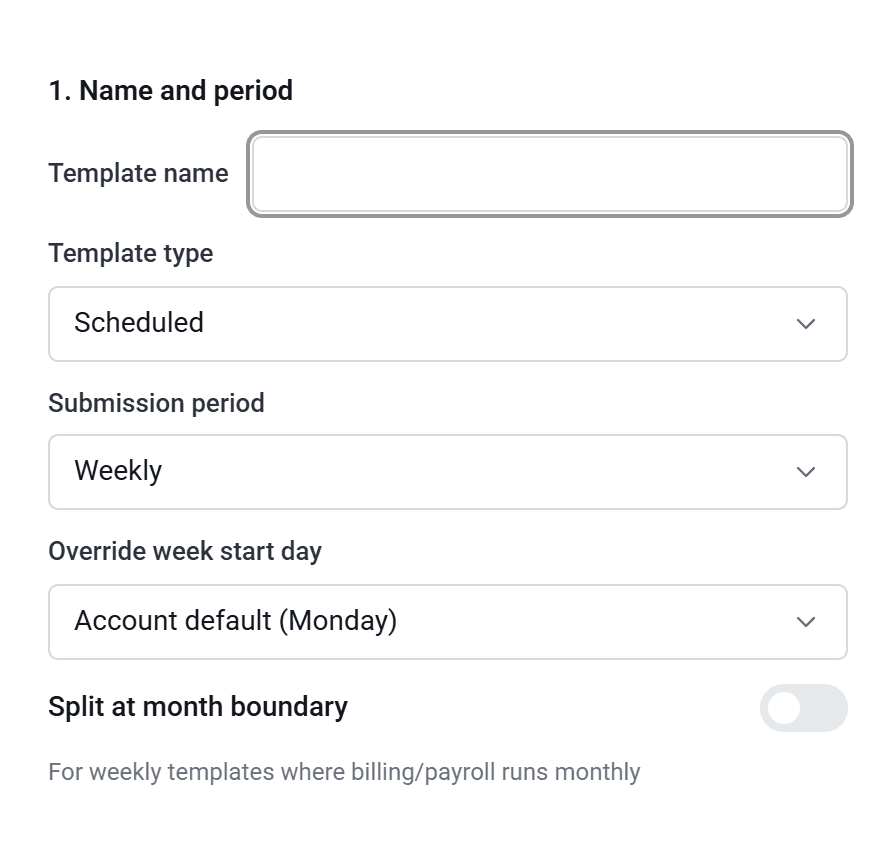
Type a Template name and choose the Submission period: Daily, Weekly, Fortnightly, 4-weekly or Monthly (calendar). Weekly ones can start on a different day from the rest of your account.
- 3
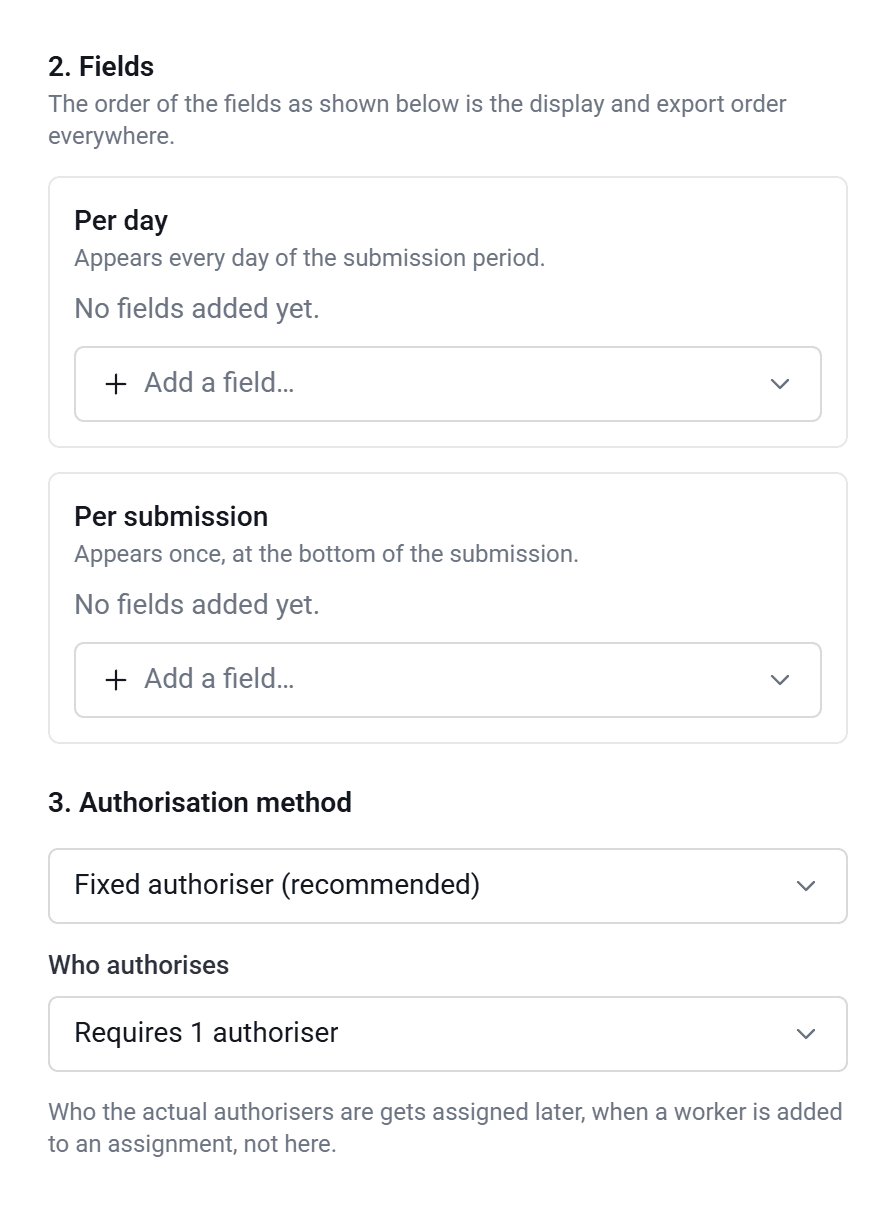
Under Per day, add what workers fill in each day, such as Hours worked. Under Per submission, add anything asked once per timesheet, such as Notes. Drag fields to change their order.
- 4
Check each field says Shown. Only the first field you add to each box starts as Shown. The others start as Hidden, which leaves them off the timesheet unless the worker adds them. Click the word to switch it.
- 5
Under Who authorises, choose Requires 1 authoriser, Requires multiple in series (several people, one after another), Requires multiple in parallel (several people at once) or Decide per worker (you choose for each worker when you add them). For series and parallel, choose how many.
- 6
Click Add template.
You choose the actual authorisers later, for each worker.
If your account allows it, you’ll also be asked for a Template type. Scheduled timesheets are due every period, so a missing one can be chased. Ad-hoc ones are for whatever dates were worked, and no reminders go out for them.
Change a template
Click Edit on the template. You can rename it, and add, remove or reorder its fields. The changes reach any timesheets that haven’t been sent yet. Ones already sent keep what was filled in.
The period, type and approval setup can’t be changed once a template is made. To change those, duplicate the template, set up the copy the way you want, then move the workers onto it.
Put workers on a template
- Choose the template when you add a worker.
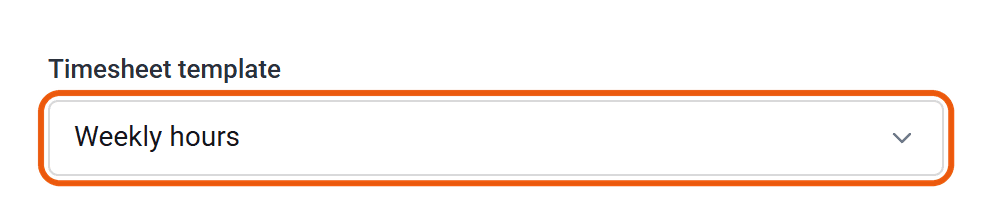
- Or change it on the worker’s page: under What’s required on this assignment, click Timesheet, then pick from Timesheet template.
- To move several workers, tick them on the Workers list and click Change Timesheet template.
Archive or delete a template
Click Archive on the template. If anyone has ever been on it, including people whose assignment has ended, you’ll be asked which template to move them to. Archived templates can be unarchived.
Delete only appears on a template nobody has ever used.
Who can do this
Your account owner, and admins whose permission group includes Manage Timesheet Fields & Templates. Putting a worker on a template needs Manage the Workers list. The fields themselves, and whether they carry pay and charge rates, are under Fields on the same page. See How do I set pay and charge rates?