Your account · Settings & admin
How do I change someone’s details or remove them?
Correct someone’s name or email, resend their invitation, or archive them when they leave.
For admins · Updated 14 October 2026
Using SaveTrees v2? This works differently there. See the v2 guide
Everyone on your account is listed under People. Click someone’s name to see their details and what you can do.
Find someone
- 1Open People in your account(opens SaveTrees in a new tab)
Click People in the menu on the left.
- 2
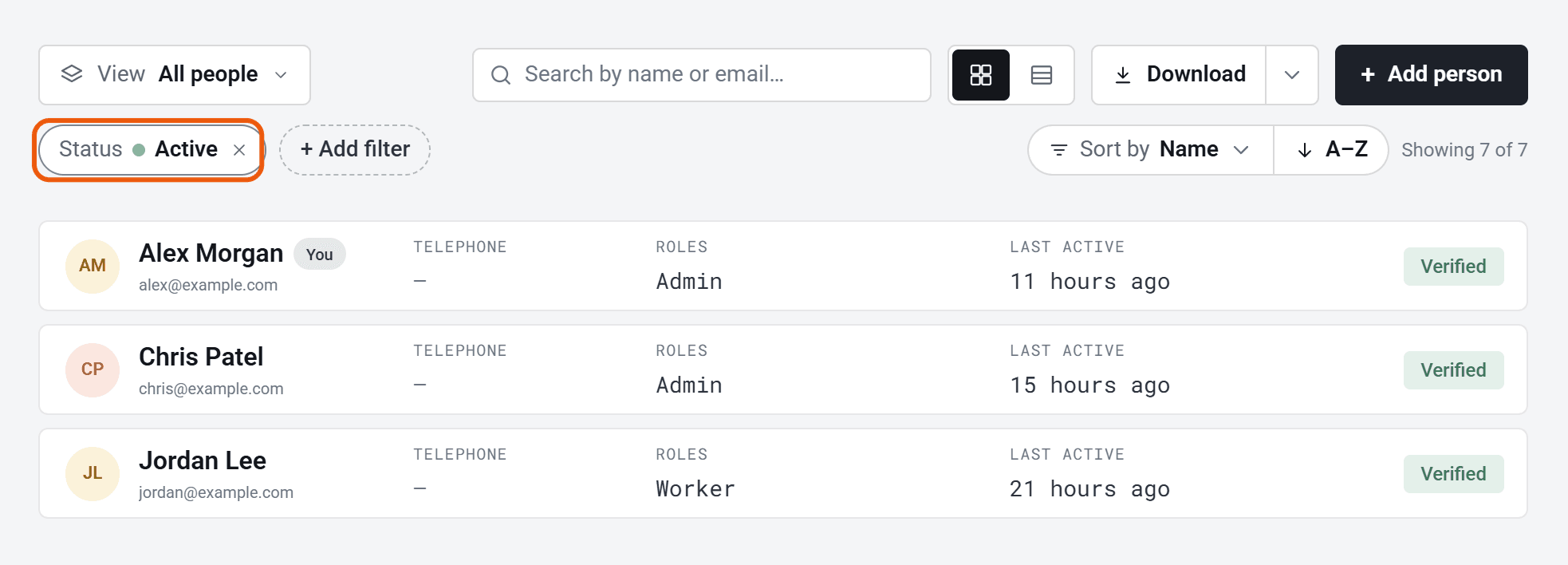
Search by name or email address, then click their name.
The list shows active people. To find someone you’ve archived, click Status and tick Archived.
Change their name
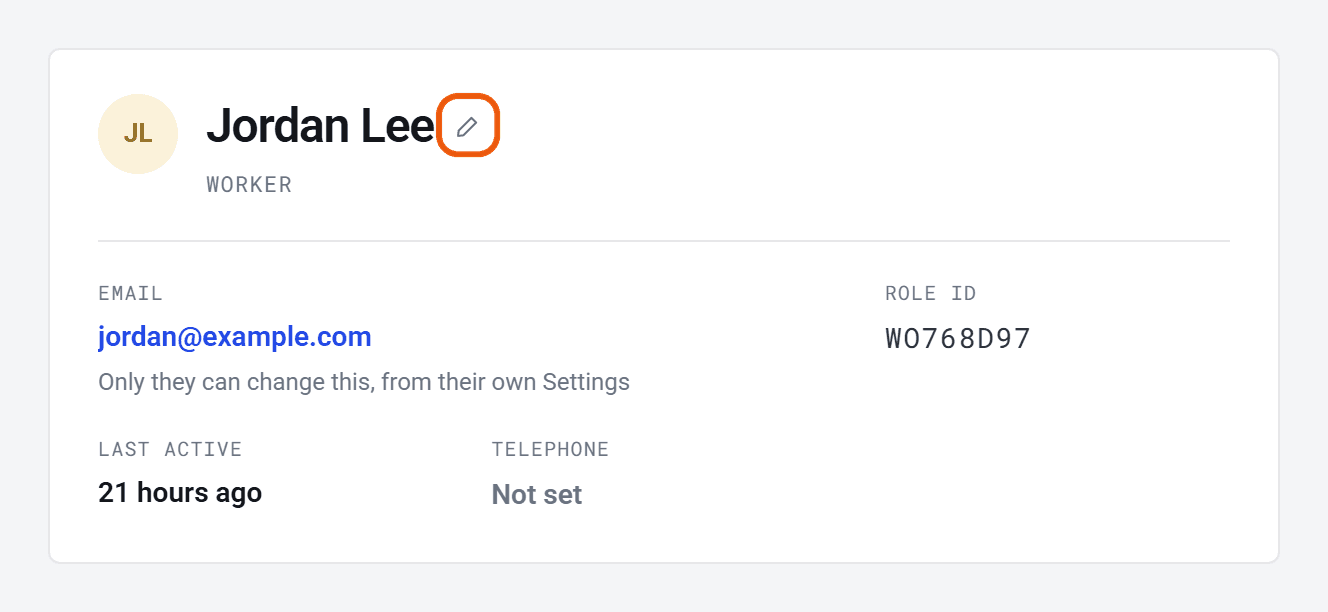
Point at their name and click the pencil that appears. Type the new name and click Save.
Change their email address
You can correct someone’s email address until they’ve set up their account. Point at the address, click the pencil, type the right one and click Save. We’ll send their invitation again to the new address.
Once they’ve set up their account, only they can change it, from their own Settings.
Resend their invitation or a password reset
- If they haven’t set up their account yet, there’s a Resend request for… button under Actions. Their Last active also says Never.
- If they have, the button is Send password reset instead.
Remove someone
You remove someone by archiving them. There isn’t a way to delete a person completely.
- 1
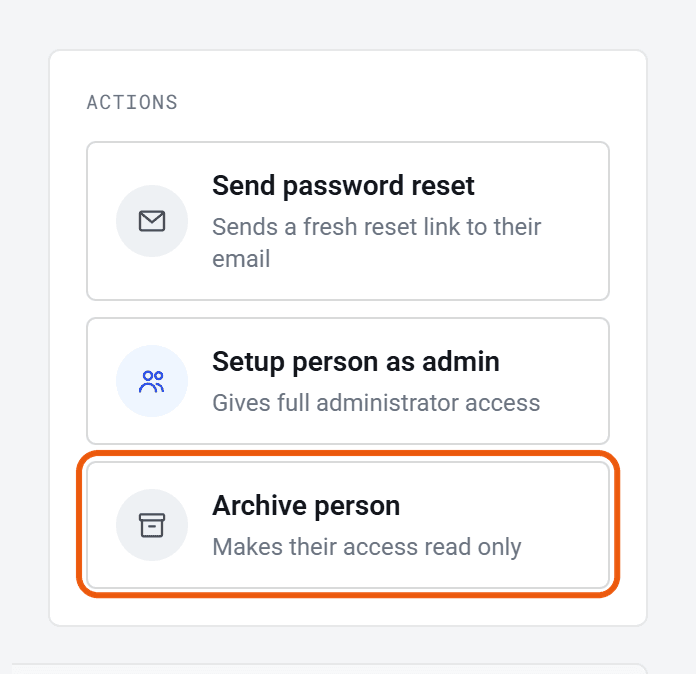
On their page, click Archive person under Actions.
- 2
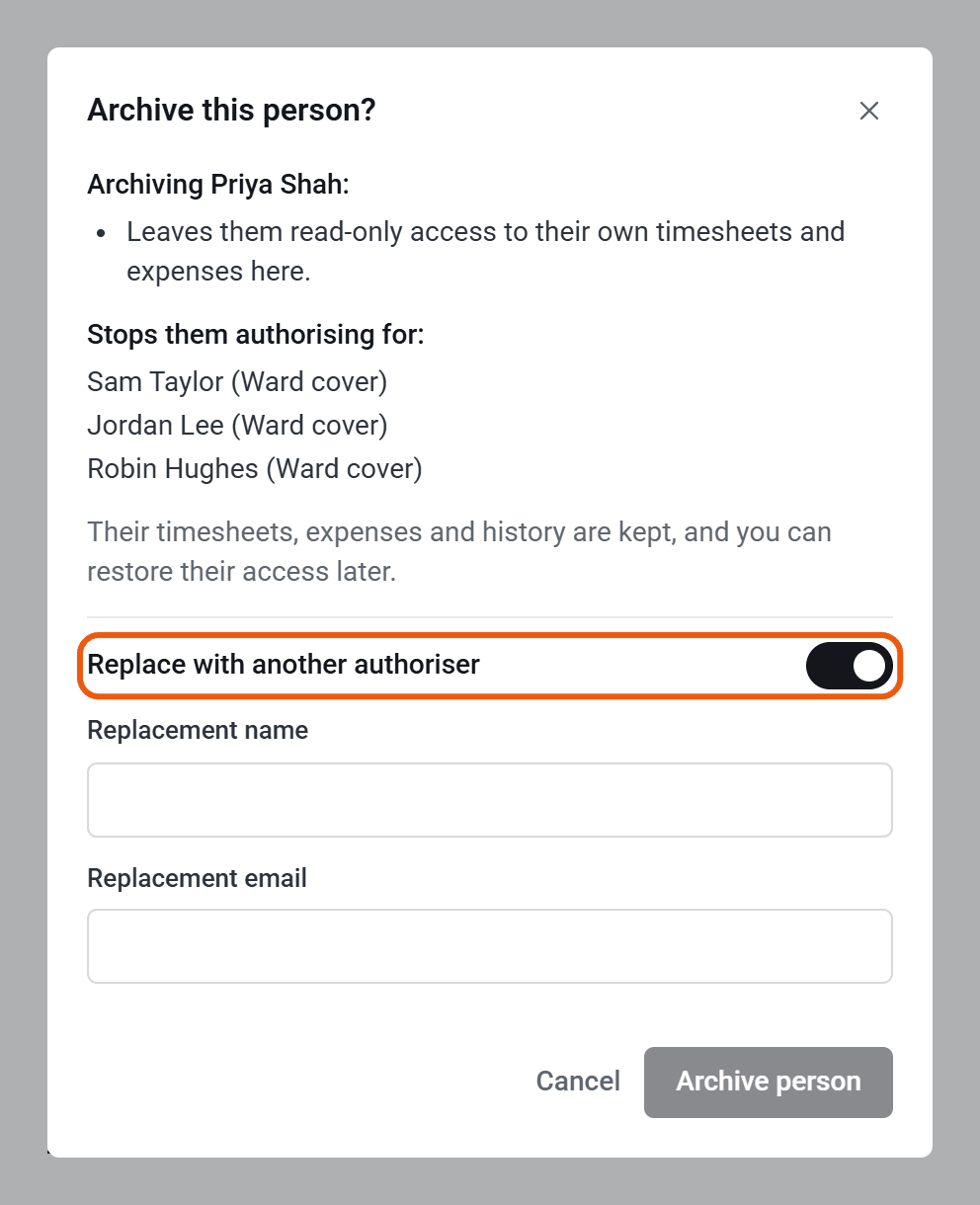
Check the list of what ends: their assignments, and the workers they authorise.
- 3
If they authorise anyone, switch on Replace with another authoriser and type the replacement’s name and email address. The replacement takes over every worker they authorised.
- 4
Click Archive person.
- Their assignments end today, they stop authorising, and any admin access is removed.
- If they were a worker or authoriser, they can still sign in to look at their own timesheets and expenses, but can’t change anything.
- Their timesheets and history are kept. They aren’t emailed.
- Without a replacement, the workers they authorised are left without them. Add someone new on each worker’s page.
Just need to take them off one assignment? End it on their worker page instead. See How do I change a worker’s dates, give them a break or end their assignment?
To archive your account owner, make someone else the owner first.
Bring someone back
Find them with Status and Archived, open their page and click Unarchive person. Their access comes back, including admin access if they had it. Their assignments and the workers they authorised don’t, so add those again.
Who can do this
Your account owner, and admins whose permission group includes Manage the Users list. Other admins can see the buttons, but get Not authorised. when they use them.