Your account · Settings & admin
How do I change our company name and timesheet settings?
Change your company name and sign-in address, and the settings every timesheet follows, like when the week starts.
For admins · Updated 13 October 2026
Using SaveTrees v2? This works differently there. See the v2 guide
Two pages hold the settings for your whole account: Company, for your name and address, and Timesheet settings, for how timesheet weeks work.
Company name and address
- 1Open Company settings in your account(opens SaveTrees in a new tab)
Click Settings at the bottom of the menu on the left, then Company.
- 2
Change what you need, then click Save in the bar at the bottom of the screen.
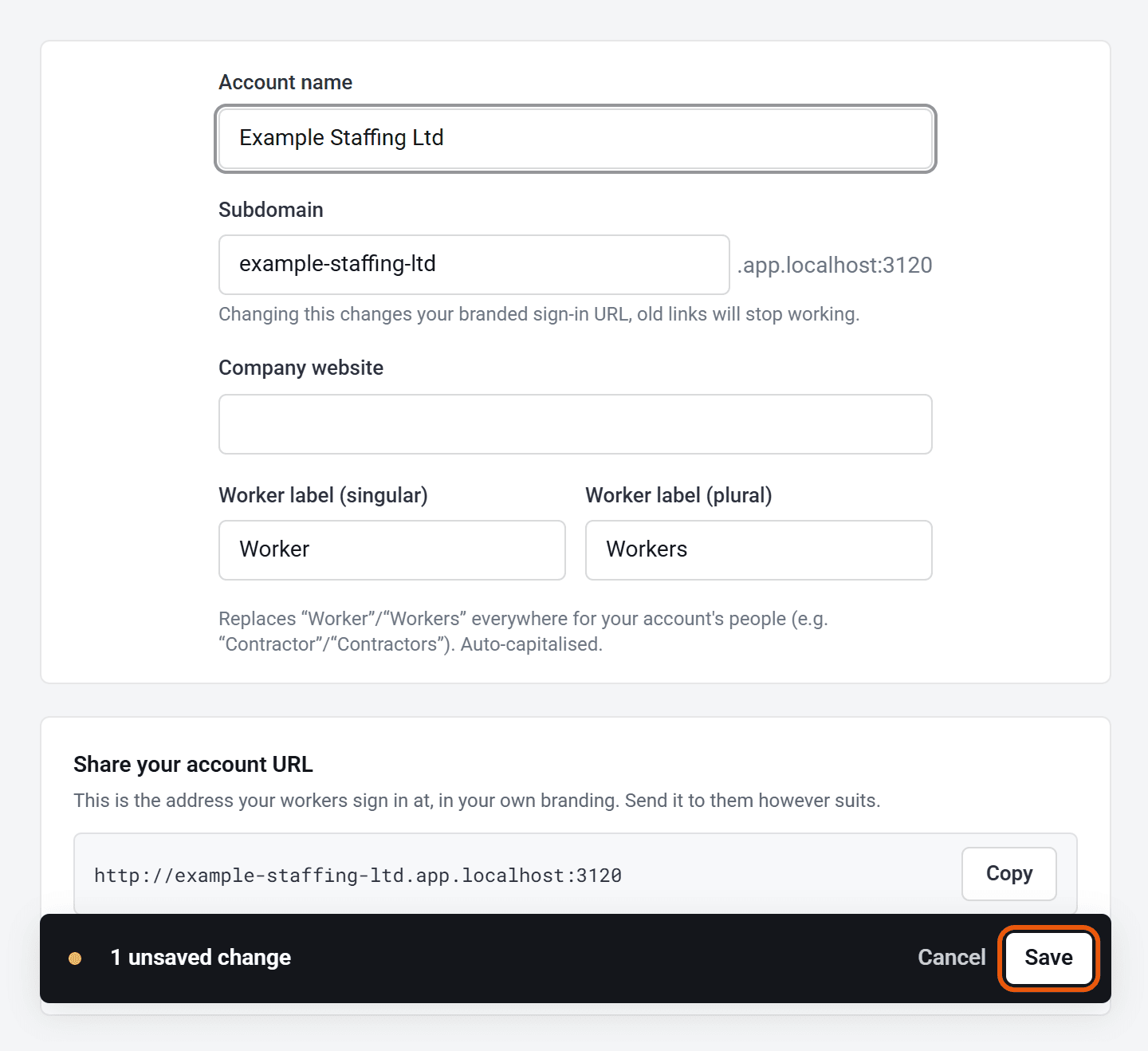
- Account name is how SaveTrees names you to your people: on your sign-in page, at the end of our emails, on timesheet PDFs and in the account switcher.
- Subdomain is the start of your own sign-in address, as in yoursubdomain.app.savetrees.io. Use lower-case letters, numbers and hyphens.
- Company website is optional. If you haven’t set a reply-to address in Email settings, your people see it as a way to contact you if something goes wrong.
- Worker label changes what SaveTrees calls your workers. See How do I change the word “worker”?
If you change your subdomain, send everyone the new address. Old links keep working and still show your branding, and nobody else can take your old subdomain. Anyone signed in on the old address is moved across.
Timesheet settings
- 1Open Timesheet settings in your account(opens SaveTrees in a new tab)
Click Settings, then Timesheets, then Timesheet settings.
- 2
Change what you need, then click Save at the bottom of the screen.
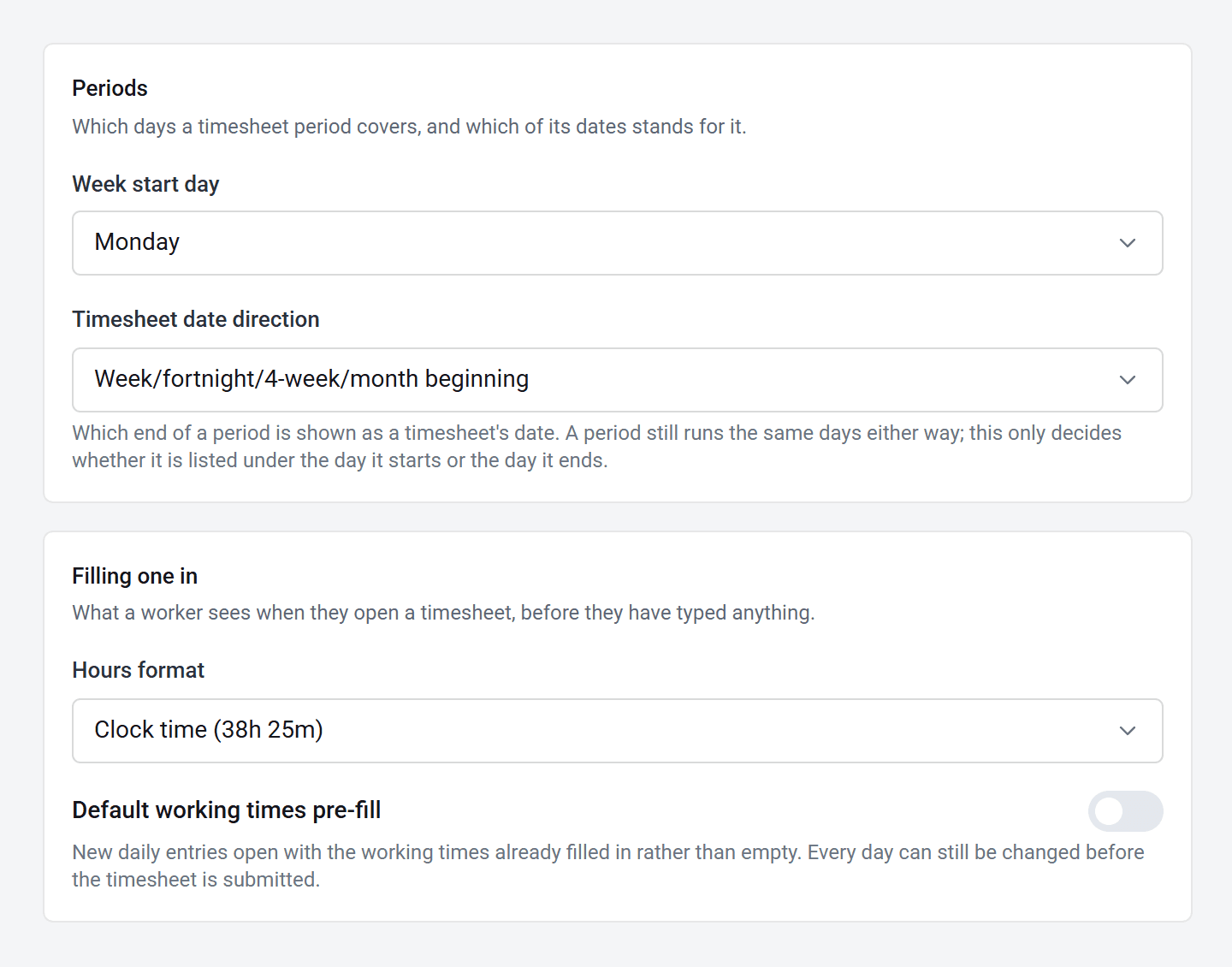
- Week start day is when weekly, fortnightly and 4-weekly timesheets begin. It’s Monday unless you change it, and a template can use its own day. It’s best to set it before your people start filling in timesheets.
- Timesheet date direction chooses whether each timesheet is listed under the day its week begins or the day it ends. The days it covers stay the same.
- Hours format shows totals as clock time, like 38:25 hours, or as decimals, like 38.42 hours.
- Template types and Types of entry decide what new templates can be: Scheduled or Ad-hoc, and Individual or Bulk. Existing templates aren’t affected.
The Default working times pre-fill switch doesn’t do anything yet, so you can leave it as it is.
Who can do this
Company needs your account owner, or an admin whose permission group includes Change Company settings. Any admin can change Timesheet settings.