Your account · Settings & admin
How do I change the word “worker”?
Contractors, employees, temps, carers. Call your people whatever you already call them.
For admins · Updated 14 October 2026
Using SaveTrees v2? This works differently there. See the v2 guide
Contractors, employees, temps, carers, volunteers. Whatever your organisation calls the people who fill in timesheets, SaveTrees can use the same word. Nobody has to translate.
Changing it
- 1
Click Settings at the bottom of the menu on the left.
- 2Open Company settings in your account(opens SaveTrees in a new tab)
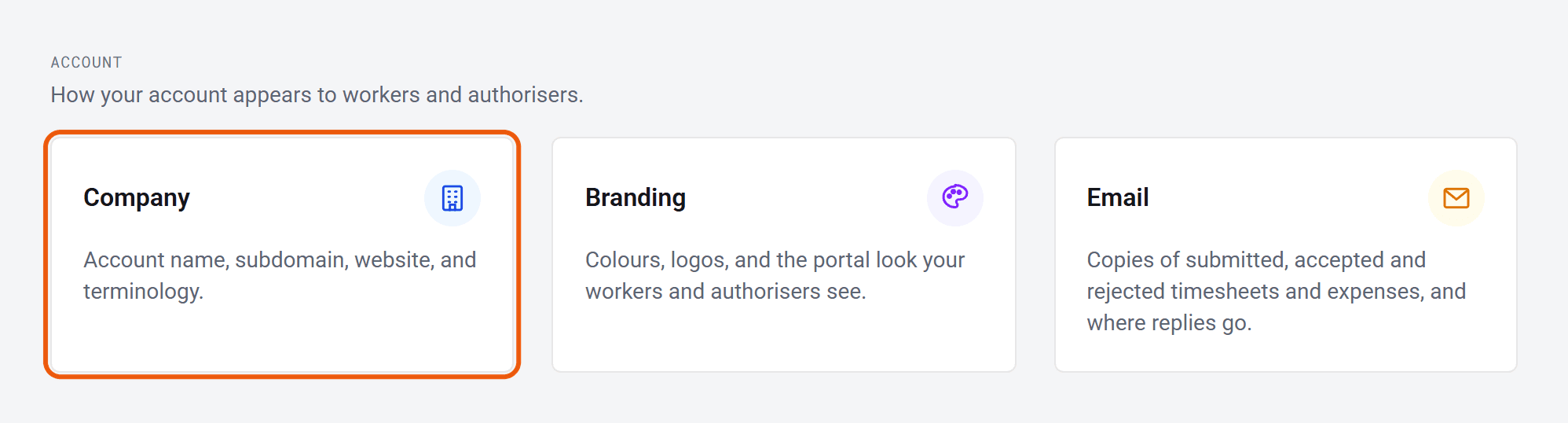
Under Account, click Company.
- 3
Find Worker label (singular) and Worker label (plural), and type your word into both. For example, Contractor and Contractors.
- 4
Click Save in the bar that pops up at the bottom of the screen.
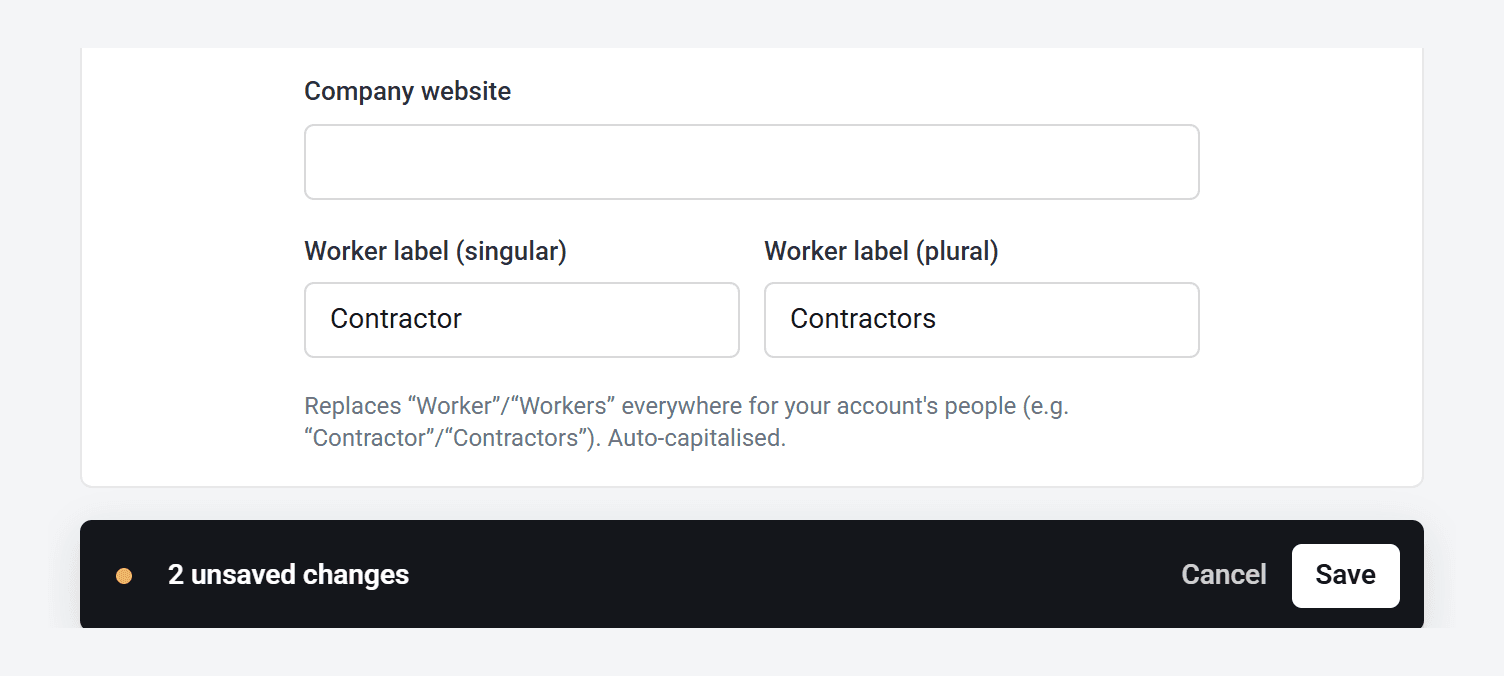
Make sure you fill in both boxes. If you leave one empty, it goes back to Worker or Workers. Don’t worry about capital letters, though. SaveTrees sorts those out for you.
Where you’ll see it
Pretty much everywhere: the menu, buttons, lists, people’s roles and the invitation email your people get. Workers in the menu becomes Contractors, and Add worker becomes Add contractor.

Changing it back
Clear both boxes and click Save. You’re back to Worker and Workers.
Can’t see Company in Settings? Only admins who are allowed to change company settings can. Your account owner always can, so ask them.