Your account · Settings & admin
How do I add another admin?
Give someone else admin access, and choose what they’re allowed to do.
For admins · Updated 14 October 2026
Using SaveTrees v2? This works differently there. See the v2 guide
Sharing the load? You can make anyone in your organisation an admin. It takes two steps: add them to SaveTrees if they’re not on it already, then make them an admin from their own page.
Add them to SaveTrees
If they’re already on SaveTrees as one of your workers or authorisers, skip to the next part.
- 1
Click People in the menu on the left, then Add person.
- 2
Type their name and email address and click Add person.
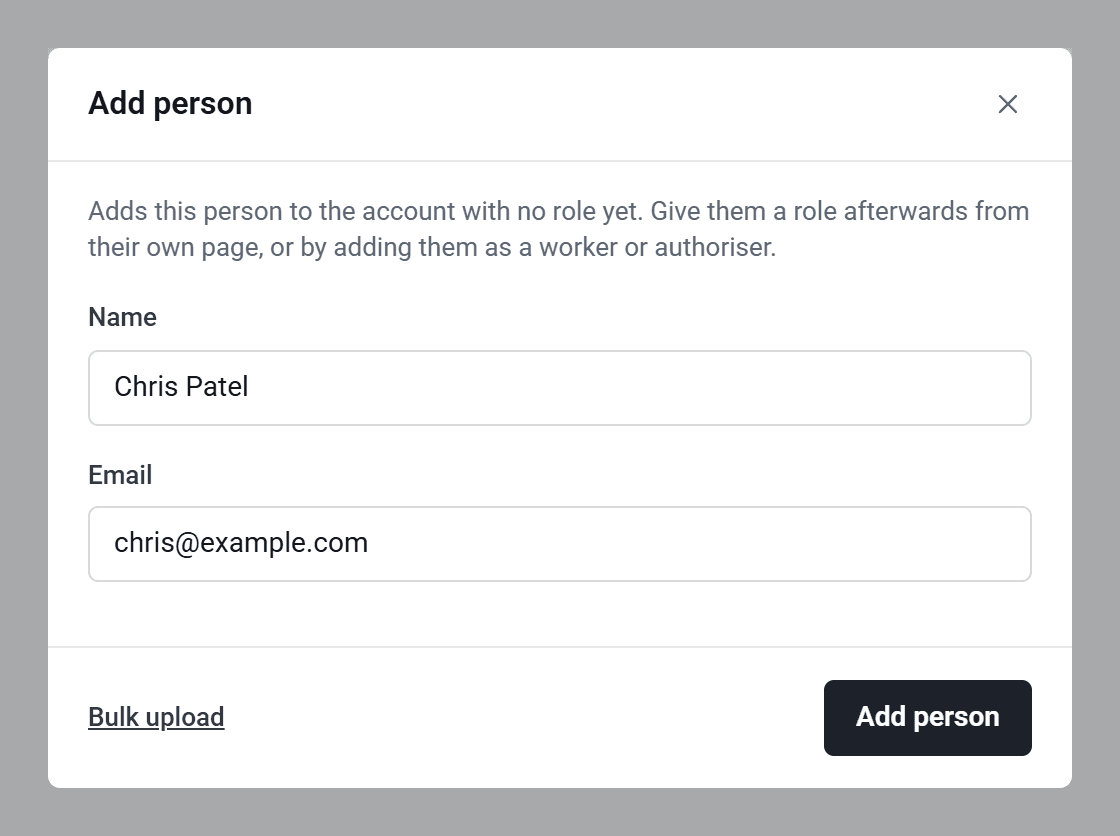
This doesn’t email them yet. They’ll hear from us once you’ve made them an admin.
Make them an admin
- 1
Find them in People and click their name to open their page.
- 2
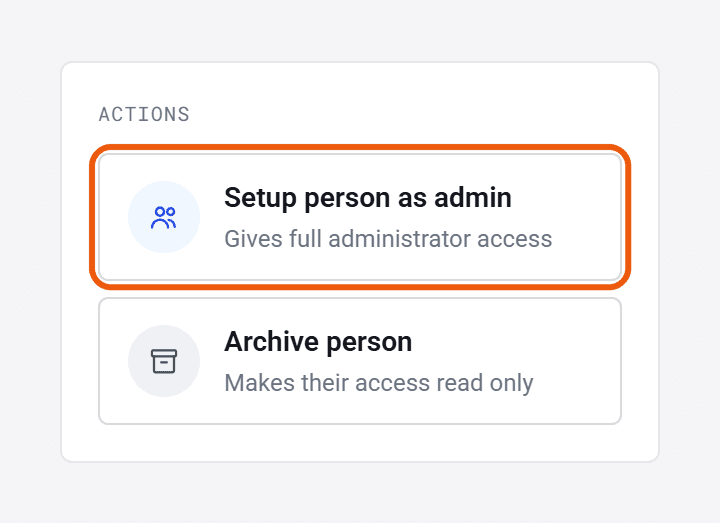
Under Actions, click Setup person as admin.
- 3
Choose which Permission group they join, then click Accept.
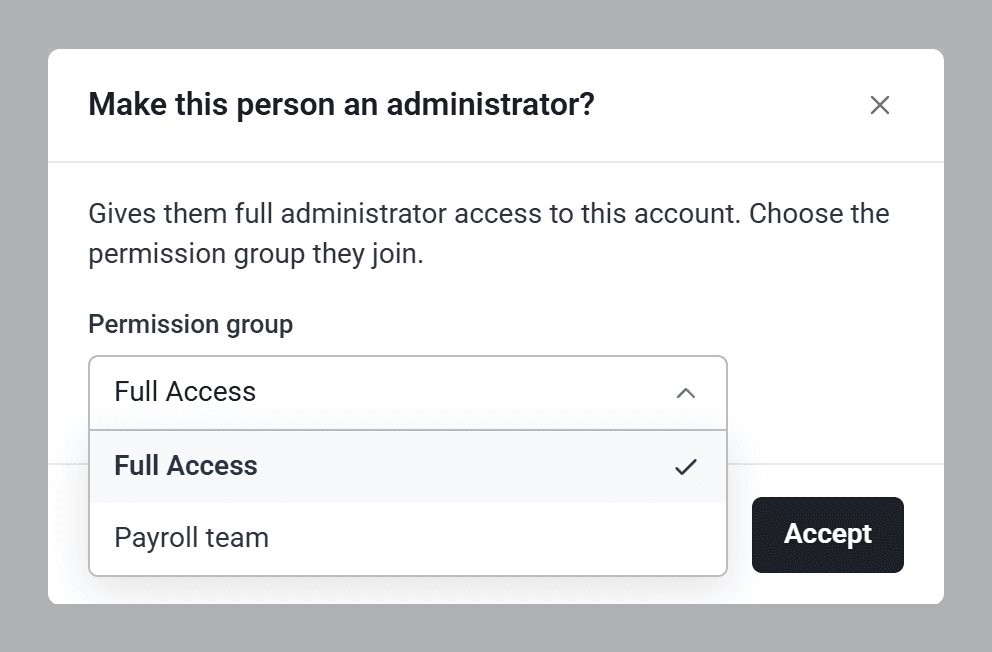
Full Access lets them do everything. If you’d like them to do less, set up a permission group for them first. See How do admin permissions work?
You can move them to a different group later, from Permission group on their Admin settings tab.
What happens next
We email them an invitation. They click Set account password, choose a password and sign in. The link works for 7 days.
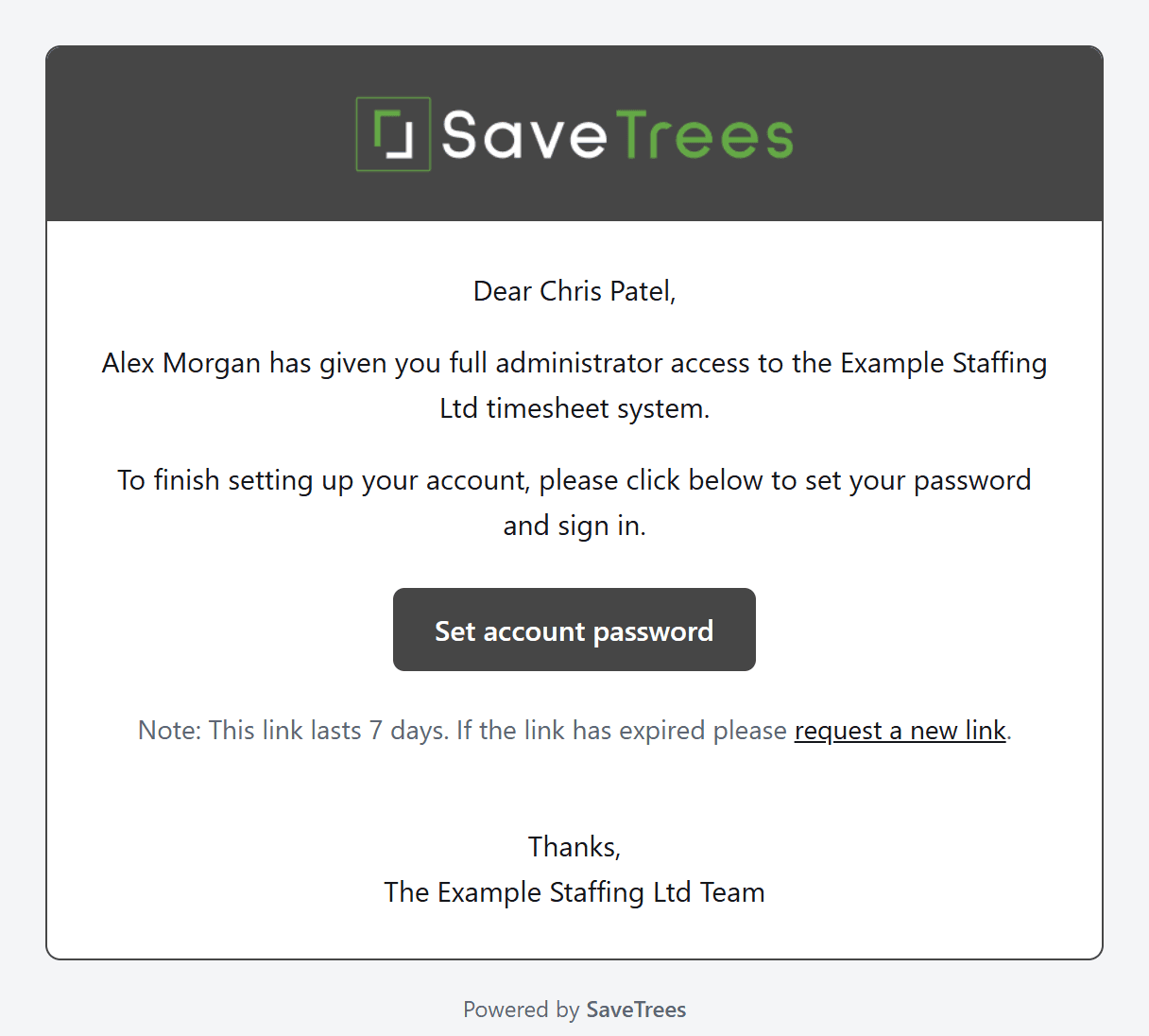
- If they already use SaveTrees with a password, they get an email saying they’ve been made an admin instead, and just sign in as normal.
- If your organisation makes admins sign in with Google or Microsoft, the email tells them to use that button rather than set a password.
- If they’re also one of your workers or authorisers, they switch to their admin role from the top right of the screen. See How do I switch between accounts or roles?
- Until they’ve set up their account, their page says Awaiting verification. If they’re new to SaveTrees and the email has gone astray, click Resend request for Admin on their page.
Who can add admins?
Your account owner always can. Other admins can if their permission group includes Add/remove admins, assign them to permission groups. If you don’t see Setup person as admin on the page of someone who isn’t an admin yet, you don’t have that permission.
Taking admin access away
To stop someone being an admin, open their page and remove their admin access. If they’re leaving altogether, click Archive person instead. That takes away all their roles with you, not just admin. If they’re also one of your workers or authorisers, they can still look at their own timesheets and expenses, but can’t change anything. Their history is kept, and you can restore them later if you need to.