Your account · Settings & admin
How do I add our logo and colours?
Put your own logo and colours on SaveTrees, so your people see your brand when they sign in, in our emails and on PDFs.
For admins · Updated 13 October 2026
Using SaveTrees v2? This works differently there. See the v2 guide
SaveTrees can wear your colours. Add your logo and brand colours once, and your people see them on your sign-in page, around the app, in the emails we send them and on timesheet PDFs.
Before you start
- Two logos work best: a square one, at least 256 pixels across, and a wide one, about four times as wide as it is tall.
- Each logo can be a PNG, JPEG, GIF or WebP file of up to 2 MB. SVG files aren’t accepted. A PNG with a see-through background looks best.
- Your logos sit on your main colour, so pick versions that stand out against it.
- Have your colours ready as hex codes, like #1F3A5F.
Add your colours and logos
- 1Open Branding in your account(opens SaveTrees in a new tab)
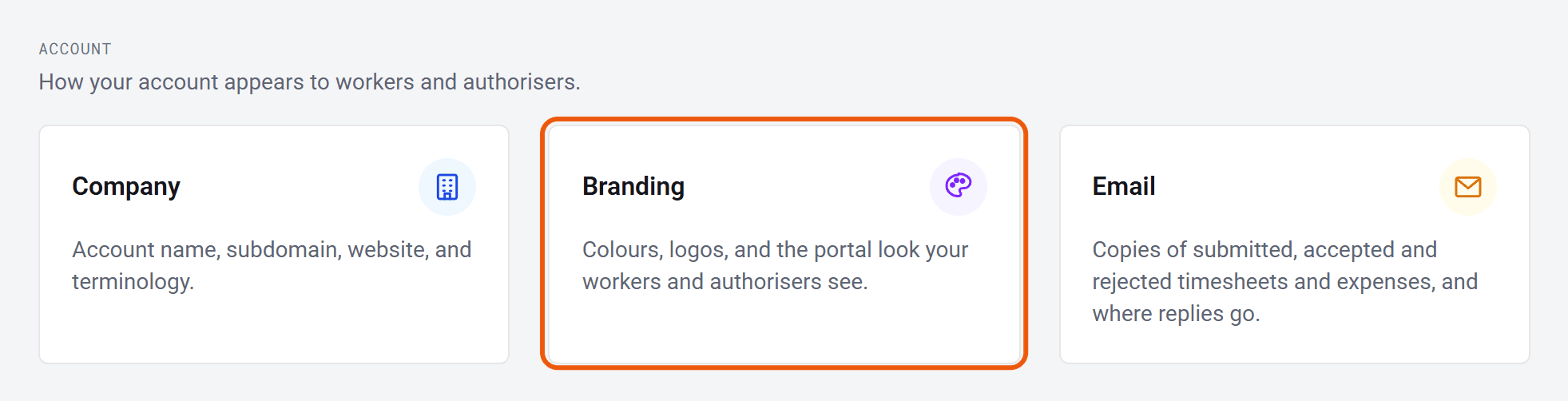
Click Settings at the bottom of the menu on the left, then Branding.
- 2
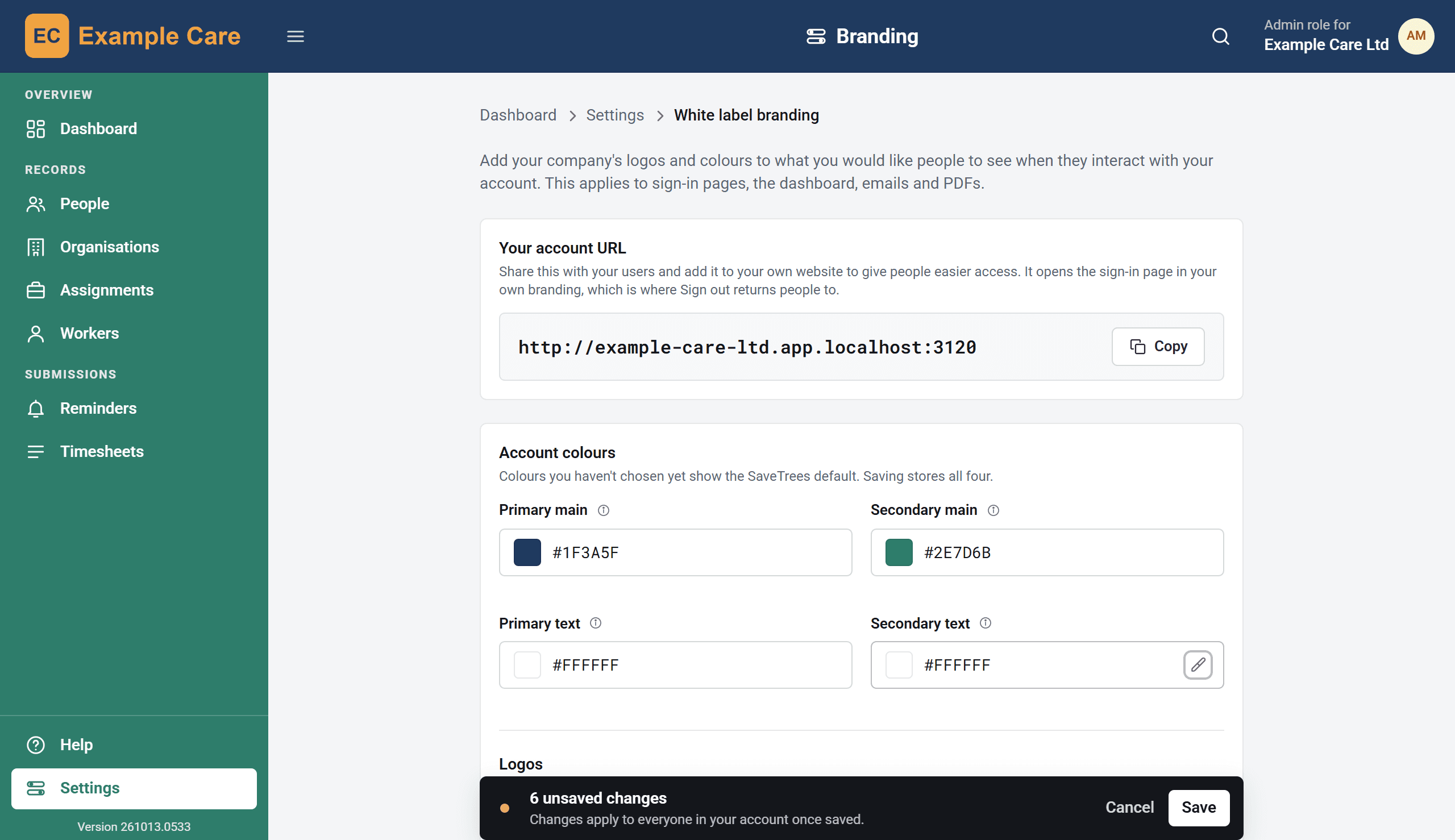
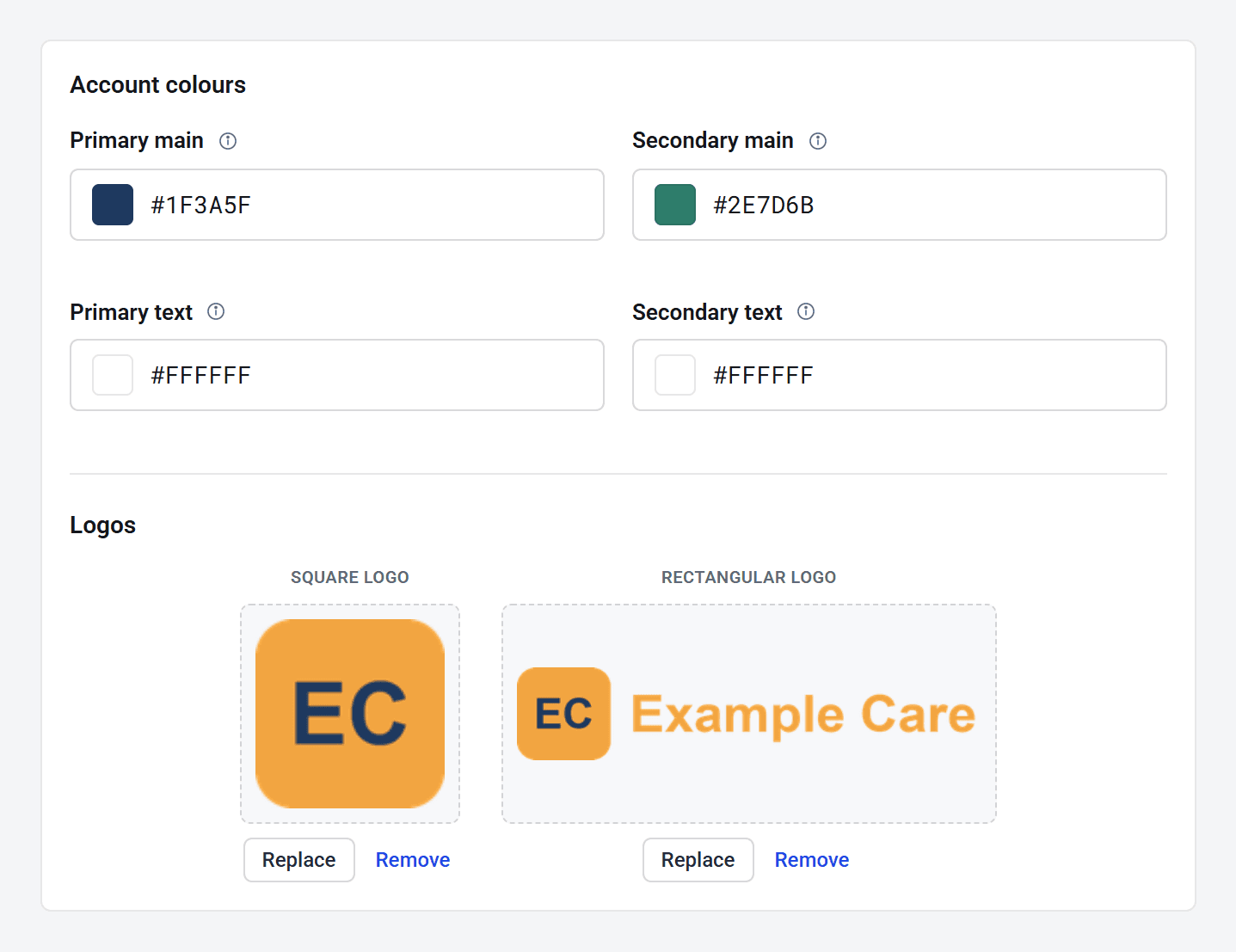
Under Account colours, type your four colours into the boxes, including the # at the start. Or click the little square in a box to pick a colour instead.
- 3
Under Logos, click Upload below each logo and choose your file.
- 4
As you go, the bar along the top and the menu down the left change, so you can see how it looks. Nobody else sees anything yet.
- 5
Happy with it? Click Save in the bar at the bottom of the screen. Everyone in your account sees the new look on the next page they open.
Changed your mind before saving? Click Cancel and everything goes back to how it was.
Which colour goes where
- Primary main is the bar along the top of every page, the background of your sign-in page, and the band across the top of emails and PDFs. Primary text is the writing on it.
- Secondary main is the menu down the left and the Sign in button. Secondary text is the writing on them.
If the writing would be hard to read on one of your colours, you’ll see a note below the logos with a button to try a darker or lighter text colour. You can ignore it if you like: Save becomes Save anyway.
Which logo goes where
- The square logo is on your sign-in page, in the browser tab, and at the left of the bar along the top when the menu is folded away.
- The rectangular logo is at the left of the bar along the top when the menu is open, and at the top of PDFs.
- Emails use the rectangular logo, or the square one if that’s all you’ve added.
Add both if you can. Wherever one is missing, you’ll see the SaveTrees logo instead, and PDFs show your account’s name.
Your own sign-in page
Your branding is on your own sign-in address, which is at the top of the Branding page under Your account URL. Click Copy to share it with your people or add it to your website. Anyone who signs out comes back to it.
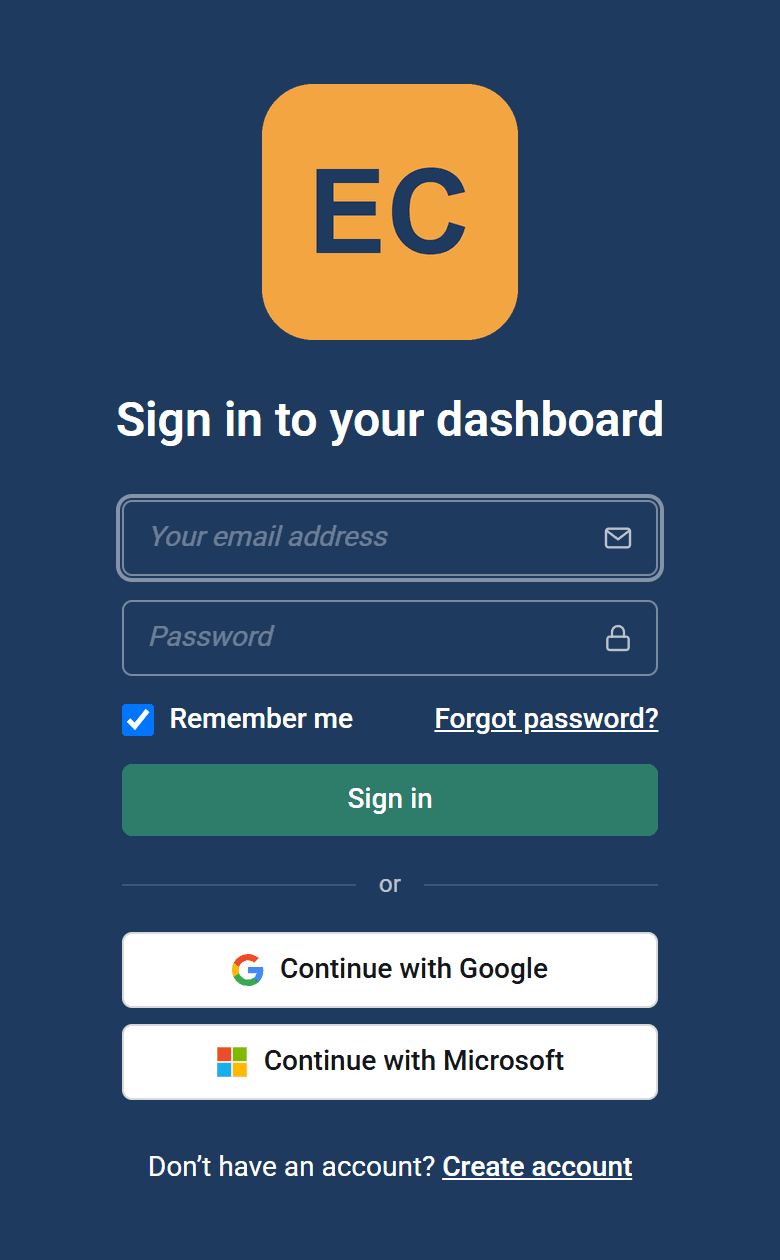
To see it for yourself, open the address in a private window, or sign out. People who sign in at app.savetrees.io see the standard SaveTrees page until they’re in.
What stays SaveTrees
A few small things keep our name: the “Powered by SaveTrees” line at the bottom of emails and the sign-in page, the end of the title in the browser tab, and the emails with two-step verification codes.
Going back to the SaveTrees look
To take a logo off, click Remove under it, then Save.
There isn’t a reset button for colours, so type the originals back in and save: Primary main #464646, Primary text #FFFFFF, Secondary main #65A946 and Secondary text #FFFFFF. You’ll get a note that white on our green is hard to read. That’s expected, so just click Save anyway.
Stuck?
- A colour won’t change. Check it starts with # and has six letters or numbers after it, like #1F3A5F. Anything else turns red and goes back to what it was.
- “Choose a PNG, JPEG, GIF or WebP image.” or “That image is larger than 2 MB.” Save a smaller copy, or a PNG, choose it again and click Save.
- My logo looks blank. A white logo doesn’t show up against the pale boxes on the Branding page. Look at the left of the bar along the top instead, where it sits on your main colour.
- There’s no Branding card in Settings. You need the Change account branding permission. Your account owner always has it, and so does anyone in Full Access. See How do admin permissions work?