Timesheets · Day to day
How do saved views and scheduled emails work?
Save the filters and columns you use most, and have the list emailed to you or payroll on a schedule.
For admins, authorisers and workers · Updated 15 October 2026
Set up a list the way you like it, with your filters, sort, columns and layout, and save it as a view. Next time it’s one click away. On the Timesheets and Expenses lists, you can also have a view emailed as a spreadsheet every week or month.
Save a view
- 1
Set up the list: filters, sort, columns and layout.
- 2
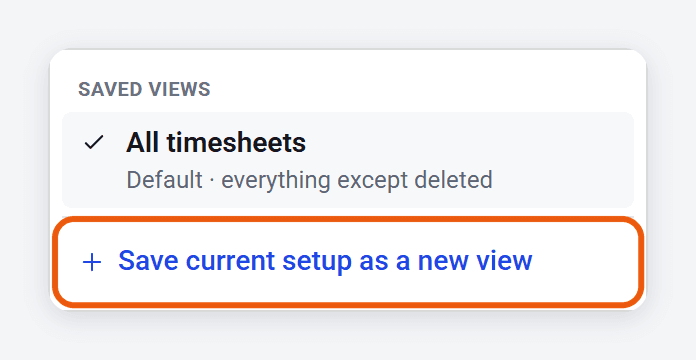
Click View at the top left of the list, then Save current setup as a new view.
- 3
Give it a name, and choose the Default download, which is the format you get when you click Download on this view.
- 4
Admins, choose Who can use it: Only me, or All admins to share it.
- 5
Click Save view.
Saving or picking a view makes it the one the list opens on next time. The search box isn’t saved.
To switch views, click View and pick one. If you change something, an amber dot shows the view has unsaved changes, and the menu lets you update the view, save a new one or discard the changes. To rename or delete a view, point at it in the menu and click the pencil or the cross.
Saved views also work on the People, Workers, Organisations and Assignments lists, and on the lists inside a worker’s, assignment’s or organisation’s page.
Have it emailed
- 1
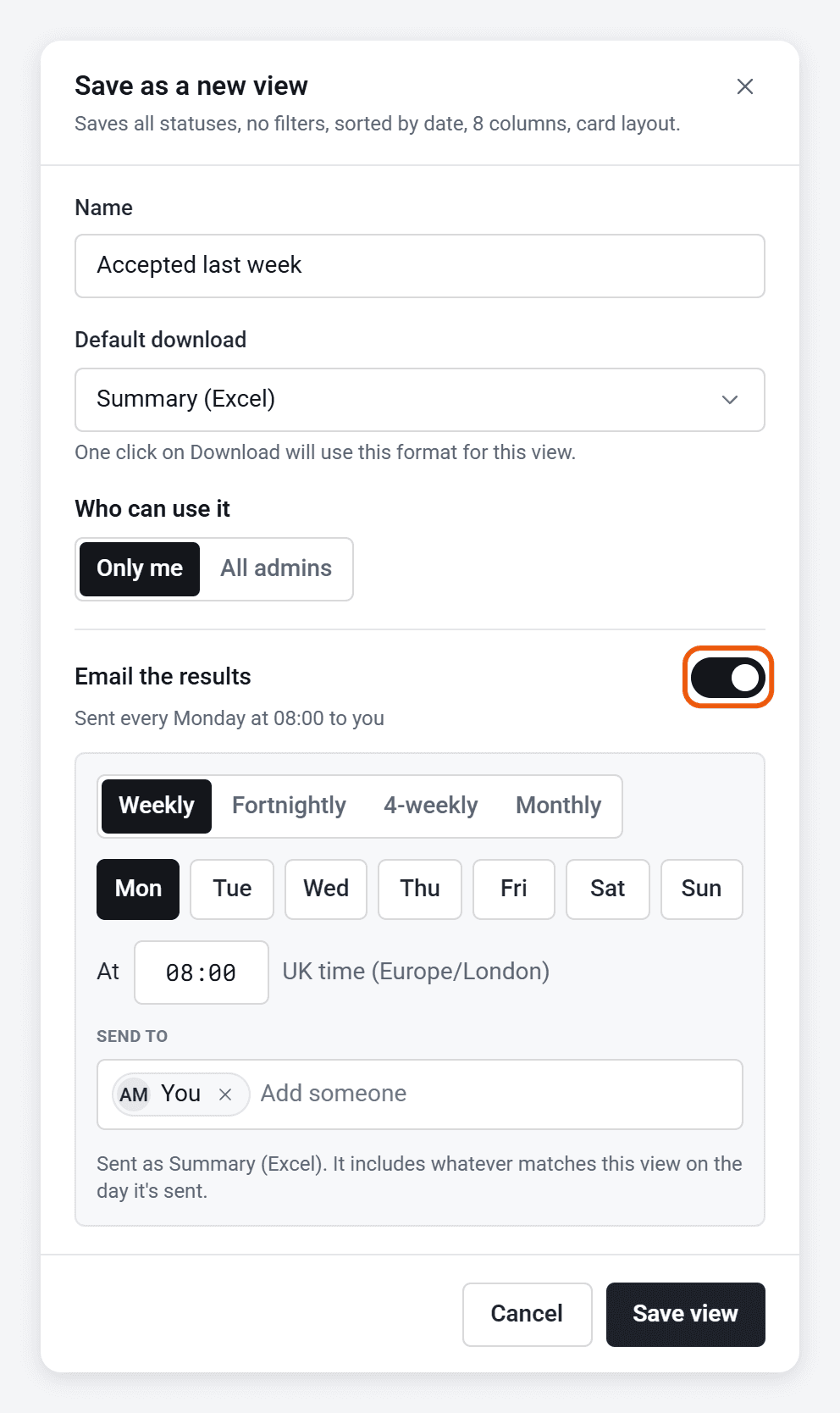
When you save or edit a view on Timesheets or Expenses, switch on Email the results.
- 2
Choose how often: Weekly, Fortnightly, 4-weekly or Monthly, then the day and the time.
- 3
Under Send to, add anyone else who should get it. Admins can add any email address, like your payroll team. Workers and authorisers can only send it to themselves.
- 4
Click Save view.
- The email has the view attached in its Default download format, with whatever matches the view on the day it’s sent.
- Using date filters? Pick a moving one, like the previous week. With fixed dates, every email would have the same timesheets, and you’ll be offered a fix.
- If an email can’t be sent, the person who made the view is told.
- Adding someone who isn’t an admin? You’ll be asked first, because they’ll see pay and charge rates if those columns are in the view.
Stop an email
Edit the view and switch off Email the results, or delete the view. Admins can also see every saved view and its emails in Settings, under Saved views, and click Stop emailing or Delete on ones they made.
Who can do this
Everyone can save views of their own lists. Only admins can share a view or email it to other people. Your account owner can also stop or delete views shared with all admins.