Your account · Settings & admin
How do I set up two-step verification?
Add a code from your phone to your sign-in, so a stolen password isn’t enough to get in.
For workers, authorisers and admins · Updated 15 October 2026
Two-step verification means signing in takes your password and a code that only you have, usually from an app on your phone. In SaveTrees it’s called multi-factor authentication, or MFA.
Your organisation may require it. If so, you’ll be asked to set it up the next time you sign in, and you can skip straight to step 3 below.
Set it up with an authenticator app
You’ll need an authenticator app on your phone, such as Google Authenticator or Microsoft Authenticator. They’re free.
- 1
Go to Settings. If you’re an admin, click My account at the top of Settings.
- 2
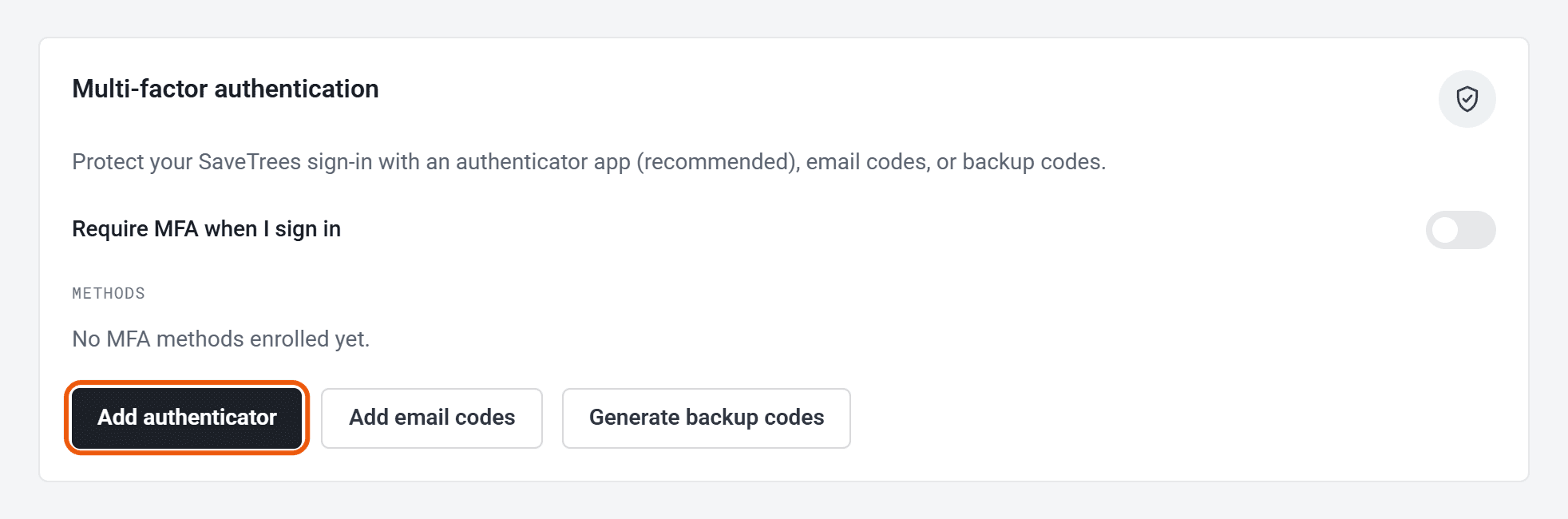
Under Multi-factor authentication, click Add authenticator.
- 3
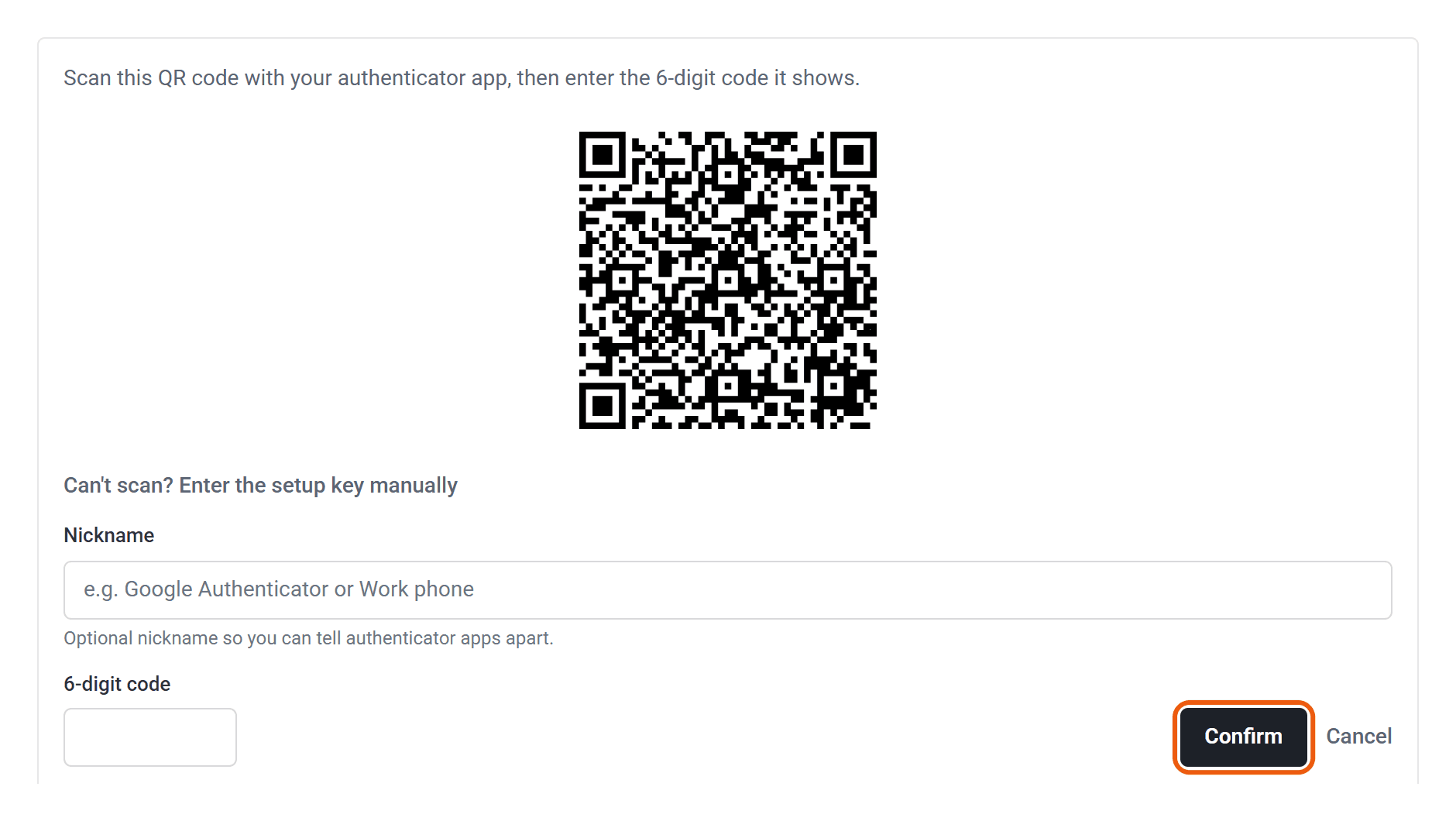
Open your authenticator app, add a new account and scan the QR code. Can’t scan it? Click Can’t scan? Enter the setup key manually and type the key in instead.
- 4
Type the 6-digit code your app shows and click Confirm. You can give it a nickname, like Work phone, if you like.
- 5
If you’re shown Save your backup codes, write them down or save them somewhere safe, then click Done. Each one works once, and they’re how you get back in if you lose your phone.
Ask for it every time you sign in
Setting up an app doesn’t on its own mean you’ll be asked for a code. Switch on Require MFA when I sign in to make it so. You’ll be signed out straight away and asked for your first code.
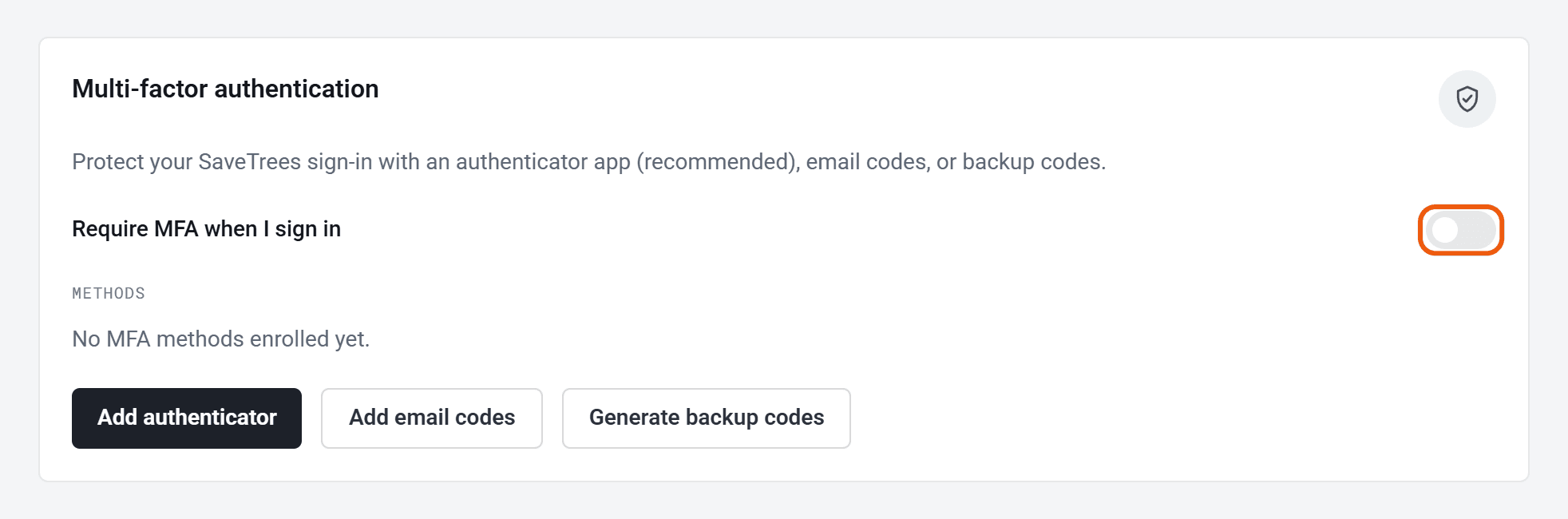
If your organisation requires it, or you’re the person who set up the account, the switch is already on and can’t be turned off.
Signing in
After your password, or after signing in with Google or Microsoft, you’ll see Verify it’s you. Type the code from your app and click Continue. If you use more than one method, pick another tab, such as Email or Backup code.
Other options
- Add email codes sends a code to your email address instead. It’s handy as a backup, but an app is safer, because anyone who can get into your email can also reset your password.
- Regenerate backup codes gives you ten new codes and stops the old ones working.
- Got a new phone? Add the new one with Add authenticator first, then click Remove next to the old one.
Lost your phone?
Sign in as usual and choose Backup code when you’re asked for a code. Then, in Settings, add your new phone and remove the old one.
No backup codes? Get in touch with us and we’ll reset it for you:
- Email [email protected]
- Call 0117 442 0408
- Or use our contact page
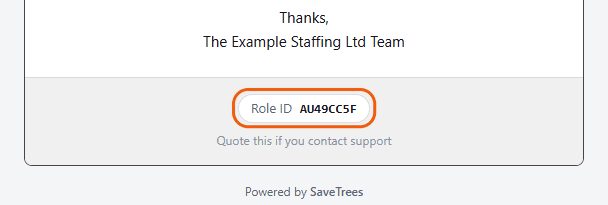
Please quote your Role ID, so we know it’s you. You’ll find it at the bottom of any email from SaveTrees, like an invitation or a reminder.
Your organisation’s admins can’t reset it for you, so contact us directly.