Your account · Settings & admin
How do I change my own settings?
Your name, photo, the emails we send you, and the devices you’re signed in on.
For workers, authorisers and admins · Updated 15 October 2026
Everything about you lives in Settings: your name and photo, which emails we send you, and how you sign in. Admins, it’s under My account, at the top of Settings.
Open Settings in your account(opens SaveTrees in a new tab)
Your name
- 1
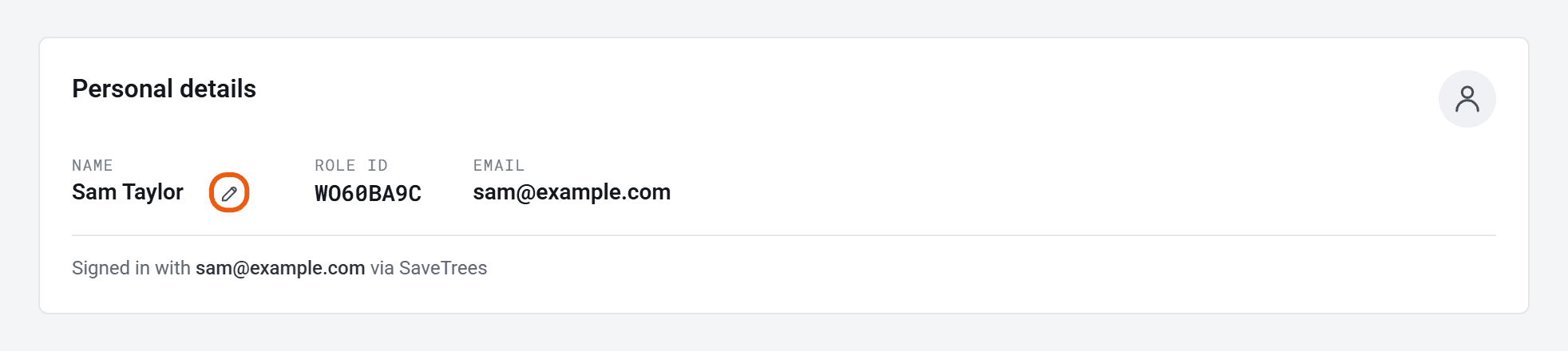
Under Personal details, click the pencil next to your name.
- 2
Type your new name and click Save.
You’ll see the new name straight away. Each organisation you work with is asked to accept it too, so it may take a little while to change on their side.
Personal details also shows your Role ID. Quote it if you ever contact SaveTrees support.
Your photo
Under Personal details, click Upload photo and choose a picture under 5 MB. Click Replace to change it or Remove to take it off. If you sign in with Google or Microsoft, you can use the photo from there instead.
Your email address and password
You can change your email address under Personal details.
To change your password, sign out and click Forgot password on the sign-in page. See How do I reset my password?
Which emails you get
Switch emails on or off under Email preferences. Each switch saves as soon as you click it.
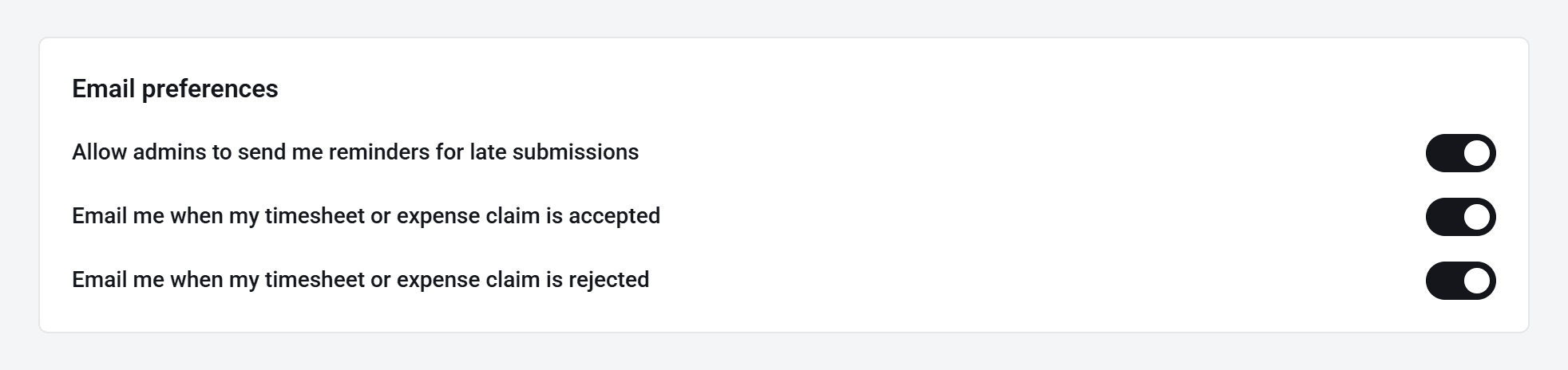
- Workers can choose whether admins can send reminders about late timesheets, and whether we email you when a timesheet or expense claim is accepted or rejected.
- Authorisers can choose whether we email you as soon as something needs you, and whether we send a reminder if you haven’t looked at it yet. Turning off the first one stops the reminders too.
You only see the switches for the role you’re using. If you’re a worker and an authoriser, switch role to change the other set. See How do I switch between accounts or roles?
How you sign in
- Connected sign-in methods lets you sign in with Google or Microsoft. See How do I sign in with Google or Microsoft?
- Multi-factor authentication adds a code from your phone. See How do I set up two-step verification?
Where you’re signed in
Where you’re signed in lists every device signed in to your account. Don’t recognise one? Click Sign-out next to it. To sign out everywhere except where you are now, click Sign-out of everywhere (except here).
Your tags and activity
Workers and authorisers also get Tags, for labels only you can see, and Activity log, a record of what you’ve done in the account. See How do tags work?