Your account · Settings & admin
How does billing work?
What you pay for, when you’re charged, and where to add a card and find your invoices.
For admins · Updated 15 October 2026
You only pay for the people who actually send something. There’s no plan to choose and nothing to cancel: each month you’re charged for the workers who submitted timesheets or expense claims, and the first one in each is free.
What you pay for
- Someone counts once in a billing month if they’ve sent a timesheet or expense claim for any day in it. Drafts don’t count.
- Timesheets and Expenses are counted separately, and each has its own free first person every month.
- The price per person goes down in bands as you grow, like income tax: the 2nd to 5th person is £5 each, the 6th to 50th £4, the 51st to 250th £3, the 251st to 500th £2, and everyone after that £1.
- Prices are before VAT, which is added based on your billing address.
See our pricing page to work out a monthly cost, or use the Calculator tab on the Billing page.
Your billing month
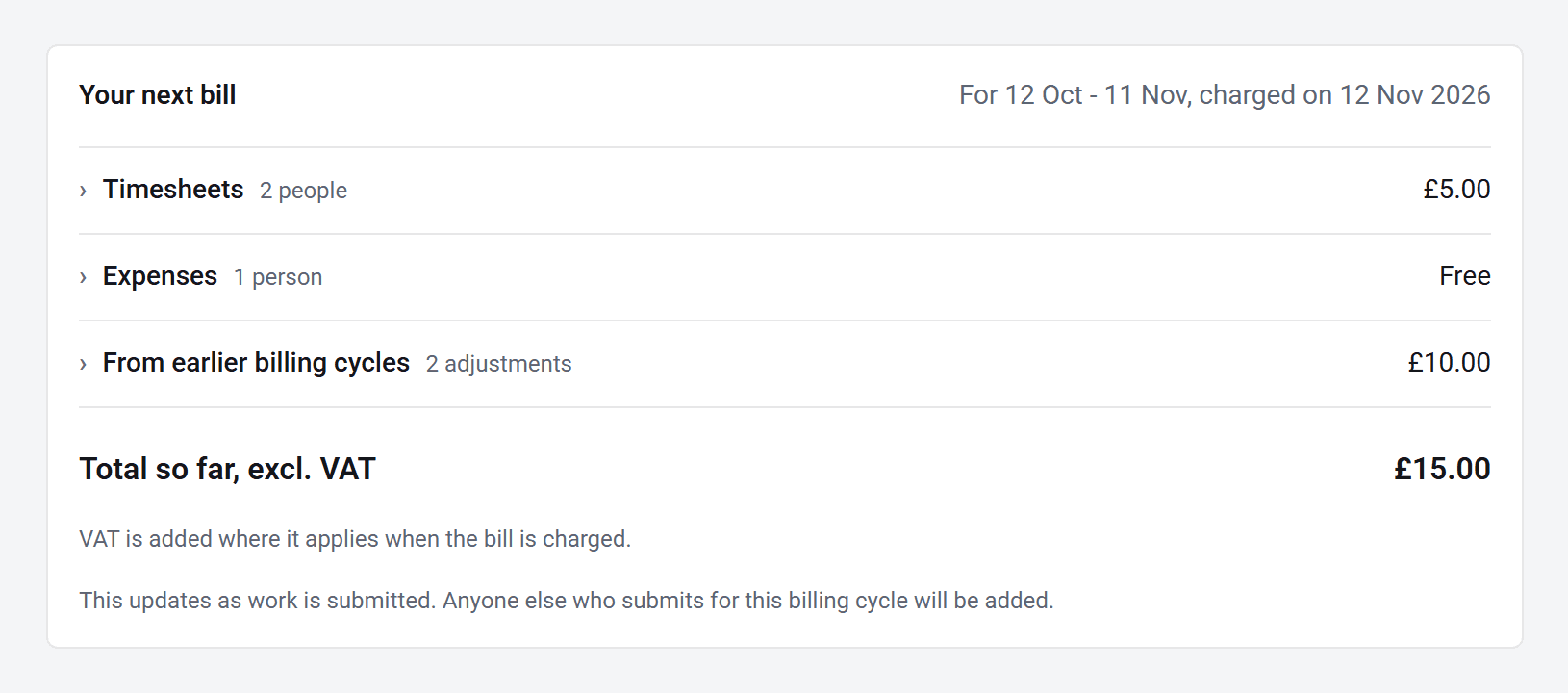
Your billing month runs from the day you signed up, not from the 1st. So if you joined on the 12th, each bill covers the 12th to the 11th, and you’re charged on the 12th. What counts is the day the work was done, so a timesheet sent late is added to your next bill under From earlier billing cycles.
See what you’ll pay
- 1Open Billing in your account(opens SaveTrees in a new tab)
Go to Settings and click Billing.
- 2
Your next bill shows who’s counted so far this month and what it comes to. Click a row to see each person and their band.
The Usage tab shows the last 12 months, with everyone assigned to a module and how many of them sent something.
Add or change your card
- 1
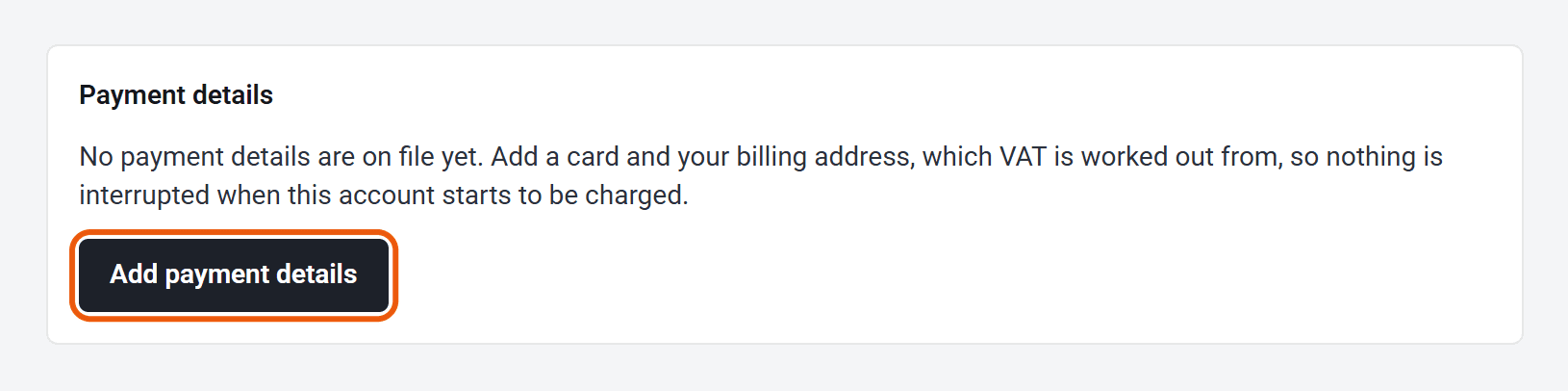
On the Billing page, click Add payment details, or Update payment details if you’ve added a card before.
- 2
Enter your card and billing address on the secure Stripe page, and your VAT number if you have one.
- 3
You’ll come back to Billing and see Your payment details have been saved.
You’re charged automatically at the end of each billing month.
Invoices and company details
Your invoices are listed under Invoices on the Billing page. Click Download PDF or View invoice on any of them.
To change the company name, billing email, address or VAT number on your invoices, open the Account & tax details tab and click Edit details in Stripe.
Got a discount code? Type it under Discount code and click Apply.
If a payment fails
Admins see a banner counting down the days. Update your card within 7 days and nothing changes. After that the account is paused: nobody can send or approve timesheets until a card is added, and it unlocks straight away once one is.
Who can do this
Your account owner, and admins whose permission group includes Access the Billing page (pay the account’s bill).