Your account · Settings & admin
How do tags work?
Coloured labels for timesheets, claims, people and more, so you can find and filter them later.
For admins, workers and authorisers · Updated 15 October 2026
Tags are coloured labels you make up yourself, like Paid, Queried or Key account. Put them on timesheets, expense claims, people, workers, assignments or organisations, then filter by them to find things quickly.
Make a tag
- 1Open Tags in your account(opens SaveTrees in a new tab)
Go to Settings and click Tags.
- 2
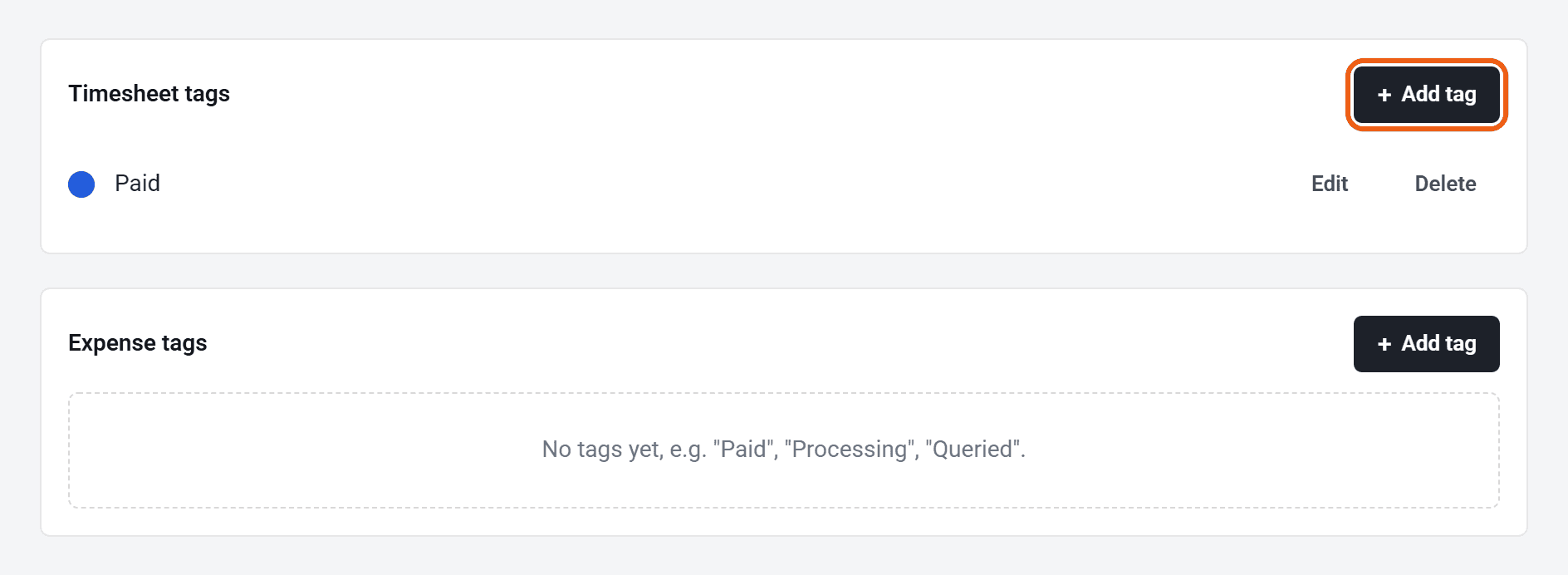
There’s a box for each kind of thing you can tag. Click Add tag in the right one.
- 3
Type a name, pick a colour and click Add tag.
Click Edit to rename a tag or change its colour. Delete takes it off everything it’s on, and can’t be undone.
Tag things
- One at a time: open the timesheet, claim, person, worker, assignment or organisation, and click Add tag under Tags.
- Several timesheets or claims at once: tick them on the list, then click Tags in the bar at the bottom of the screen and pick a tag. Pick it again to take it off.
- From a list card: point at the card and click + Tag.
The Tags box only appears once you’ve made at least one tag of that kind.
Find things by tag
Use the Tag filter on the Timesheets and Expenses lists, or Tags on the People, Workers and Organisations lists. On Timesheets and Expenses, filtering by a worker, assignment or organisation tag finds their timesheets too. You can also add a Tags column, and save the filter as part of a view. See How do saved views and scheduled emails work?
Who sees which tags
- Tags made by admins are shared with all your admins, and only admins see them.
- Workers and authorisers can make their own tags in Settings, under Tags, for their timesheets, expense claims, assignments and organisations. Nobody else sees them, not even admins. They show in the Your tags column on their Assignments and Organisations lists.
What about modules?
Timesheets, Expenses and Documents are switched on and off in Settings, under Module settings. Each one is billed separately. See How do I set up expenses?
Who can do this
Any admin can put tags on things. Making, renaming and deleting shared tags needs your account owner, or an admin whose permission group includes Manage Tags.