Your account · Settings & admin
How do security settings work?
Require two-step verification for everyone, choose which kinds are allowed, and make admins sign in again regularly.
For admins · Updated 15 October 2026
Security settings decide how hard it is to get into your account. You can require everyone to use two-step verification, and make admins sign in again after a set time.
- 1Open Security settings in your account(opens SaveTrees in a new tab)
Go to Settings and click Security.
- 2
Change what you need, then click Save in the bar at the bottom of the screen.
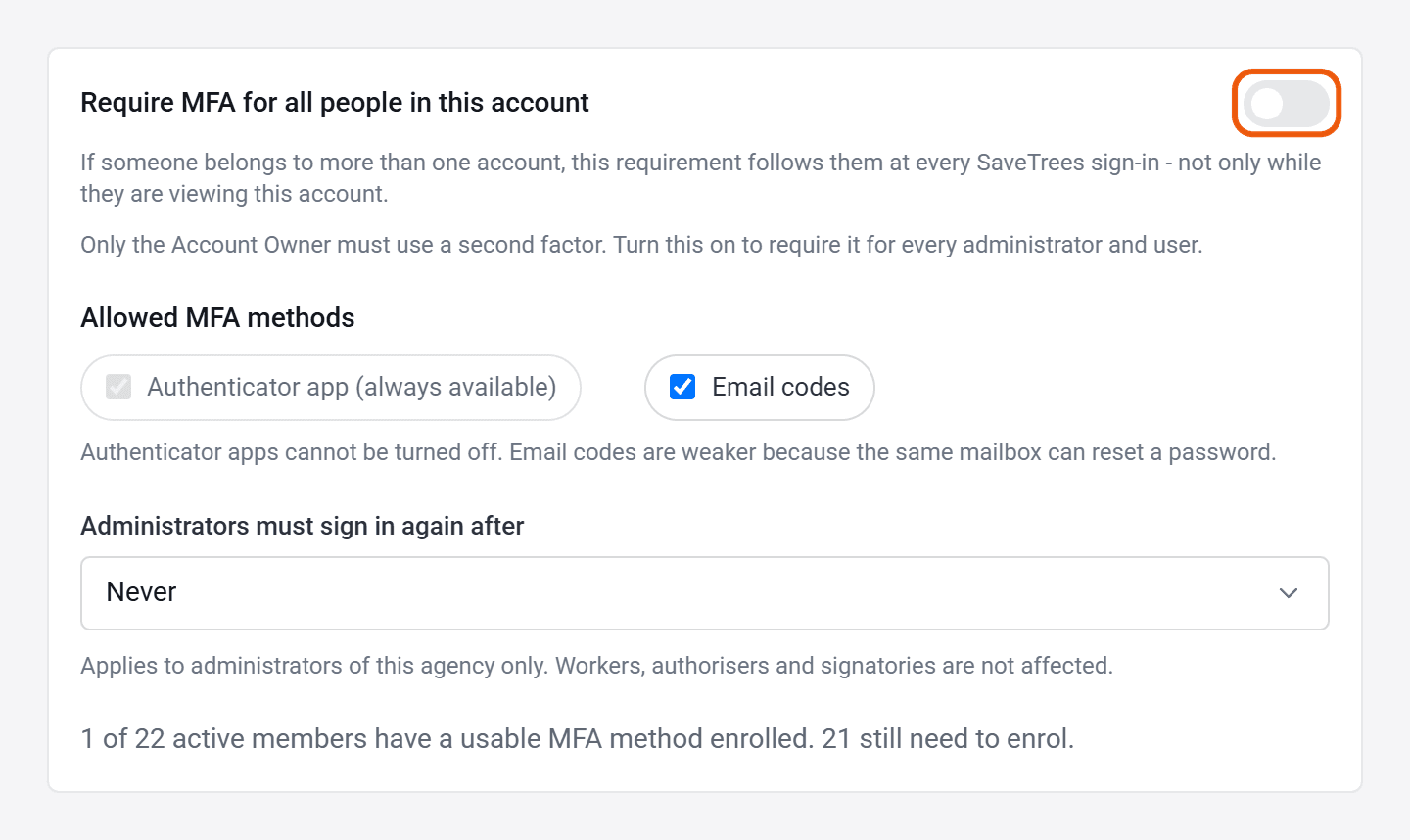
Require two-step verification for everyone
Switch on Require MFA for all people in this account. Everyone, admins, workers and authorisers alike, then has to use a code as well as their password. Anyone who hasn’t set it up is asked to the next time they sign in. See How do I set up two-step verification?
While it’s off, only your account owner has to use it. The line at the bottom shows how many of your people have set it up so far.
If someone works with more than one organisation, the requirement follows them whenever they sign in to SaveTrees.
Which kinds are allowed
- Authenticator app is always allowed.
- Email codes can be switched off. They’re easier to use but less safe, because anyone who can get into someone’s email can also reset their password.
Make admins sign in again
Choose how long an admin can stay signed in under Administrators must sign in again after: 8 hours, 12 hours, 24 hours or 7 days. Never leaves it to their own sign-in choices. Workers and authorisers aren’t affected.
Only from your office
You can also limit admins to signing in from your own network. That’s set on each permission group. See How do admin permissions work?
Who can do this
Your account owner, and admins whose permission group includes Manage account MFA policy. Admins with View account MFA policy can see the settings but not change them.