Your account · Settings & admin
How do I sign in with Google or Microsoft?
Use your Google or Microsoft account instead of a password, and how admins can require it.
For workers, authorisers and admins · Updated 15 October 2026
If your email address is a Google or Microsoft one, you can use it to sign in to SaveTrees instead of typing a password.
Signing in
On the sign-in page, click Continue with Google or Continue with Microsoft, and sign in there. The Google or Microsoft account has to use the same email address as your SaveTrees account.
Just been invited? You don’t have to set a password first. Click Continue with Google or Continue with Microsoft with the address your invitation went to.
Work or school Microsoft accounts only work once your organisation has connected its Microsoft directory (see below). Personal Microsoft accounts, like Outlook.com, work straight away.
If we can’t match the account, you’ll see We couldn’t sign you in with that Google or Microsoft account. Sign in with your email address and password, then connect it in Settings.
Connect or disconnect an account
- 1
Go to Settings. If you’re an admin, click My account at the top of Settings.
- 2
Under Connected sign-in methods, click Connect next to Google or Microsoft, and sign in there.
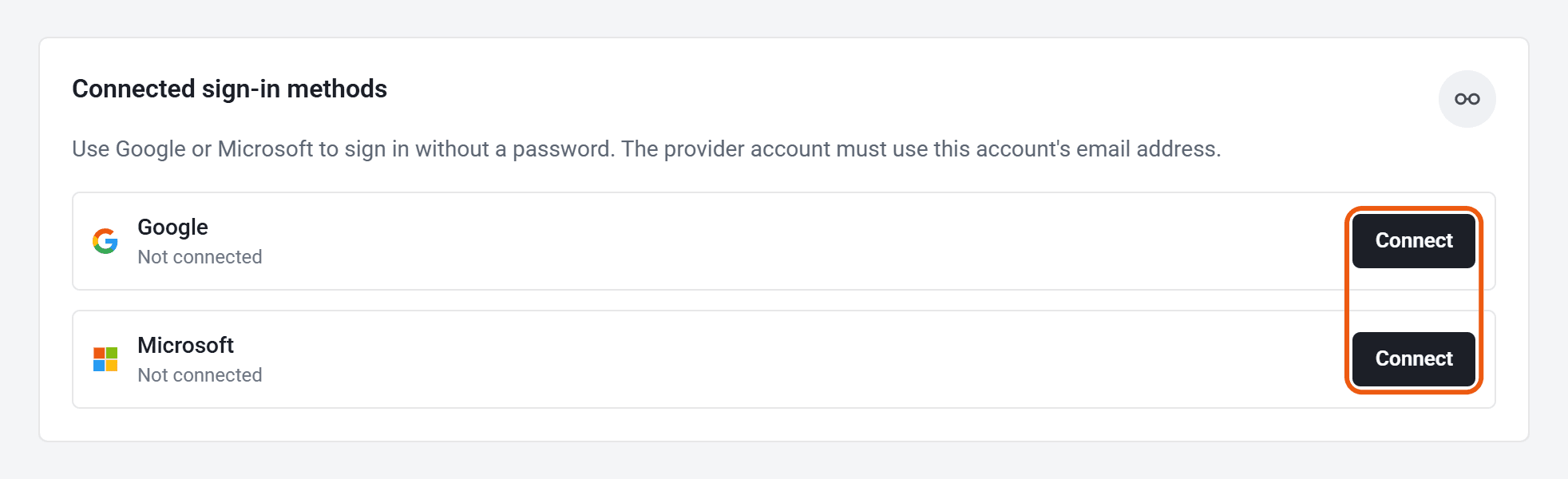
To stop using one, click Disconnect. You can’t disconnect the one you signed in with this time, or your only way of signing in.
If you use two-step verification, you’ll still be asked for your code after signing in with Google or Microsoft. See How do I set up two-step verification?
For admins: connect your organisation’s directory
Connecting your Microsoft directory or Google Workspace domain lets your people use their work accounts, and lets you require it for admins.
- 1
Go to Settings and click Sign-in & SSO.
- 2
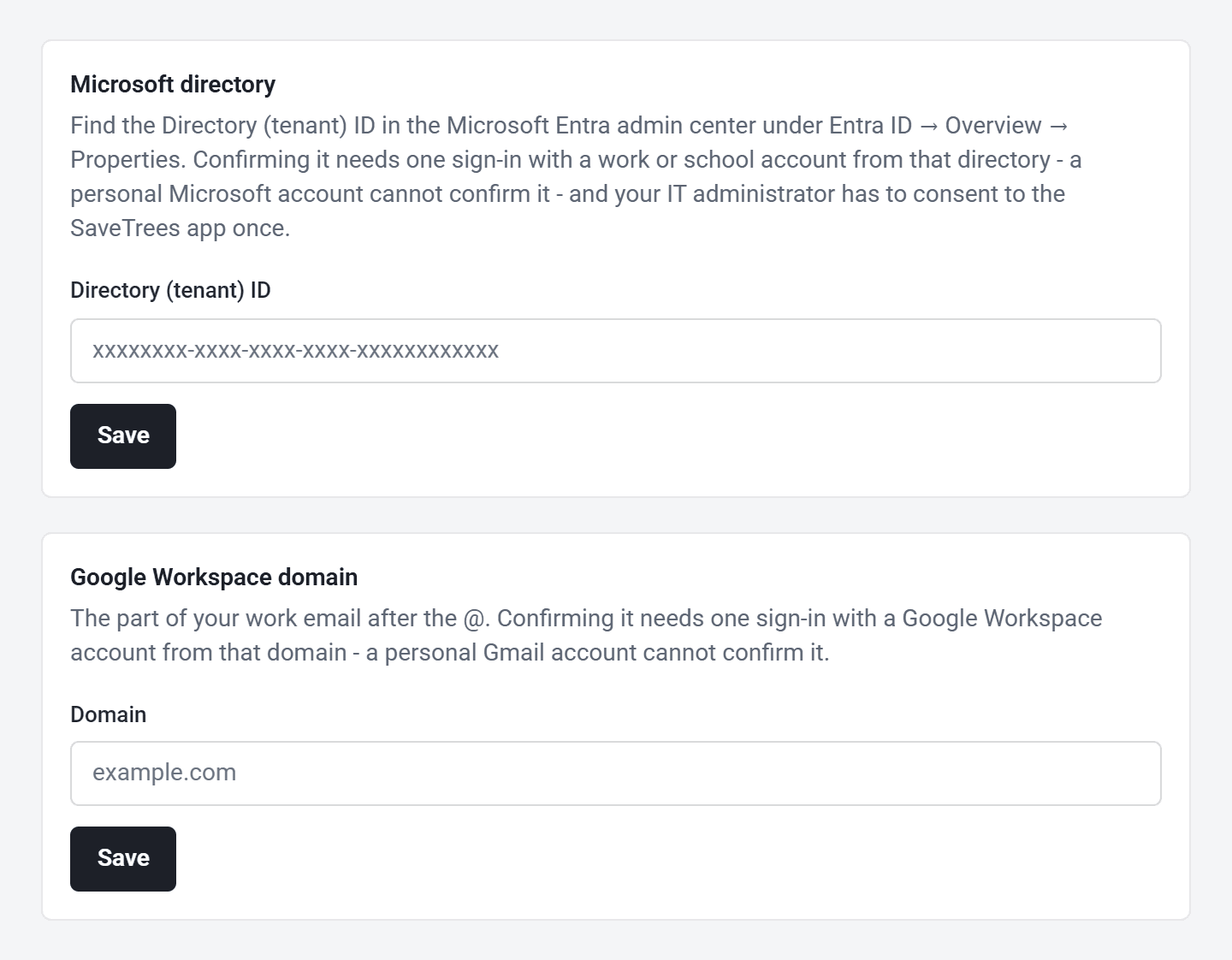
Under Microsoft directory, enter your Directory (tenant) ID and click Save. Or, under Google Workspace domain, enter the part of your work email after the @ and click Save.
- 3
Your account owner then signs in once with a work account from that directory or domain to confirm it. For Microsoft, your IT administrator also has to allow the SaveTrees app once.
Once it’s confirmed, you can switch on Require Microsoft sign-in for admins or Require Google sign-in for admins. Then:
- Admins have to use a work account from your directory to open their admin role. A password won’t work for them.
- Your account owner can still use their password, so you can’t lock yourselves out.
- Workers and authorisers aren’t affected and sign in as before.
- New admins are invited to sign in with Microsoft or Google rather than to set a password.
Who can do this
Anyone can connect their own Google or Microsoft account. Changing Sign-in & SSO needs your account owner, or an admin whose permission group includes Connect or change the Microsoft directory and admin sign-in rules.