Expenses · Get set up
How do I set up expense reminders?
Let SaveTrees nudge authorisers about expense claims waiting for them, or chase them yourself.
For admins · Updated 9 November 2026
A claim waiting for approval is someone waiting to be paid back. SaveTrees can nudge the authoriser for you, a set time after the claim is sent. Nothing goes out until you set it up.
Set up your reminders
- 1Open Automated expense reminders in your account(opens SaveTrees in a new tab)
Click Settings at the bottom of the menu on the left, then Expenses, then Automated expense reminders.
- 2
Click Add reminder, then choose how long after a claim is sent it goes, in hours or days. You can add up to three.
- 3
Choose who it goes to: the primary authorisers, the primary and backup authorisers or the backup authorisers.
- 4
Check the example underneath, then click Save changes at the bottom of the page.
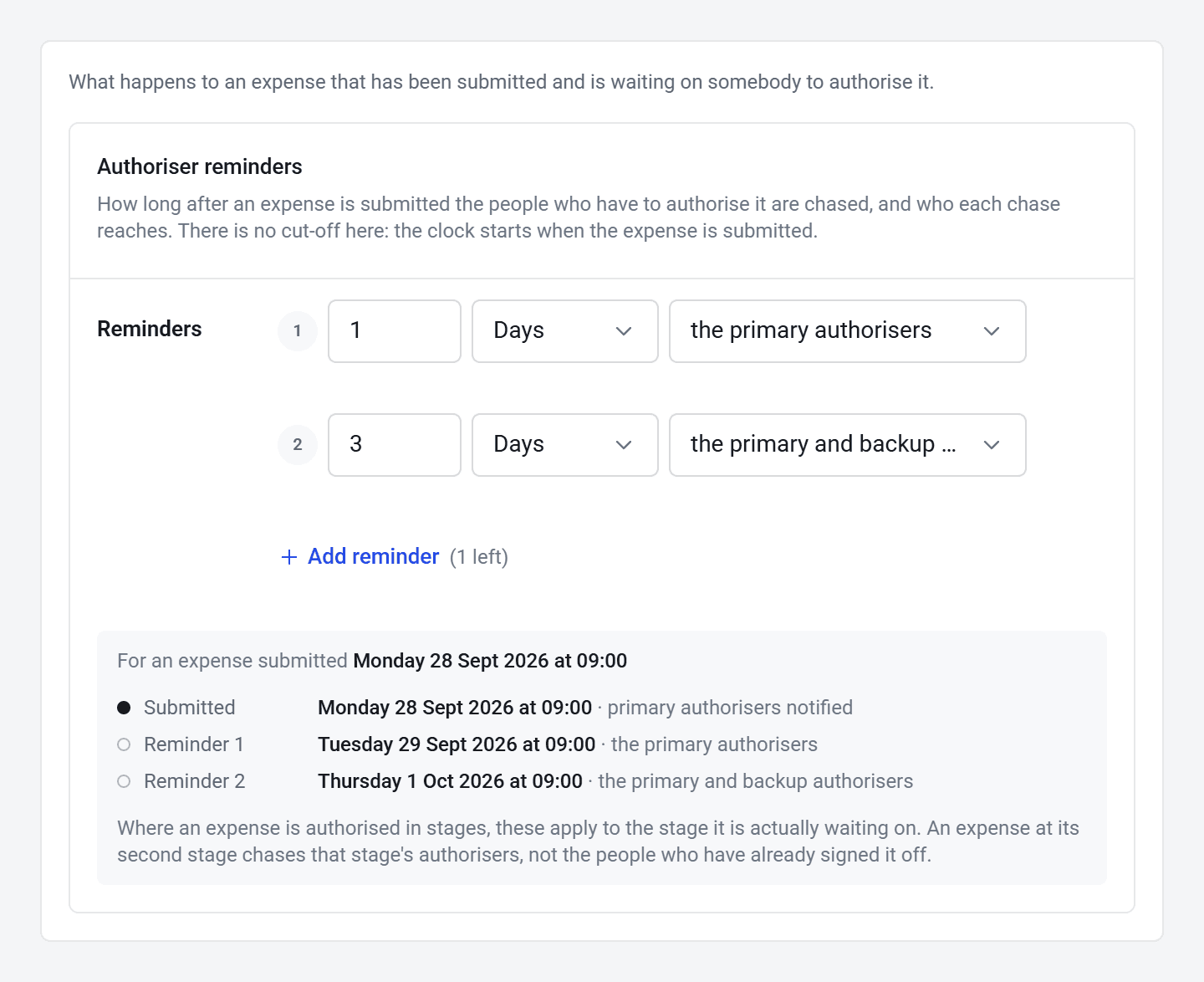
Screens may look a little different in your account, with your organisation’s own colours and words.
When you save, any reminder time from the last 24 hours goes out within a few minutes, and older ones are skipped.
How they work
- The clock starts when the claim is sent, and runs round the clock, so 1 day means 24 hours later, weekends included.
- Each email links straight to the claim.
- Choose the primary and backup authorisers unless every worker has a backup. If a reminder goes to backups only and there isn’t one, nobody gets it.
- If a claim is approved in stages, reminders go to whoever it’s waiting on now.
- The reminders stop once a claim has been accepted or rejected.
Workers aren’t chased about expenses, because there’s no set time when a claim is due.
Chase people yourself
Click Reminders in the menu, then Expenses if your account uses timesheets too. You’ll see the claims waiting for approval.
- Click the paper plane next to someone to remind them straight away.
- Remind all authorisers emails everyone on the list. It sends straight away, so check the list first.
Why didn’t someone get a reminder?
- They’ve switched reminders off. An authoriser who turns off either of their email switches stops getting automatic reminders.
- Nobody was set up to get it. A reminder to backups only reaches no one if that worker doesn’t have a backup.
- The claim has already been dealt with. Only claims still waiting for approval are chased.
Who can do this
Any admin can change expense reminders. To see how claims get approved, read How do I accept or reject an expense claim?