Expenses · Get set up
How do expense templates work?
What a template is, how to change what people can claim, and how to put workers on one.
For admins · Updated 9 November 2026
A template is the list of things a worker can claim, such as mileage, taxis or lunch, and how many people have to approve it. Every worker who claims expenses is on one.
Each item on the list is a field. You make the fields first, then build templates from them, so one mileage field can sit on every template you have.
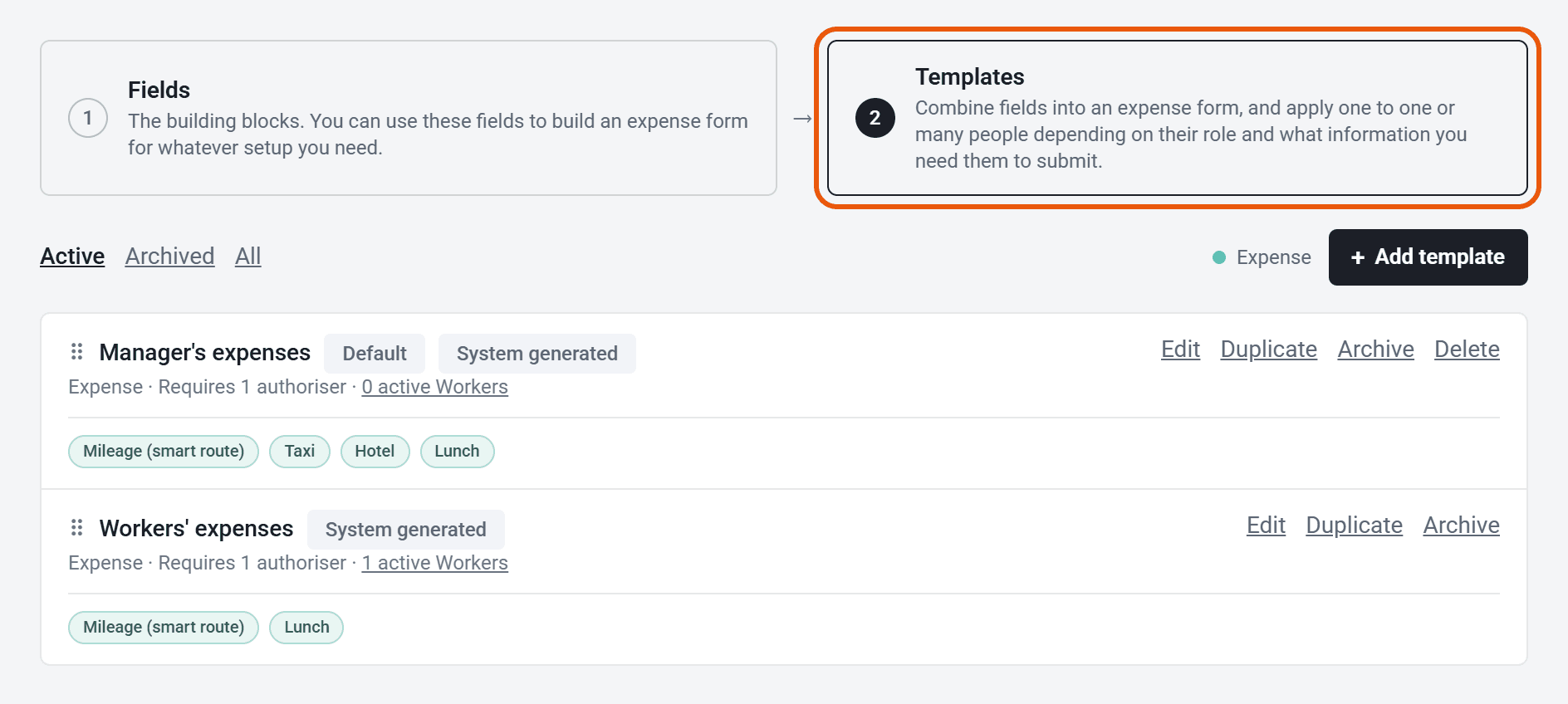
The first time you switch on Expenses, you get two templates to start from. Manager’s expenses has Mileage (smart route), Taxi, Hotel and Lunch. Workers’ expenses has just the mileage and Lunch. They may be all you need. If your account is older, you may see a Standard expenses template instead.
Find your templates
- 1Open Expense templates in your account(opens SaveTrees in a new tab)
Click Settings at the bottom of the menu on the left, then Expenses, then Expense templates.
- 2
The page opens on Fields. Click Templates at the top to see your templates.
Screens may look a little different in your account, with your organisation’s own colours and words.
Each template shows who approves its claims and how many workers are on it. Click that number to see who they are.
The template at the top is your Default. Drag a template up or down to change the order.
Add something new to claim
Want people to claim something that isn’t there yet, like parking? Add it as a field.
- 1
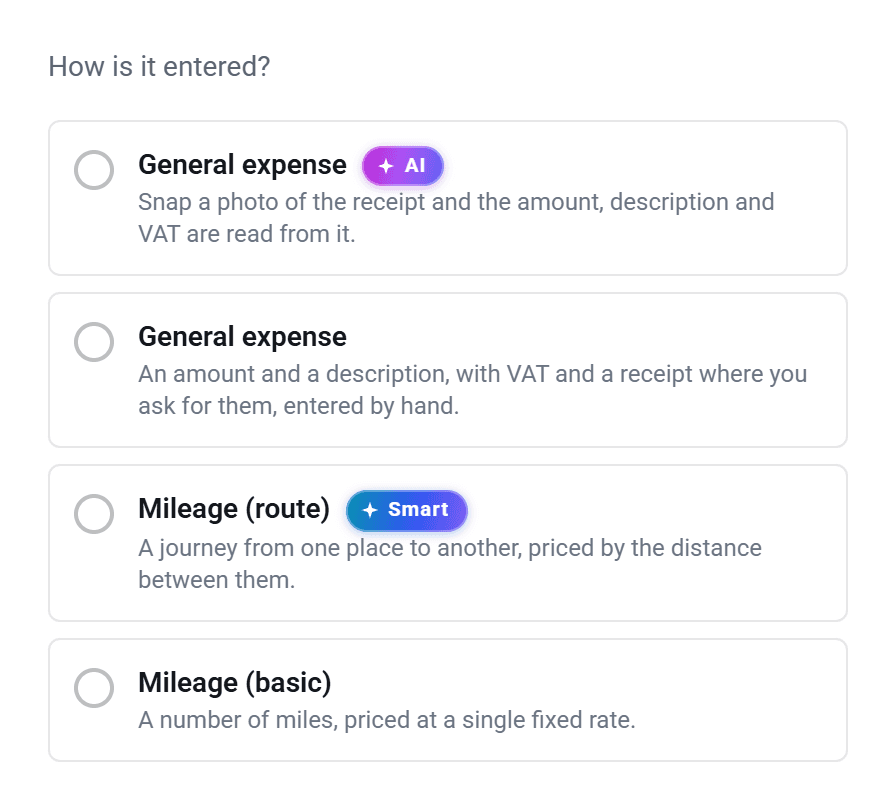
On Fields, click Add field, then choose how it’s entered. The four kinds are below.
- 2
Type a Field name, which your admins and exports use, and a Display name, which your workers see. Set the currency, and the Rate if it’s mileage.
- 3
For a general expense, choose whether to Require a receipt or Require a description. Switch on Allow quantity for anything claimed by the unit, like 3 nights.
- 4
Add your Pay account code and Charge account code, then click Add field.
- General expense, with the AI badge: the worker takes a photo of the receipt, and the amount, description and VAT are read from it.
- General expense: the worker types the amount and a description.
- Mileage (route): the worker enters where they went, and the distance is worked out for them.
- Mileage (basic): the worker types the number of miles.
You can’t change how a field is entered once it’s made. If you need it entered another way, add a new field.
Make a new template
- 1
Click Templates at the top, then Add template.
- 2
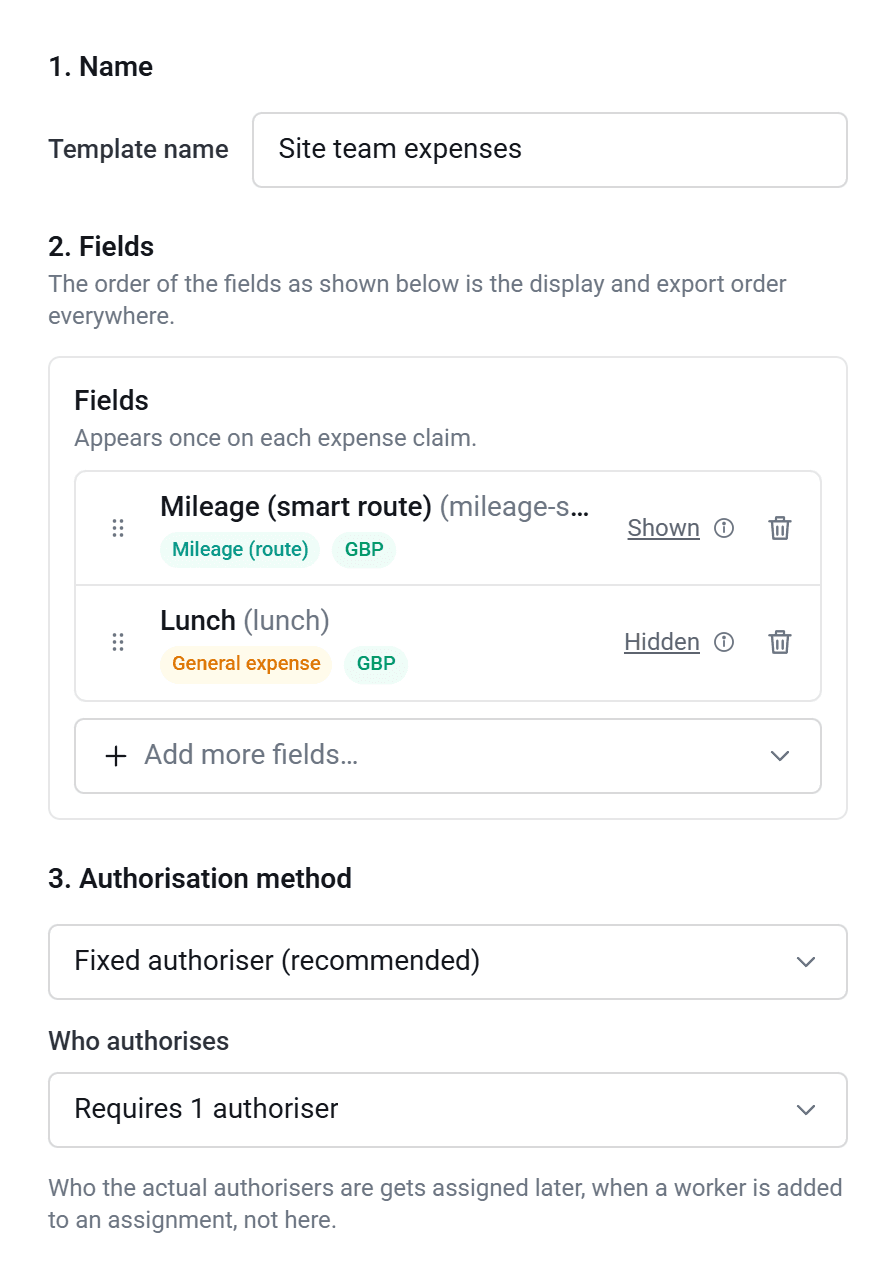
Type a Template name.
- 3
Under Fields, click Add a field… and choose what people can claim on this template. Drag them to change the order.
- 4
Check each field says Shown. Only the first field you add starts that way. The others start as Hidden, which keeps them off new claims. Click the word to switch it.
- 5
Under Who authorises, choose Requires 1 authoriser, Requires multiple in series (several people, one after another), Requires multiple in parallel (several people at once) or Decide per worker (you choose for each worker when you add them). For series and parallel, choose how many.
- 6
Click Add template.
You choose the actual authorisers later, for each worker.
Change a template
Click Edit on the template. You can rename it, and add, remove or reorder its fields.
Who authorises can’t be changed once a template is made. To change it, click Duplicate, set up the copy the way you want, then move your workers onto it.
Put workers on a template
- Choose it in the Expense template box when you add a worker. See How do I add a worker?
- For someone already on an assignment, open their worker page and click Set expense template, then choose the template and authoriser.
- To change someone’s template, open their worker page. Under What’s required on this assignment, click Expense, then pick from Expense template.
- To move several workers, tick them on the Workers list and click Change Expense template.
Archive or delete a template
Click Archive on the template. If anyone has ever been on it, including people whose assignment has ended, you’ll be asked which template to move them to, so you’ll need another active template first. To bring one back, click Archived at the top of the list, then Unarchive.
Delete only appears on a template nobody has ever used.
Who can do this
Your account owner, and admins whose permission group includes Manage Expense Fields & Templates. For mileage rates and the other expense settings, see How do I set up expenses?