Settings & branding
Timesheet Templates
For admins · 19 February 2026
Using SaveTrees v3? This works differently there. See the v3 guide

Timesheets Help Structure
This section is made up of three connected parts:
[ Timesheets ] → [ Custom Field Types ] → [ Timesheet Templates ]
Each part plays a different role in how time is recorded and submitted. You are currently viewing: Timesheet Templates
Overview
Timesheet Templates control how timesheets are structured, how often they are submitted, and which workers use them.
If Custom Field Types define what time is being tracked, Timesheet Templates define how that time is organised and submitted.
Templates bring everything together.
What Is a Timesheet Template?
A Timesheet Template:
- Selects which Custom Field Types appear on the timesheet
- Determines what order they appear in
- Controls whether they are shown by default or hidden
- Sets the submission frequency (weekly or monthly)
- Controls whether notes are shown at the bottom of the timesheet
Workers only see and complete the Template they are assigned to.
Why Templates Matter
Templates allow you to create different timesheet structures for different teams, clients or working patterns.
For example, you might have:
- A Weekly Template for care staff
- A Monthly Template for office staff
- A Client-Specific Template for contractors working accross multiple projects
Each Template can include different Custom Field Types and different submission rules.
Jump to...
How to create a Timesheet Template▾
Creating a Timesheet Template
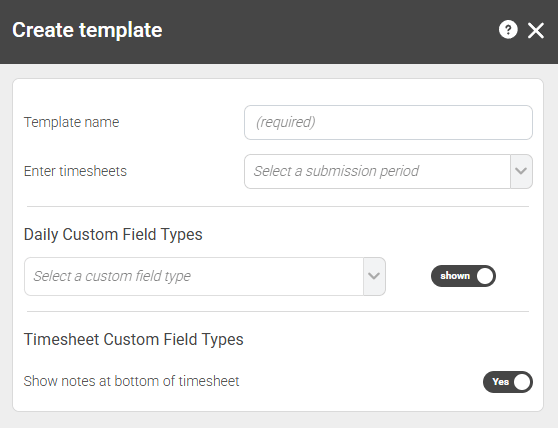
To create a new Timesheet Template:
- Go to the Custom field types tab in your admin dashboard (Settings > Timesheets > Timesheet templates > Timesheet templates tab).
- Click ‘Create timesheet template’.
- Fill in the fields. See below for details:
Template Name - This is visible to all roles.
Choose a clear, descriptive name.
Many organisations name Templates based on:
- Type of job being carried out
- Team or department
- Client
- Submission frequency
- Type of worker
For example:
- Weekly Carers
- Monthly Office Staff
- Project Alpha Contractors
Enter timesheets (Submission Frequency)
You can choose:
- Weekly
- Monthly (calendar)
This determines how often workers must submit their timesheet and how many days they'll see on their timesheet (as long as those days fall within their contracted period).
Daily Custom Field Types - CFTs that are available for each day within the timesheet.
Select which Custom Field Types will appear on this Template.
Only the CFTs added here will be available to workers assigned to this Template.
You can include:
- Common time categories shown by default
- Occasional time categories that remain hidden unless selected
This keeps timesheets clean and relevant.
If the Custom Field Type you want hasn't been created yet, click here to learn how to create a custom field type.
Timesheet Custom Field Types - fields that are available once per timesheet
At the moment, you can add:
- Notes
- Documents - If you don't see the documents option, you will need to allow this at the agency level (only available to Super Admins).
Make default
If you would like to make this timesheet the one that's automatically assigned to new workers by default, toggle this to 'Yes'.
How to edit a Timesheet Template▾
Editing a Timesheet Template
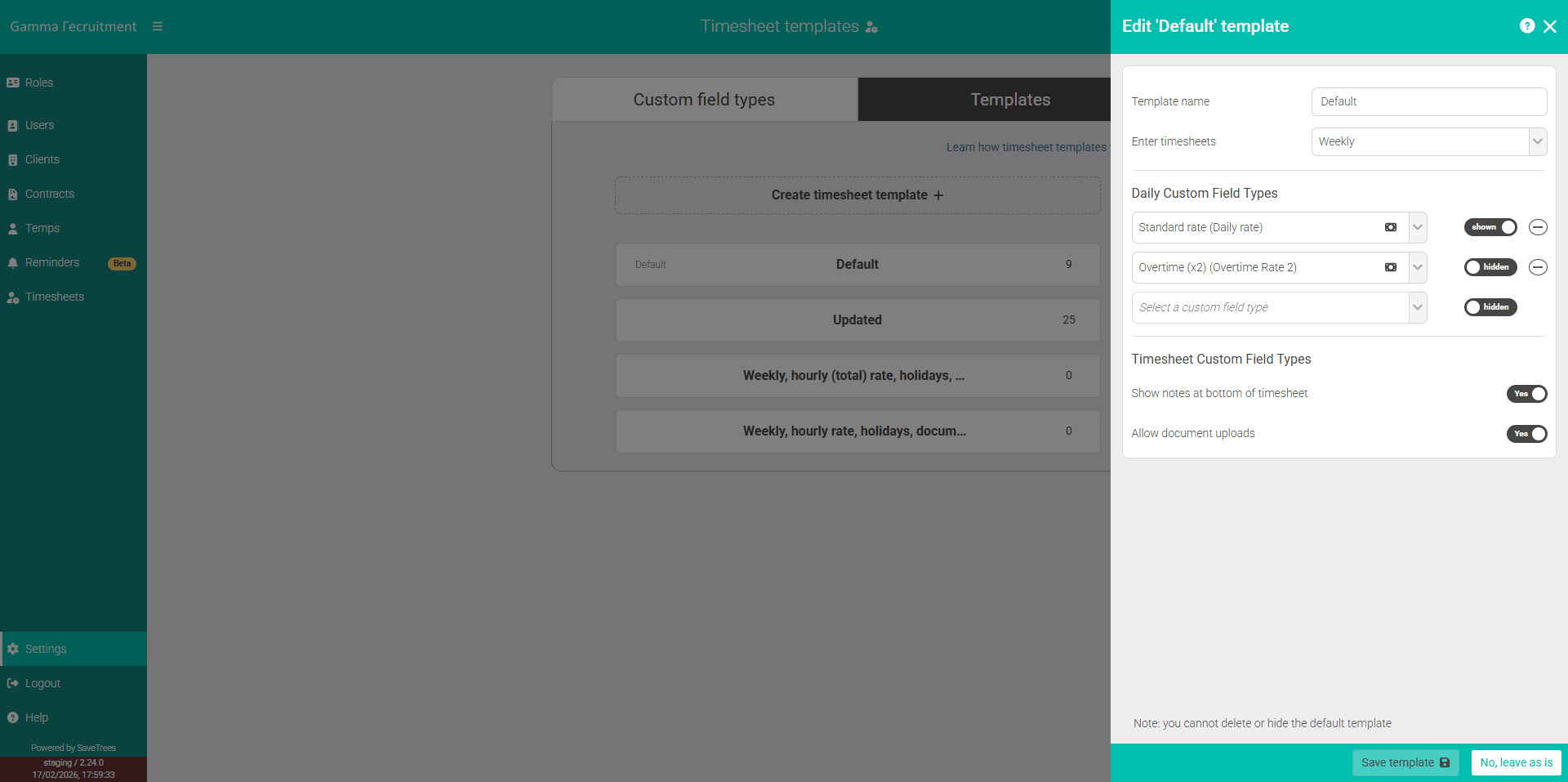
To edit a CFT:
- Go to the Custom field types tab in your admin dashboard (Settings > Timesheets > Timesheet templates > Timesheet Templates tab).
- Click on the Timesheet Template you'd like to edit.
- Make any changes you need.
- Click 'Save template'.
- You will now see a warning advising that these changes will be applied to any workers who have this Template assigned to them as well as any new ones. If you're happy with that, choose "accept"
⚠️ Beware Changing a Timesheet Template will change it for anyone who is using it so please make sure that you are sure you want to make that change.
How to delete a timesheet template▾
Deleting a Timesheet Template
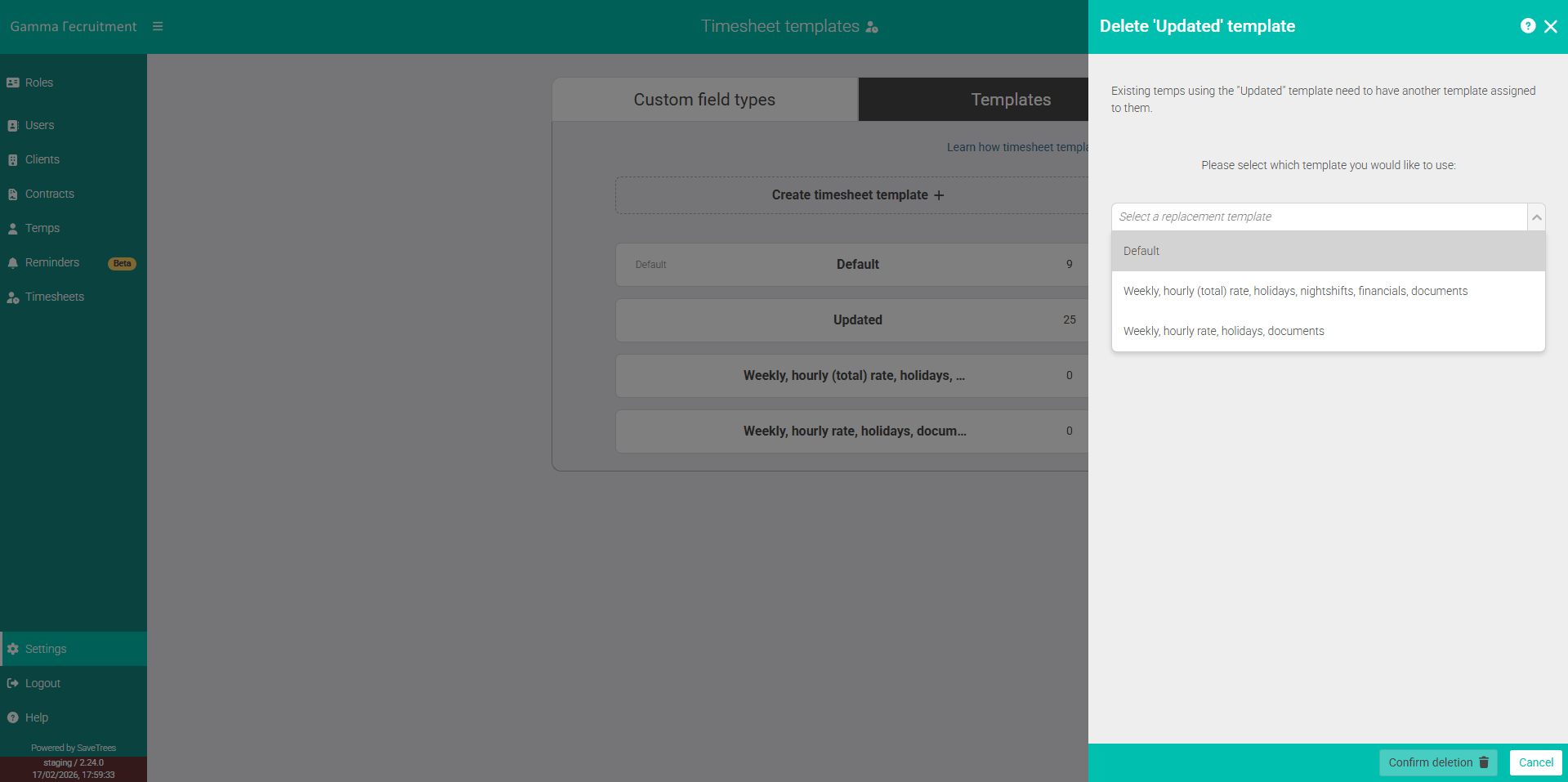
To delete a timesheet template:
- Go to the Timesheet template tab in your admin dashboard (Settings > Timesheets > Timesheet templates > Timesheet template tab).
- Select the template you'd like to delete. Make sure it isn't a default template otherwise you won't see the 'Delete template' button
- Click 'Delete template'.
- If you have existing workers who have this timesheet assigned to them, the system will ask for you to select another template that they can be assigned to. Select the one you want and the system will then move everyone across. If you have a large number of workers/contractors on this template. you may see the number on the right hand side reduce while the reassignment is happening and then the template will disappear.
When to Create Multiple Templates
If you're like most agencies, you will probably only need one or two timesheet templates, however, we've made it flexible enough that if you need more, you're able to have as many as you want and craft them to be the perfect timesheet for each role.
Consider creating separate Templates if:
- Different teams submit at different frequencies
- Certain workers need different time categories
- You manage multiple clients with different reporting requirements
- Some roles require additional or fewer entry types
Templates give you flexibility without overcomplicating individual timesheets.
Below are some examples of templates that could be of use:
Generic timesheet (with overtime) example