Your agency’s data, behind more than one lock
Timesheets and expenses hold pay rates, client details and personal information. SaveTrees lets you choose who can sign in, how, from where, and what each admin can see. And every change is recorded.
Every security setting on this page is included on every plan, even the free one.
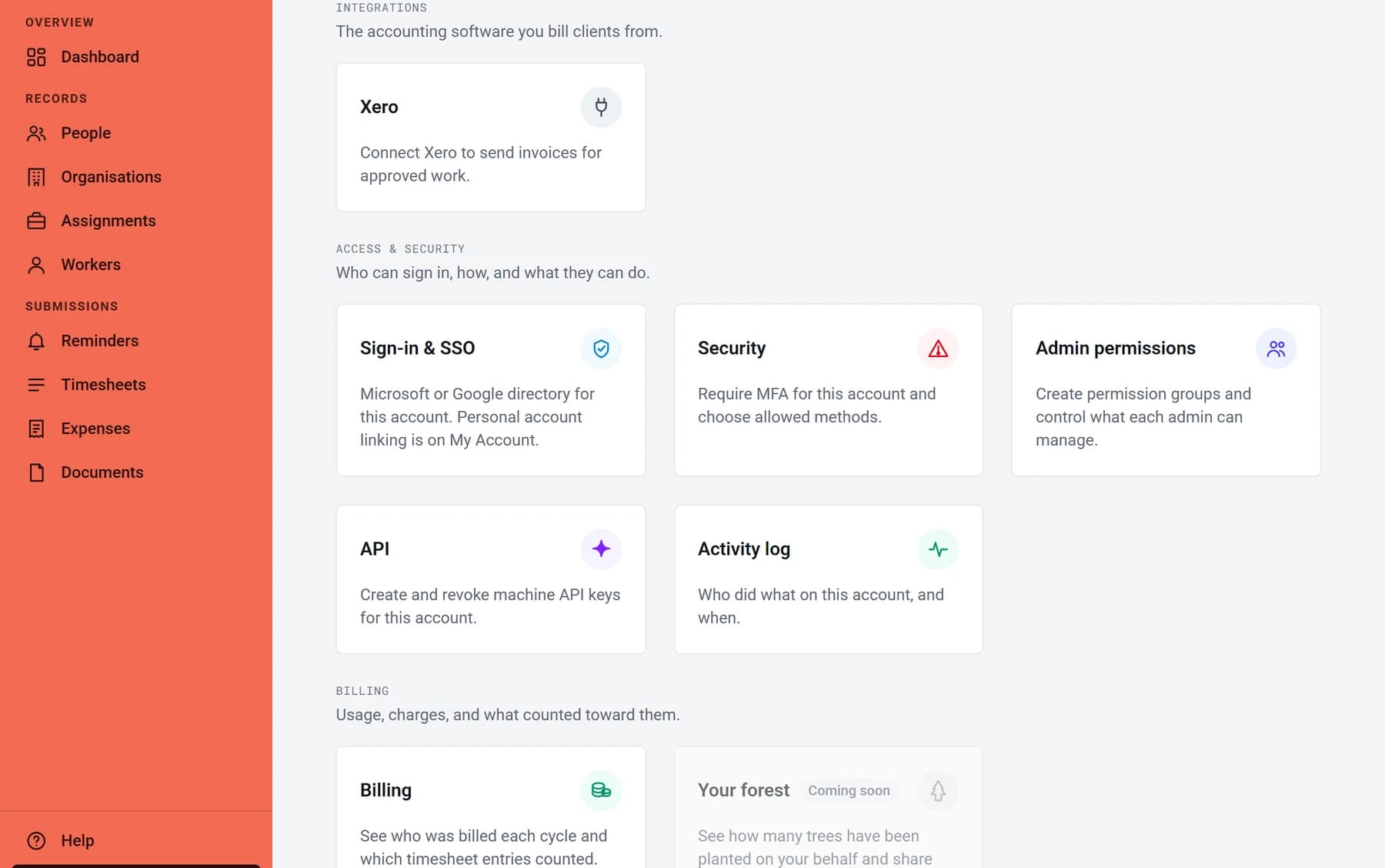
A password isn’t enough
Make two-step verification compulsory for everyone, from your admins to the clients who approve timesheets.
Admins see only their part
Permission groups decide what each admin can see and do, from paying the bill to managing workers.
Nothing happens off the record
Every submission, approval and edit is logged with who did it, when, and the IP address it came from.
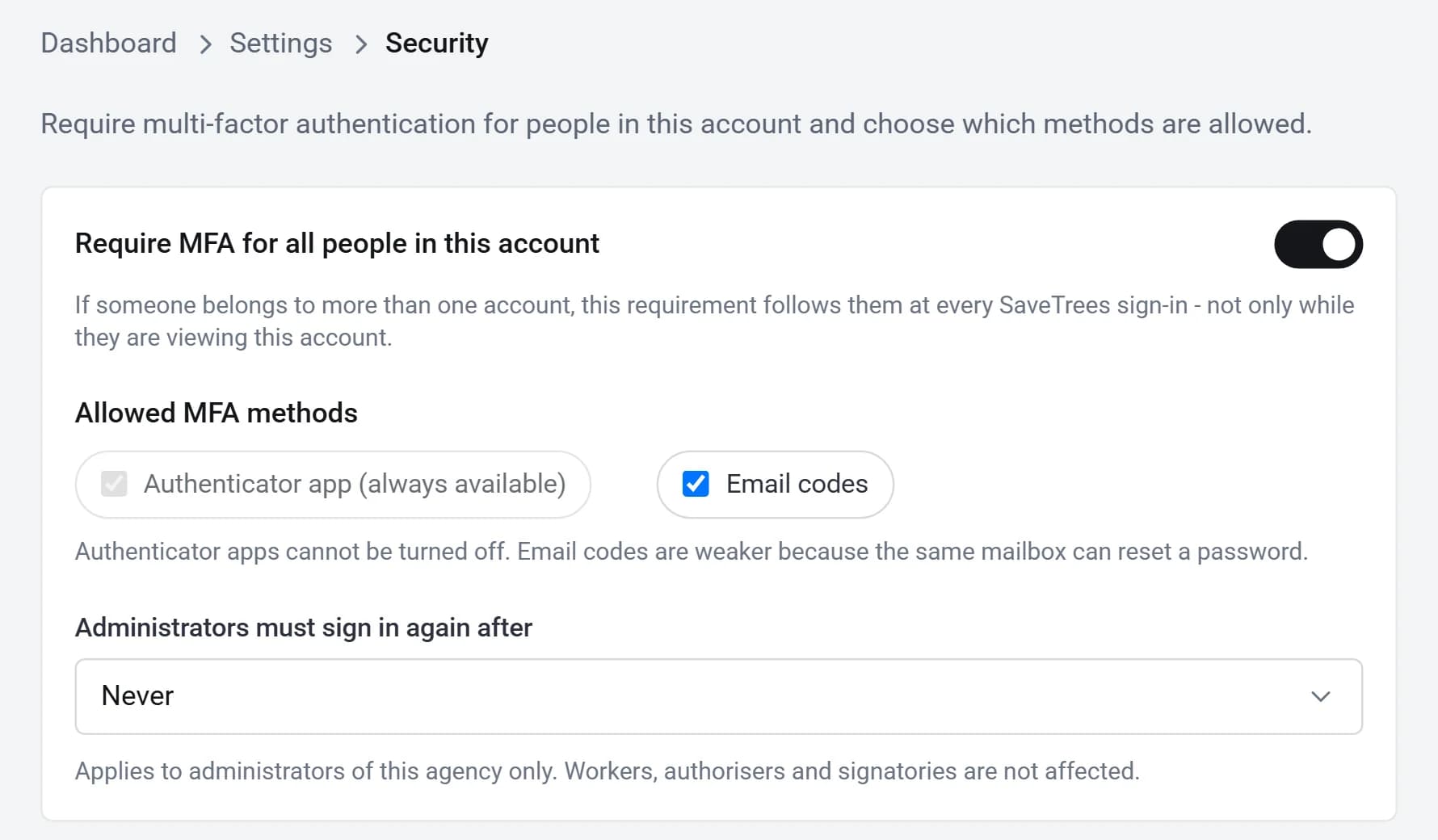
Two-step verification you can make compulsory
- Switch on one setting and everyone in your account, admins, workers and authorisers alike, needs a code from their phone as well as their password.
- Authenticator apps, like Google or Microsoft Authenticator, are always allowed. Codes by email are optional, and you can switch them off.
- Your account owner always has to use it, whatever else is set.
- Backup codes get people back in if they lose their phone. Your admins can’t switch off someone else’s two-step verification. Only our support team can, after checking who’s asking, and the person is emailed when it happens.
- Make admins sign in again after 8, 12 or 24 hours, or after 7 days.
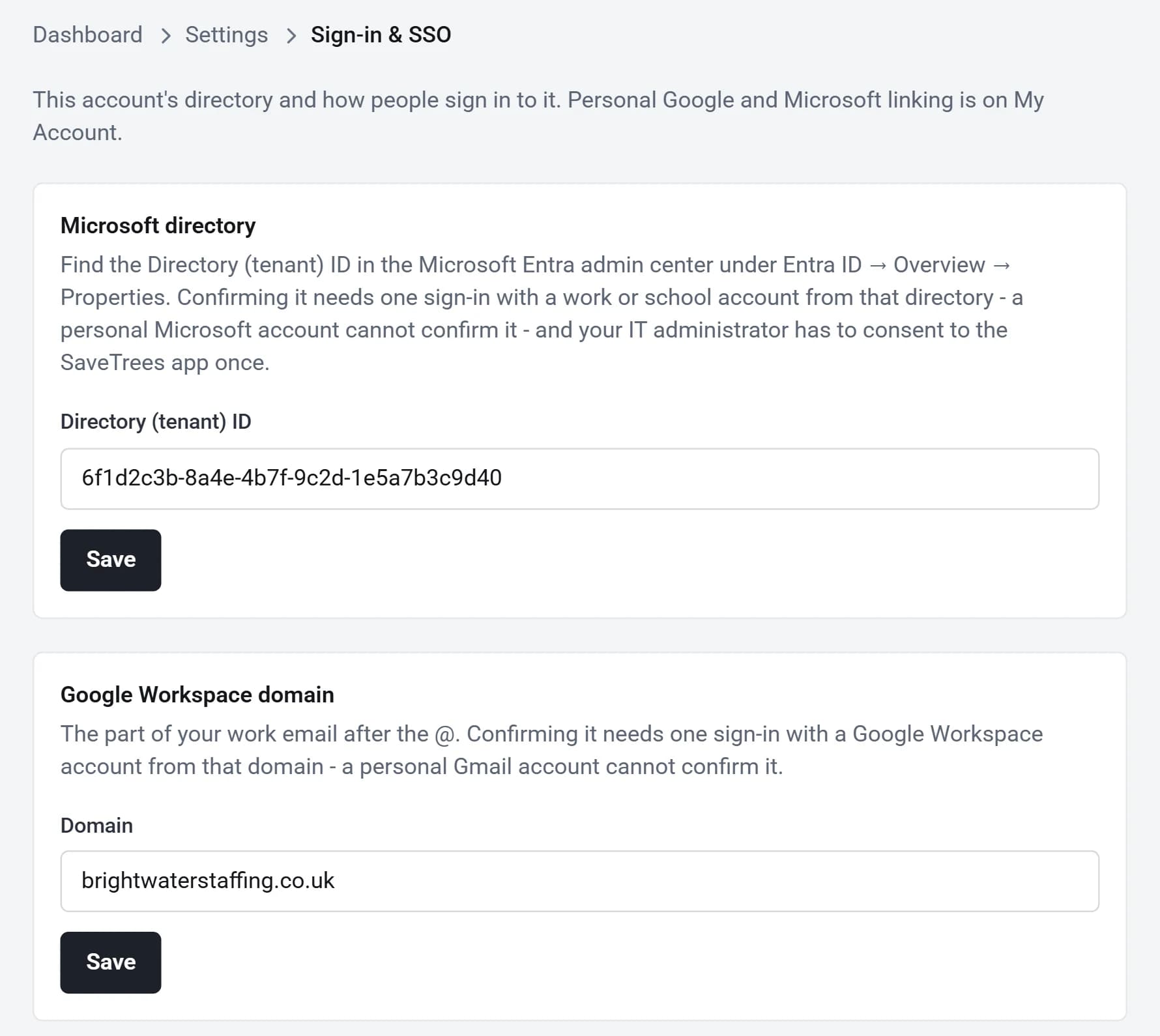
Sign in with Microsoft or Google
- Anyone with a Google account, or a personal Microsoft account, can use it to sign in instead of a password.
- Connect your Microsoft directory or Google Workspace domain, and your team signs in with their work accounts.
- Then require it for admins. A password alone won’t open an admin role, so admin access follows your own IT: close someone’s work account and they can’t sign back in.
- Two-step verification still applies on top, and your account owner keeps a password, so you can’t lock yourselves out.
- Workers and authorisers aren’t affected, and sign in as they always have.
Admin permission groups
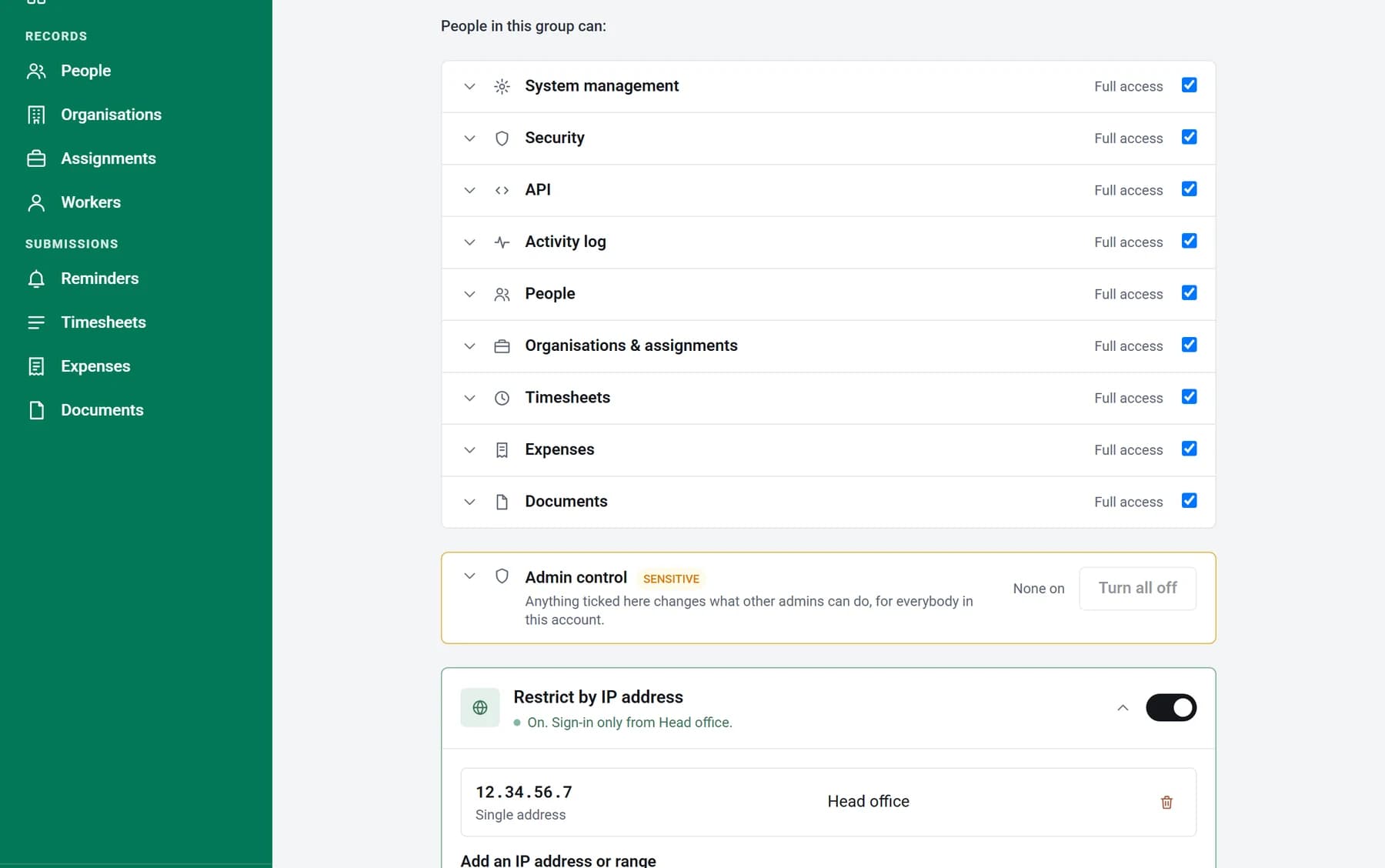
- Every admin belongs to a permission group, and the group’s ticks decide what they can see and do: billing, people, organisations, timesheets, expenses, documents, the activity log and more.
- Make one group for payroll and another for your consultants, and move admins between them at any time. Changes apply straight away.
- Anything that changes what other admins can do is marked as sensitive, and nobody can hand out a permission they don’t hold themselves.
- Only your account owner can give out the most powerful ones, like the sign-in rules and API keys.
- Take away someone’s admin role and it stops working on their very next click.
Sign-in only from your office
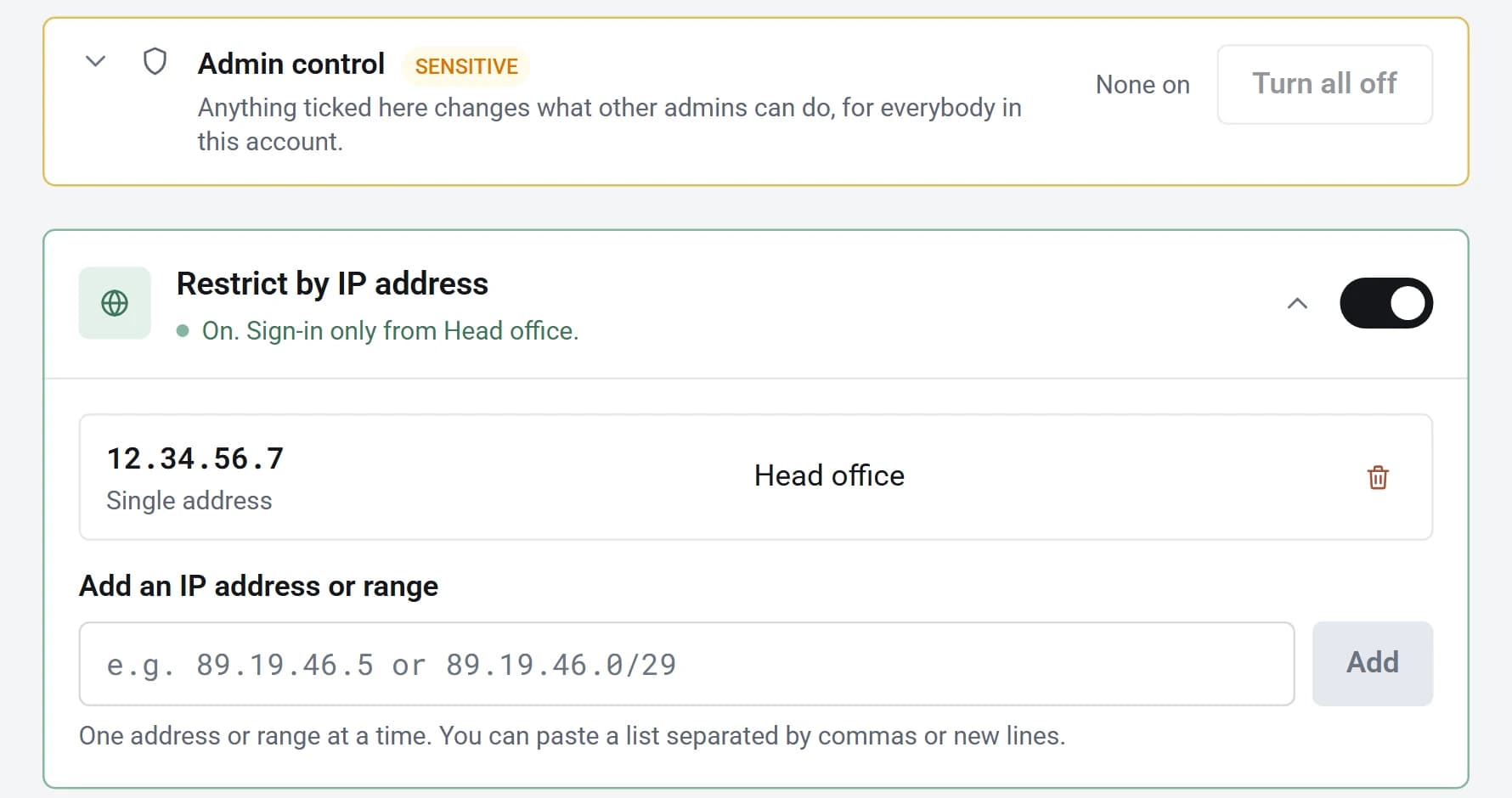
- Switch on Restrict by IP address for a permission group, and its admins can only use SaveTrees from the networks you list, like your office.
- Add single addresses or whole ranges, each with a label such as Head office.
- Set it group by group: keep payroll to the office, and let consultants work from anywhere.
- It’s checked on every page and every download, not just when someone signs in.
- SaveTrees won’t let you save a list that would lock you out.
Every change on the record
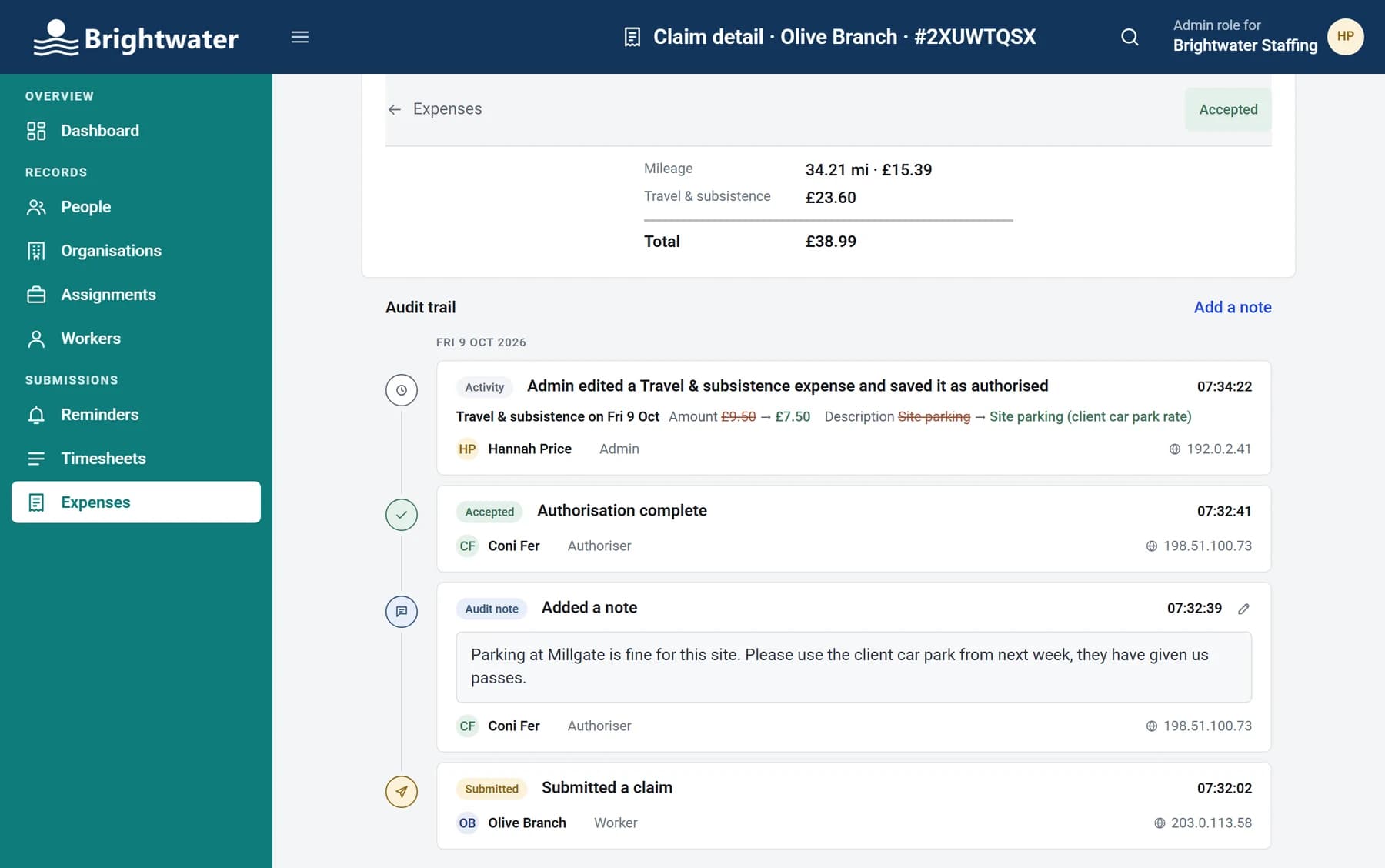
- Each timesheet and expense claim keeps its own audit trail: submitted, approved, rejected, edited, and every note.
- Every entry shows who did it, their role, the time and the IP address it came from. Edits show the old value next to the new one.
- The Activity log shows who did what across your whole account, from settings changes to admins being added or moved between groups.
- Accepted timesheets go to payroll as a PDF with the audit trail on it.
How we look after your data
Signing in
- We never email anyone a password. New people get a link and choose their own, or use Google or Microsoft.
- Passwords are at least 12 characters, and are only ever stored in a scrambled, one-way form that nobody can read back, us included.
- Sign-in pauses after repeated wrong passwords, and the person is emailed to say so.
- Reset links work once and expire after 30 minutes. A reset signs you out on every device and emails you to say your password changed.
- See every device you’re signed in on, and sign any of them out.
Your data
- Your records are stored in London, and SaveTrees runs on servers in London too. Uploaded files, like receipts and documents, are stored in the EU.
- Everything is encrypted on its way to and from your browser, and your records and files are encrypted with AES-256 where they’re stored.
- Each agency’s data is kept apart. Workers see only their own timesheets and claims, and authorisers only the workers they approve.
- Every uploaded file is checked for viruses, and anything that isn’t clean is turned away.
- Connecting Xero never gives us your Xero password, and the connection’s keys are encrypted.
How we build it
- Who can do what is checked on our servers for every page and every action. Anything without a rule is refused, not left open.
- Sensitive steps, like managing API keys or downloading documents you’ve marked as secure, ask for a fresh code first.
- API keys are shown once, limited to what you choose, and stopped automatically when the person who made them leaves.
- New versions of the open-source software we build on wait a week before we use them, so problems are usually found before they reach us.
For admins and IT
Set it up in a few minutes
Each setting has a step-by-step guide in our help centre, with pictures of every screen.
- Security settingsRequire two-step verification for everyone, and choose how often admins sign in again.Read the guide
- Two-step verificationAdd an authenticator app, save backup codes, and what to do about a lost phone.Read the guide
- Microsoft and Google sign-inConnect your directory or domain, and require work accounts for admins.Read the guide
- Admin permissionsCreate permission groups, and limit a group to your office’s IP addresses.Read the guide
Questions you might have
Do the security settings cost extra?
No. Two-step verification, Microsoft and Google sign-in, permission groups, IP restrictions and audit trails are on every plan, including the free one.
Where is our data stored?
Your records are stored in London, and the servers that run SaveTrees are in London too. Uploaded files, like receipts and documents, are stored in the EU. A few specialist services we use, such as for sending emails and checking files for viruses, handle only the data they need for that job.
Do our clients have to use two-step verification?
Only if you want them to. Switch on Require MFA for all people and everyone in your account uses it, clients and workers included. Otherwise it’s up to each person, and only your account owner has to.
What if someone loses their phone?
They sign in with one of their backup codes, then add their new phone. No backup codes? We’ll reset it once we’ve checked who they are, and they’re emailed when we do. Your own admins can’t reset it, so getting into an admin account isn’t enough to switch it off for someone.
What happens when an admin leaves?
Remove their admin role and it stops working on their next click. If you’ve connected your Microsoft directory or Google Workspace and made admins use it, closing their work account stops them signing back in, too.
Can we get our data out?
Yes. Download timesheets and expenses as Excel or CSV, or as a zip of PDFs, and your people, organisations and assignments as CSV. There’s an API as well.
How do you handle personal data?
SaveTrees Ltd is a UK company. Our privacy policy, linked at the bottom of every page, explains what we keep, why we keep it, and your rights over it.
How do I report a security problem?
Email support@savetrees.co.uk or call 0117 442 0408, and we’ll look into it as a priority. Please tell us before telling anyone else, so we can fix it first.
Try with no risk.
If you don’t love it, you don’t pay a penny.
- No card
- No contract
- Free for one worker