Timesheets · Settings & admin
How do I send copies of timesheets to payroll or clients?
Copy your payroll team, a client or anyone else on timesheets and expense claims as they’re sent, accepted or rejected.
For admins · Updated 15 October 2026
Want payroll to get every accepted timesheet without anyone forwarding it? Add their address in Settings, then tick what they should get a copy of. It can be any address, inside or outside your agency, and each one gets only what you tick.
Add an address
- 1Open Email settings in your account(opens SaveTrees in a new tab)
Go to Settings and click Email.
- 2
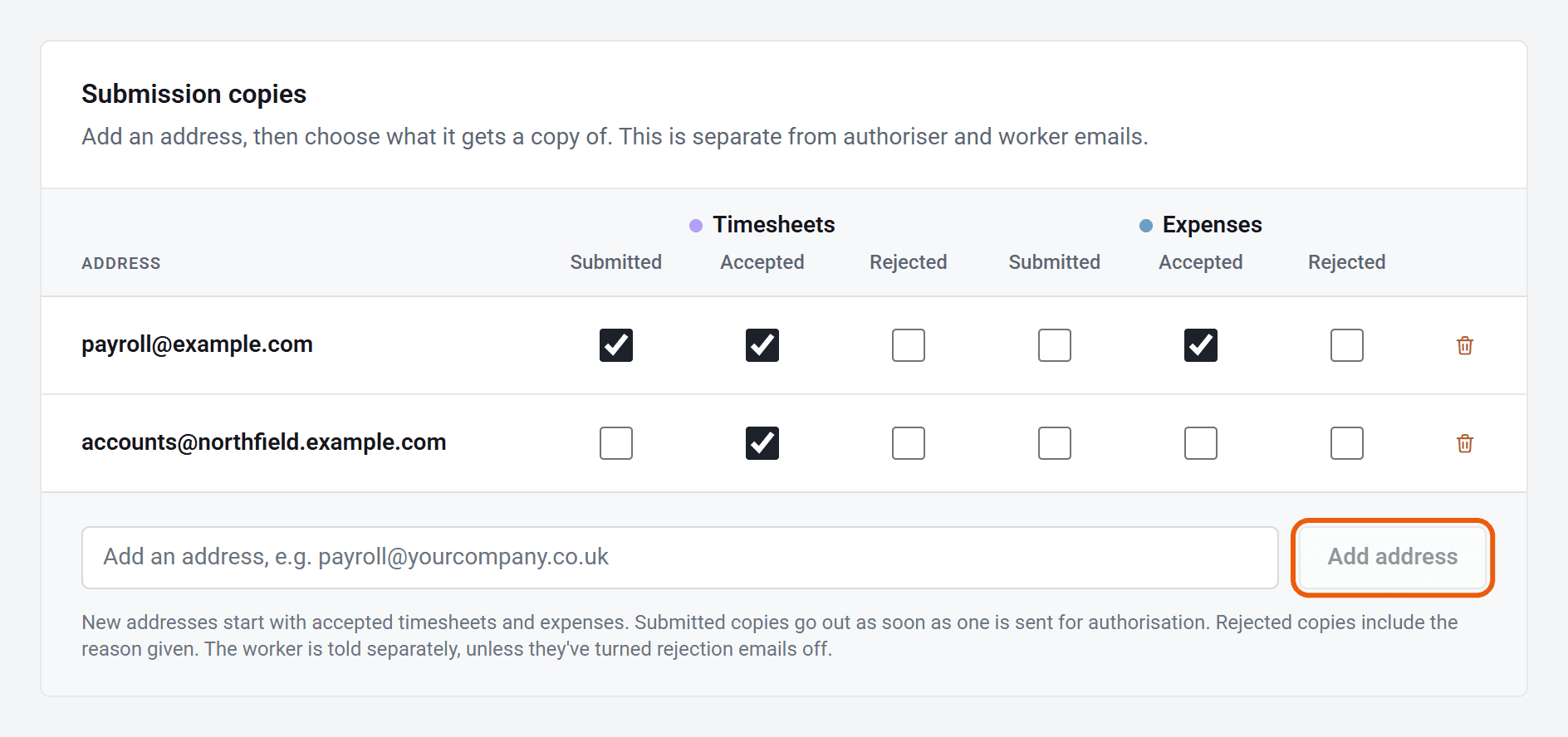
Under Submission copies, type the address and click Add address.
- 3
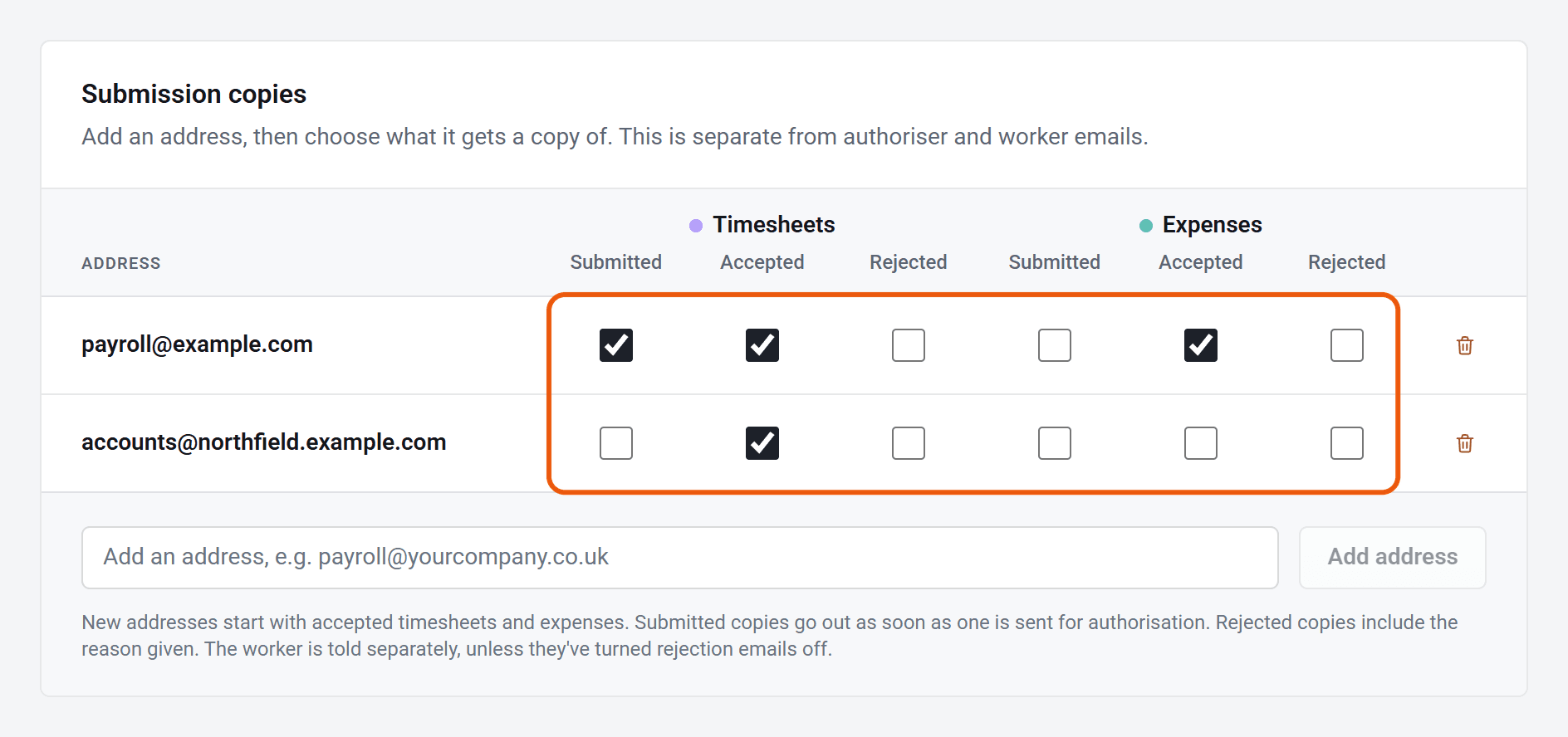
Tick what this address should get. There are three for timesheets and three for expense claims.
- 4
Click Save in the bar at the bottom of the screen.
New addresses start with accepted timesheets and accepted expenses ticked, which is usually what payroll needs.
What each copy is
- Submitted: a copy of the email the authoriser gets when a timesheet or claim is sent to them.
- Accepted: a copy of the email the worker gets when it’s accepted, with the PDF of the timesheet or claim attached.
- Rejected: a copy of the email the worker gets when it’s sent back, including the reason.
Each address gets its own email, so nobody sees who else was copied. The copies carry your logo and colours, like your other emails.
Change or stop copies
Change the ticks, or click the bin at the end of a row to remove the address, then click Save.
If someone outside your agency unsubscribes, their address shows Unsubscribed and they stop getting copies. Only they can subscribe again, from the link in an earlier email.
Where replies go
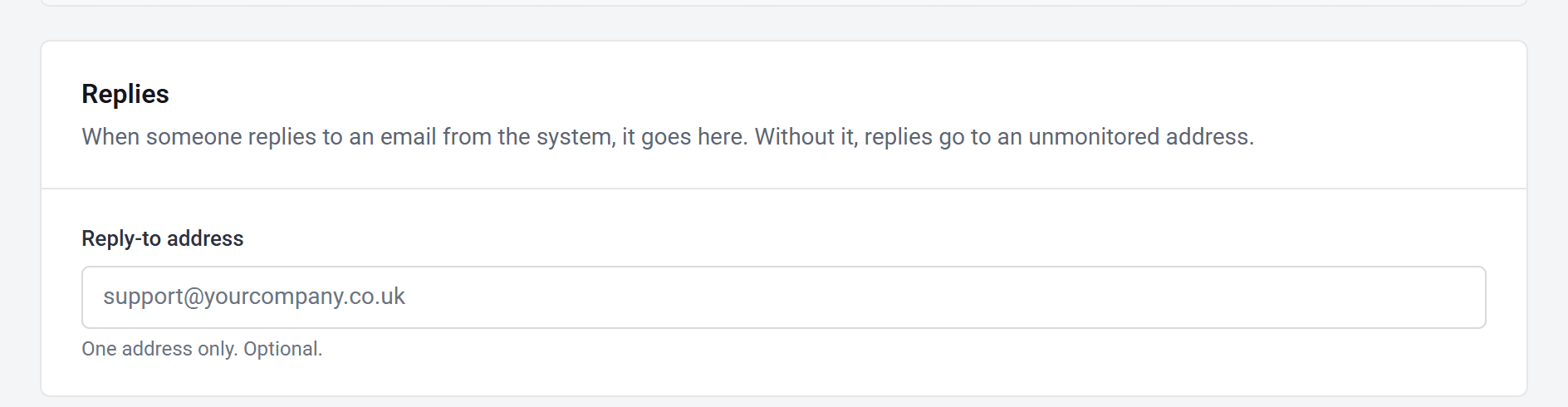
Under Replies, put the address you’d like replies to land in, for example your support inbox. It applies to every email SaveTrees sends for you. Leave it empty and replies go to an address nobody reads.
Who can do this
Your account owner, and admins whose permission group includes Change Email settings.