Settings & branding
Custom Field Types
For admins · 18 February 2026

Timesheets Help Structure
This section is made up of three connected parts:
[ Timesheets ] → [ Custom Field Types ] → [ Timesheet Templates ]
Each part plays a different role in how time is recorded and submitted. You are currently viewing: Custom Field Types
Overview
Custom Field Types define the categories of time that workers can log on a timesheet.
They answer one simple question:
What would you like tracked?
Custom Field Types are reusable building blocks. They describe the thing being tracked, but they do not control submission frequency or assign workers. That is handled by Timesheet Templates.
What Is a Custom Field Type?
A Custom Field Type is whatever you would like to track within your timesheets.
For example:
- Standard Hours
- Project A Hours
- Project B Hours
- Night Shift
- On-Call Time
- Sleep-In Shift
- Travel Time
- Notes
Each one represents a different type of input that may need to be recorded separately.
Once created, a Custom Field Type can be added to one or multiple Timesheet Templates.
What Custom Field Types Do Not Control
It is important to understand what CFTs do not do.
They do not:
- Control whether a timesheet is weekly or monthly
- Assign timesheets to workers
- Control approval workflows
Those settings are managed within Timesheet Templates.
Each Custom Field Type simply defines what is being tracked
Jump to...
How to create a CFT▾
Creating a Custom Field Type
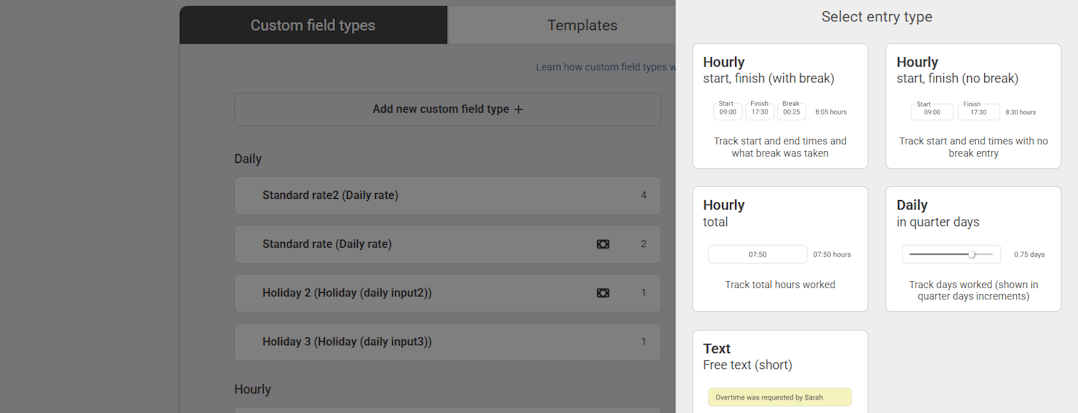
To create a new CFT:
- Go to the Custom field types tab in your admin dashboard (Settings > Timesheets > Timesheet templates > Custom field types tab).
- Click ‘Add new custom field type’.
- Select the type of field you would like. At the time of writing, you have the following to choose from:
- Hours (start, finish - break) this ask the worker to say the start time, the end time and how long they took for break and this break time will be deducted from the total time.
- Hours (total) this will only show the worker one field for hours and minutes.
- Days this is a slider that the worker can slide up and down in quarter day increments.
- Give your template a field name. This is only shown to yourself and other admins. It needs to be unique. Make it descriptive so that when you come to add it to the Timesheet Template, you will know what it means.
- Give it a display name. This is shown to your workers and authorisers. It will show on the timesheet submission screen, the timesheet detail, and PDFs. It needs to be 15 characters or less and make sense in those contexts (e.g. Standard time, Overtime, O/T rate 1, On-call time etc...).
- Capture financials. Toggle this if you would like to assign pay and charge rates for your workers.
- Click Create custom field type.
Your CFT is now ready to be assigned to as many Timesheet Templates as you wish.
How to edit a CFT▾
Editing a Custom Field Type
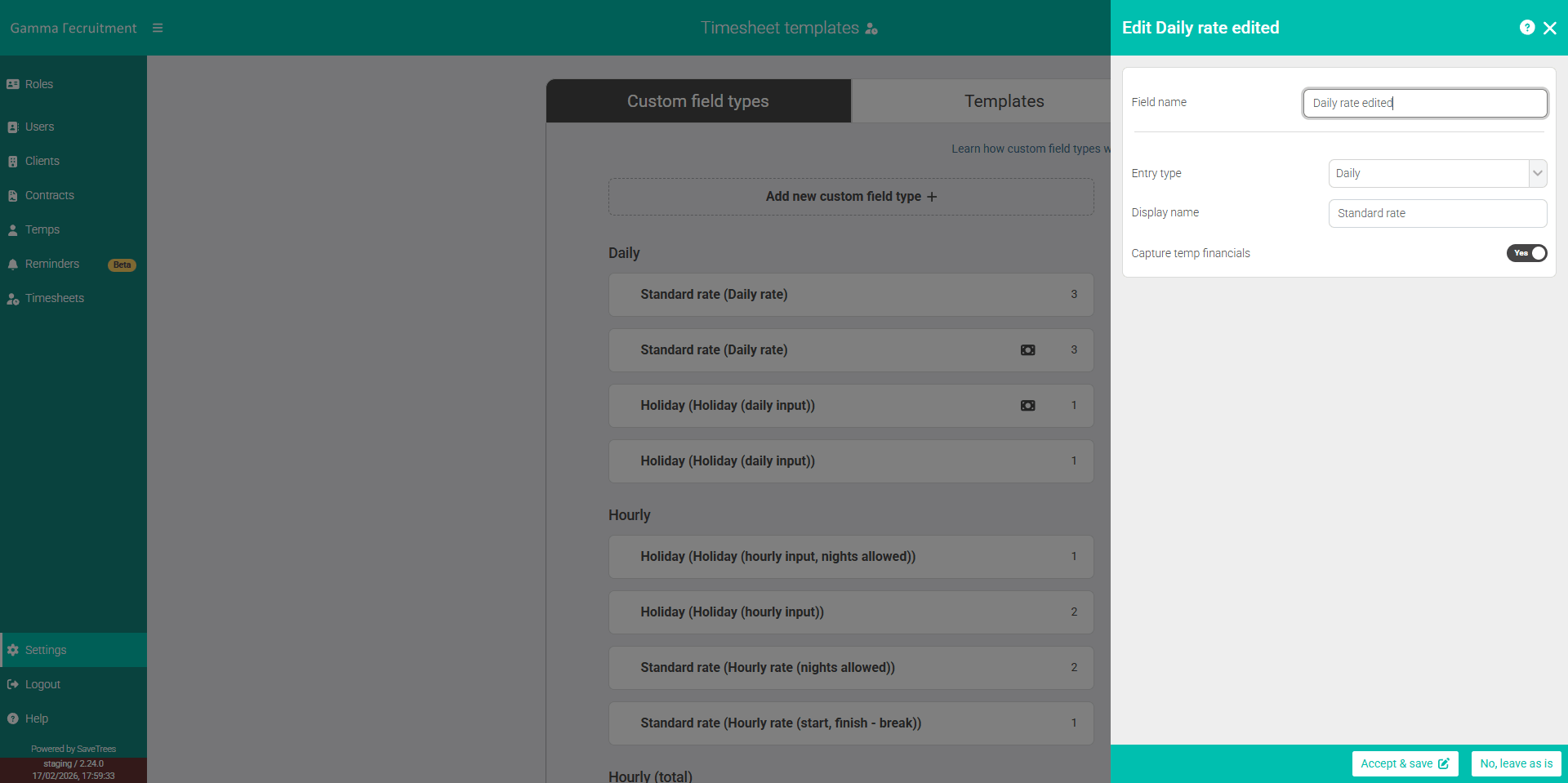
To edit a CFT:
- Go to the Custom field types tab in your admin dashboard (Settings > Timesheets > Timesheet templates > Custom field types tab).
- Click on the CFT you'd like to edit.
- Make any changes you need.
- Click 'Accept and save'.
⚠️ Beware Changing a CFT here will change it for anyone who is using it so please make sure that you are sure you want to make that change.
How to delete a CFT▾
Deleting a Custom Field Type
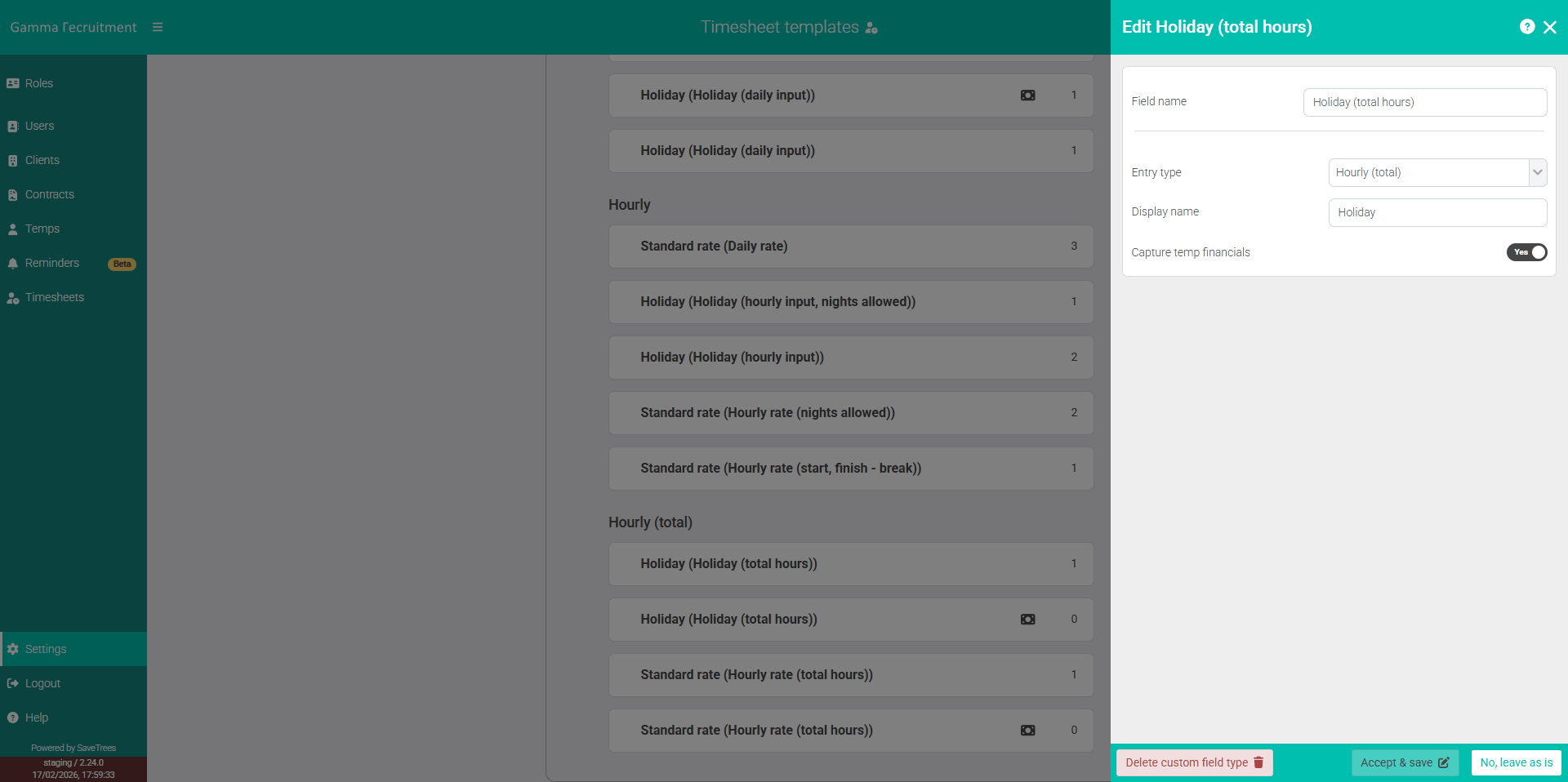
To delete a CFT:
- Go to the Custom field types tab in your admin dashboard (Settings > Timesheets > Timesheet templates > Custom field types tab).
- Select on the CFT you'd like to delete. Make sure it has a '0' on the right hand side. If there isn't, that means it is assigned to that number of Timesheet Templates and cannot be deleted until it is removed.
- To remove a CFT from a Timesheet Template, click on the number and it will take you to a filtered list of Timesheet Templates, all of which will use that CFT. Click on the Timesheet Template/s and delete that CFT.
- Click 'Delete custom field type'.
How to track financials on a CFT
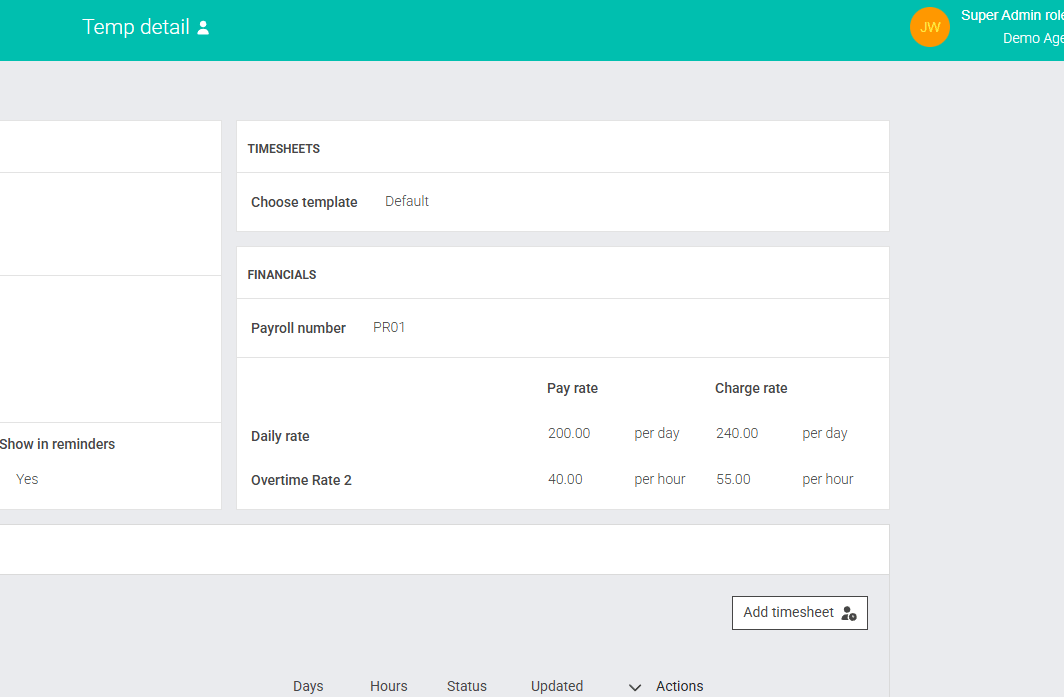
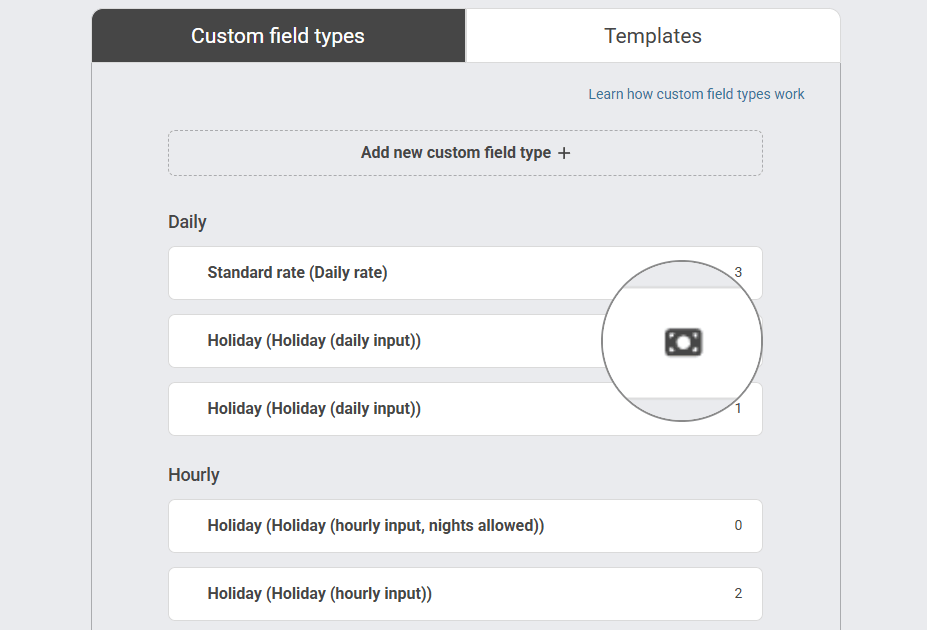
If you select yes next to 'Capture [Worker] financials', you'll then be able to assign pay and charge rates to your workers. To quickly see if this has been assigned to your CFTs, you'll see a money icon to the right hand side of each CFT. This will also show in the list of CFTs within the 'Create new timesheet template' list.
Once you've assigned a worker to a Timesheet Template with one or more CFTs that have financial tracking, you'll see those pay and charge rates both when you add the worker and within the worker detail page (as below).