Xero · Day to day
How does the Invoices page work?
See every invoice you’ve sent to Xero, what’s been paid and what’s still due, and the timesheets on each one.
For admins · Updated 27 October 2026
Once you’re sending invoices to Xero, the Invoices page shows them all in one place: what’s still a draft, what you’re waiting to be paid, and what’s been paid. You don’t need to open Xero to check.
- 1Open Invoices in your account(opens SaveTrees in a new tab)
Click Invoices in the menu, under Overview.
At a glance
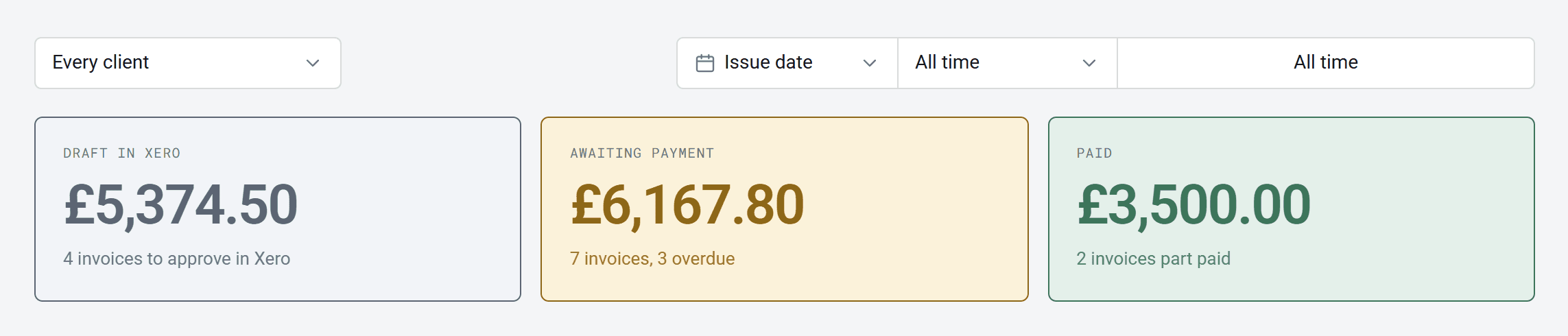
The three boxes at the top add up your invoices as Xero last reported them. Click one to see the invoices behind it.
Screens may look a little different in your account, with your organisation’s own colours and words.
- Draft in Xero: drafts still waiting for someone to approve them in Xero.
- Awaiting payment: approved invoices that haven’t been paid in full, including how many are overdue.
- Paid: what your clients have paid, including part payments.
Use Every client to look at one client, and the date filter to choose a week, a month or your own dates, by when the invoice was issued or when it’s due.
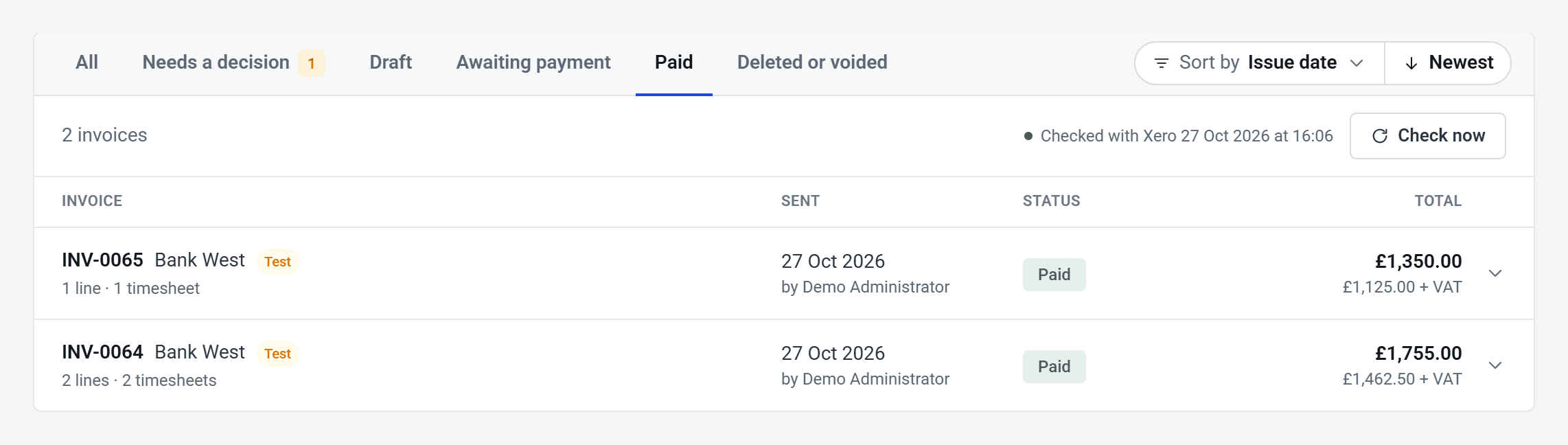
The tabs underneath split the list the same way. Here’s Paid, with two invoices Bank West has settled. Use Sort by to change the order.
Look inside an invoice
Click an invoice to open it. You’ll see each line as SaveTrees sent it, with a link to the timesheet or expense claim it came from, then Xero’s totals: VAT, what’s been paid and what’s still due.
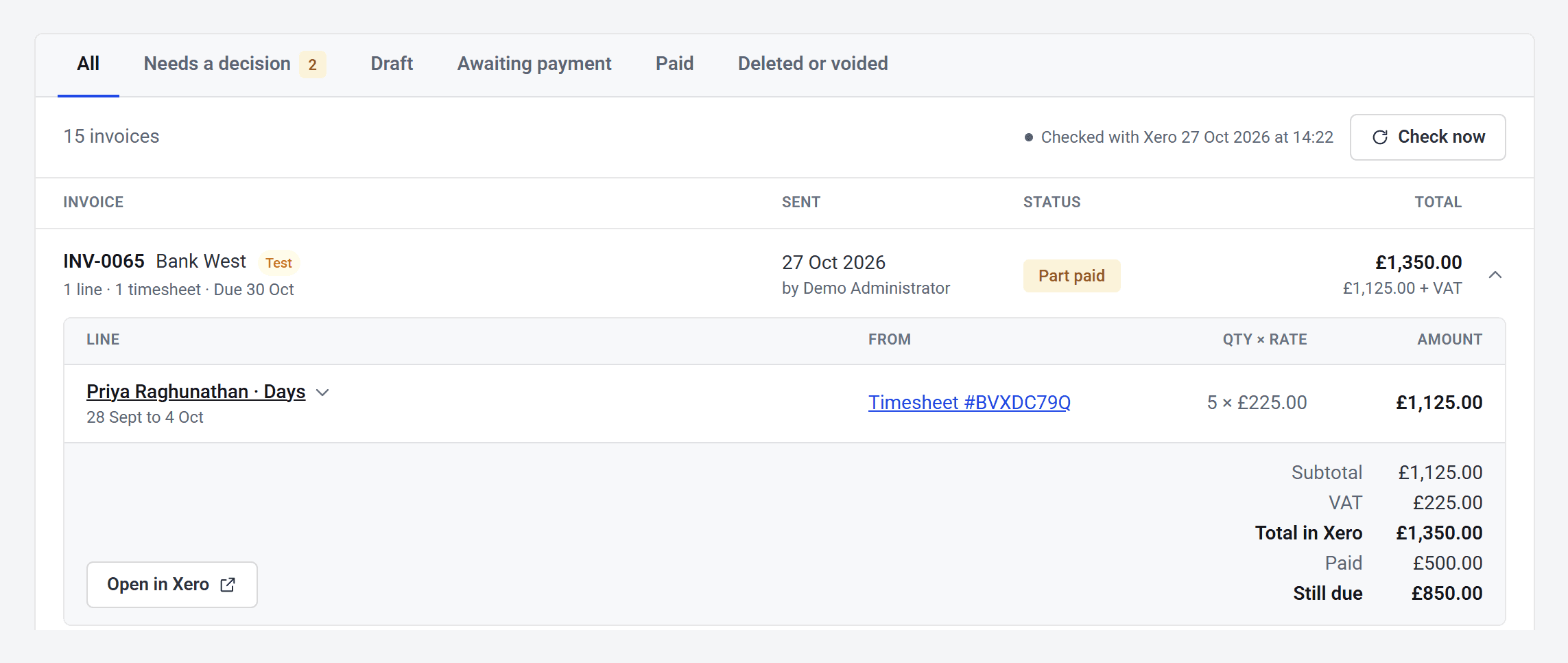
Click Open in Xero to go straight to it there. If someone changes an invoice in Xero, SaveTrees shows Xero’s new total but keeps the lines as they were sent.
What each status means
- Draft in Xero: it’s in Xero, waiting for you to approve it there.
- Awaiting payment: approved in Xero and sent to your client.
- Part paid: your client has paid some of it.
- Paid: paid in full.
- Deleted in Xero or Voided in Xero: it’s gone in Xero, and SaveTrees needs you to say what happens to the work on it.
Keeping up with Xero
SaveTrees checks your invoices with Xero every hour, and the page says when it last checked. Paid an invoice in Xero and want to see it now? Click Check now.
Invoices that need a decision
If an invoice is deleted or voided in Xero, its timesheets and claims are still marked as billed, so they can’t be billed twice by accident. You’ll see it under Needs a decision, and a strip across the top of SaveTrees until it’s sorted.
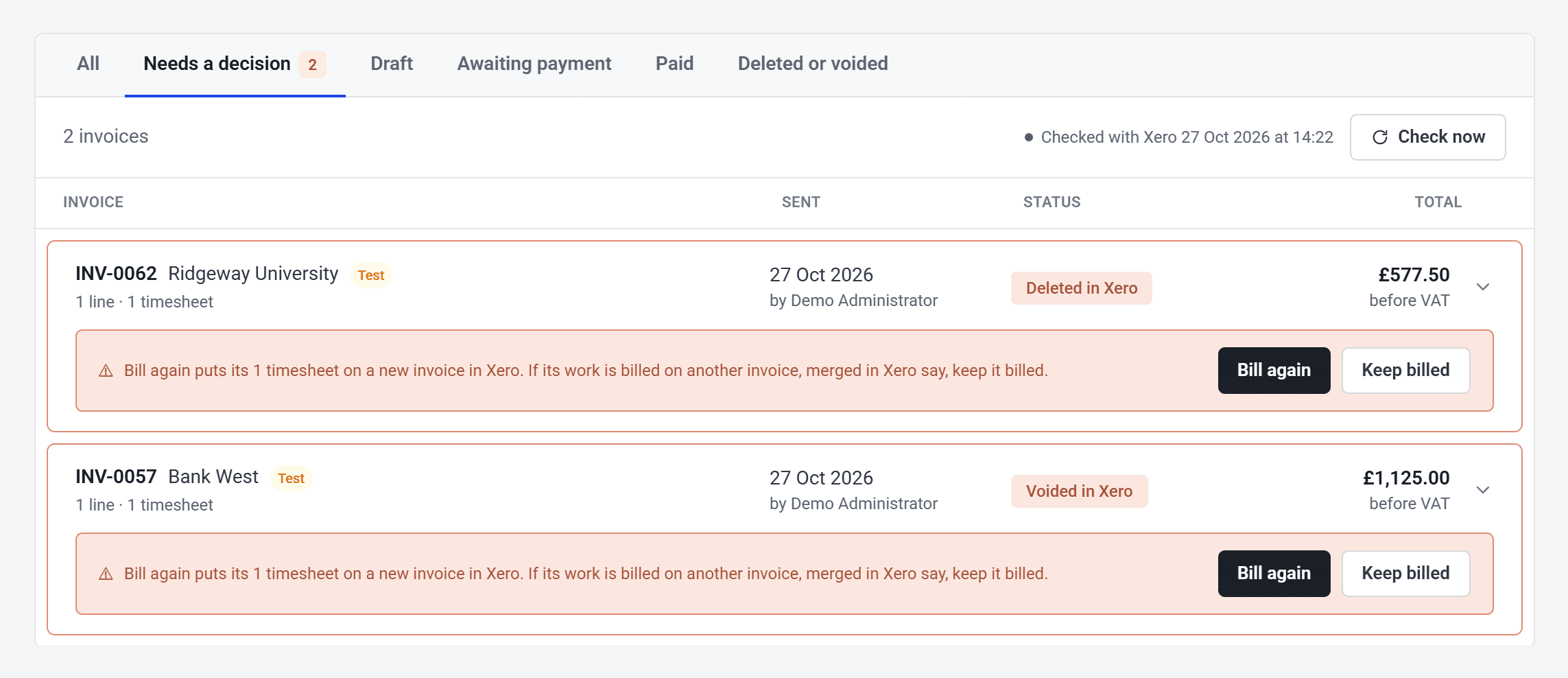
- Bill again: puts the work back to unbilled, ready to go on a new invoice.
- Keep billed: choose this if the work is already on another invoice, for example because you merged drafts in Xero.
Choose Keep billed by mistake? You can still change it to Bill again while the invoice is gone in Xero.
Who can see it
Your account owner, and admins whose permission group includes Send invoices to Xero and manage the Xero connection. If you don’t see Invoices in the menu, check Show Invoices in the menu is on, in Settings > Xero.