Xero · Day to day
How do I send timesheets and expenses to Xero?
Tick accepted timesheets or expense claims and send them to Xero as draft invoices, one or more per client.
For admins · Updated 21 October 2026
Ready to bill? Tick the work you want to invoice and SaveTrees turns it into draft invoices in Xero, grouped by client. They’re drafts, so nothing is approved or emailed to your clients until you do it in Xero.
Send
- 1Open Timesheets in your account(opens SaveTrees in a new tab)
Go to Timesheets, or Expenses for expense claims.
- 2
Tick the ones you want to bill. Only accepted timesheets and claims can be sent, and the button counts those.
- 3
Click Send to Xero in the bar at the bottom of the screen.

Screens may look a little different in your account, with your organisation’s own colours and words.
- 4
Check the drafts SaveTrees has worked out for each client, then click Send to Xero.
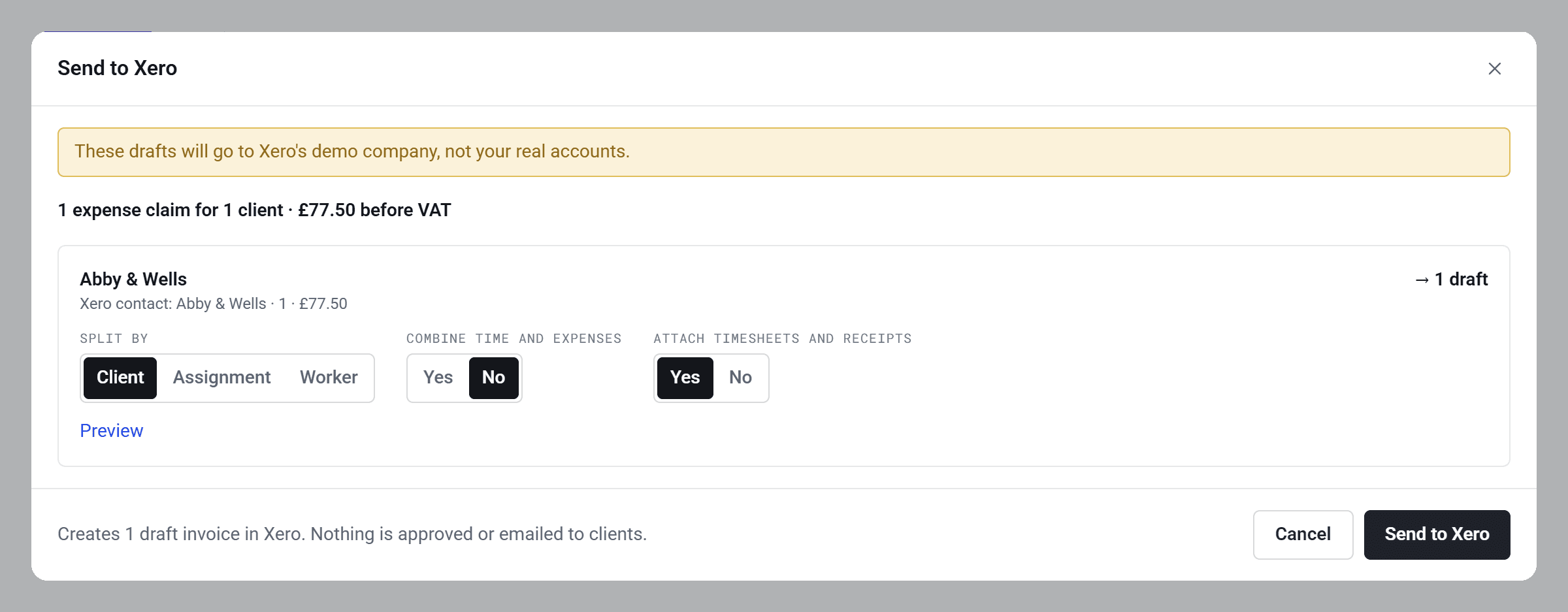
A pill shows how it’s going. When it’s done, click Open in Xero to see the first draft.
Tip: filter the list to Accepted and Unbilled under Billing, and you’ll see exactly what’s left to invoice.
Choosing how each client’s drafts look
Each client has its own box in the window, with a few choices:
- Split by: one draft for the whole client, or one per assignment or per worker. Split drafts carry the assignment or worker name as their reference.
- Combine time and expenses: put timesheets and expense claims on the same draft, or keep them apart.
- Attach timesheets and receipts: adds the timesheet PDFs and receipt photos to the draft, so the client can see what they’re paying for. Xero keeps them with the invoice but doesn’t show them on the online version.
Click Preview to see every line before it goes. SaveTrees remembers each client’s choices for next time.
If the client has expense claims you didn’t tick, you’ll see Also include… so you can add them to the same send.
What goes on the invoice
Each draft is dated today and shows amounts before VAT. Xero adds VAT using each account’s tax rate.
Every line says who did the work, what it was, the dates, and the SaveTrees number, for example “Sam Patel, Standard hours, 6 to 12 Oct, timesheet #1042”. Each mileage journey and receipt gets its own line.
Once a draft is in Xero, it’s yours to edit, approve and send there. SaveTrees doesn’t change it again.
Why some of my selection wasn’t sent
The window lists anything it’s leaving out, with the reason and, where there’s something to fix, a Put it right link. The usual ones:
- Not accepted yet: only accepted work can be billed.
- From before your bill-from date: it counts as billed outside SaveTrees. See How do I connect SaveTrees to Xero?
- Already billed: it’s on a Xero invoice already, so it can’t be billed twice.
- Isn’t linked to a Xero contact, or isn’t mapped to a Xero account: see How do I get ready to send invoices to Xero?
- No charge rate: the field has nothing to charge the client. Add a charge rate to the assignment and send again.
- Example data: the example timesheets aren’t real, so they’re never billed.
- The client’s Xero contact has been archived or merged in Xero: link the client to its current contact and send again.
A timesheet or claim goes whole or not at all, so one problem line holds back the whole thing.
Who can do this
Your account owner, and admins whose permission group includes Send invoices to Xero and manage the Xero connection.