Xero · Get set up
How do I get ready to send invoices to Xero?
Link your clients to their Xero contacts and choose which Xero accounts your timesheet and expense fields go to.
For admins · Updated 21 October 2026
Once you’ve connected Xero, SaveTrees needs to know two things: which Xero contact each client is, and which Xero account each charge goes to. You only set these up once.
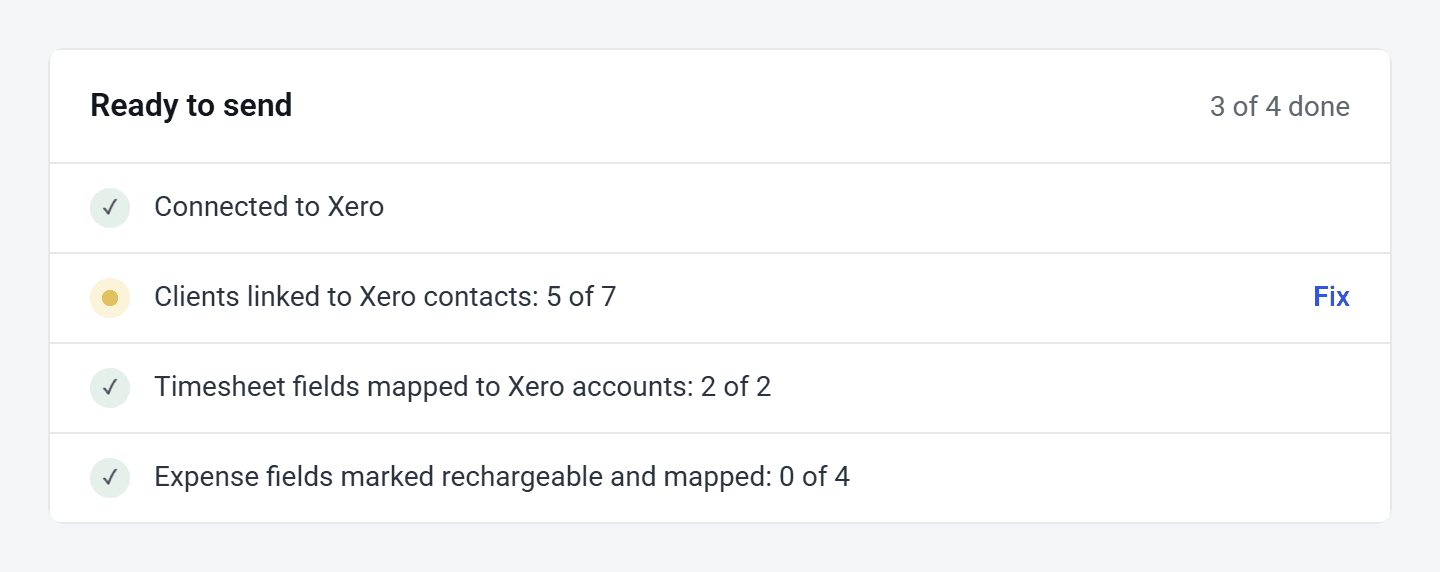
The Ready to send list on the Xero page keeps count. Click Fix on any row that isn’t ticked and it takes you to the right place.
- 1Open Xero settings in your account(opens SaveTrees in a new tab)
Go to Settings and click Xero.
Screens may look a little different in your account, with your organisation’s own colours and words.
Bring your clients over from Xero
Already have your clients in Xero? Click Import clients from Xero on the Xero page. SaveTrees lists your Xero contacts and matches them against the clients you already have.
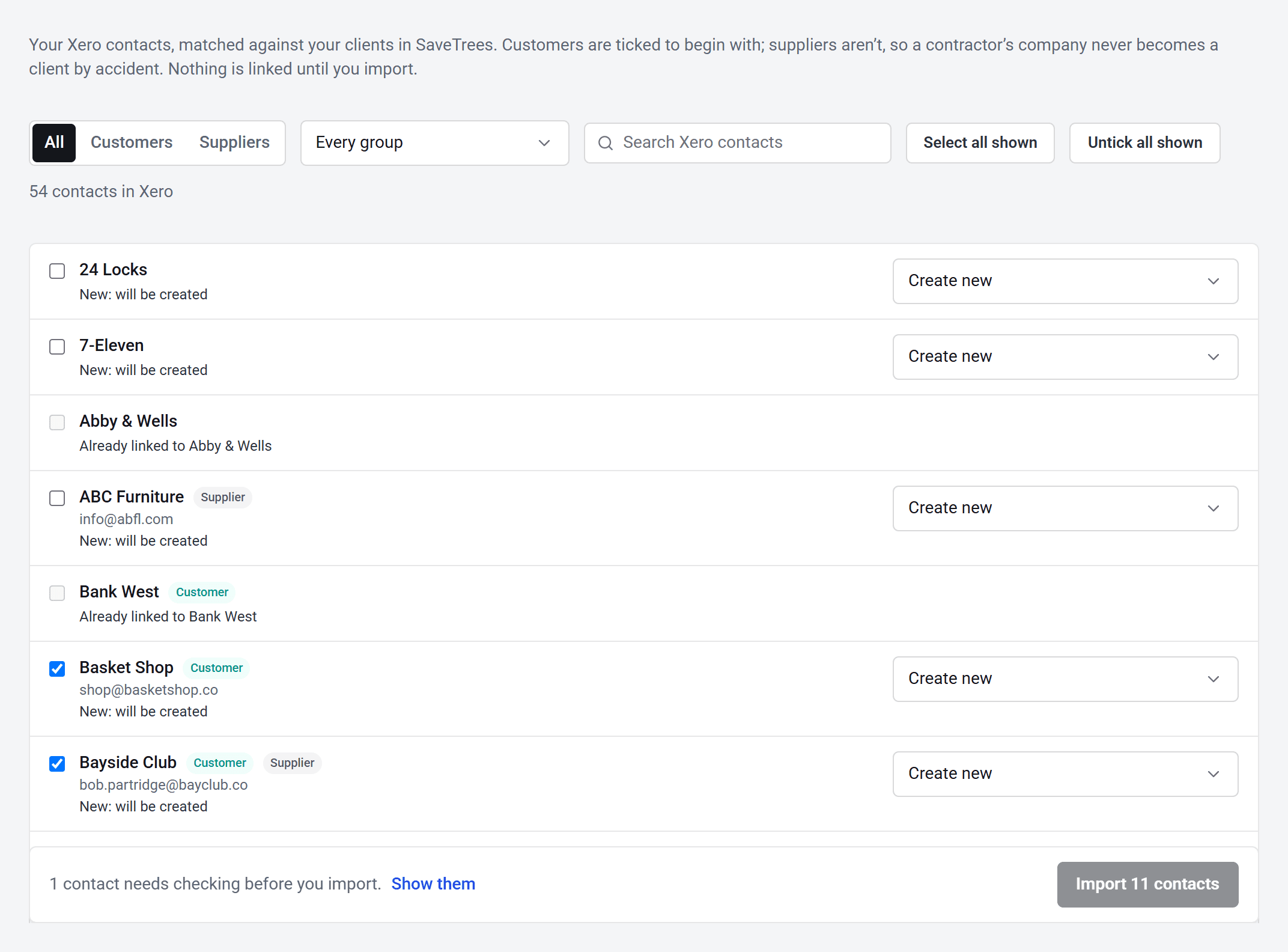
- Customers are ticked to begin with and suppliers aren’t, so a contractor’s company never becomes a client by accident.
- For each ticked contact, choose Create new, or pick the client you already have in SaveTrees.
- If SaveTrees thinks it’s found a match, it picks it and asks you to check. Click Confirm, or choose something else.
- Nothing is created or linked until you click Import … contacts at the bottom.
Link a client to its Xero contact
You can also link clients one at a time, which is handy for a new client.
- 1Open your unlinked organisations in your account(opens SaveTrees in a new tab)
Go to Organisations and open the client.
- 2
Next to Xero contact, click Link to Xero.
- 3
SaveTrees searches Xero for the client’s name. Click Link next to the right contact, or search for another name, email or account number.
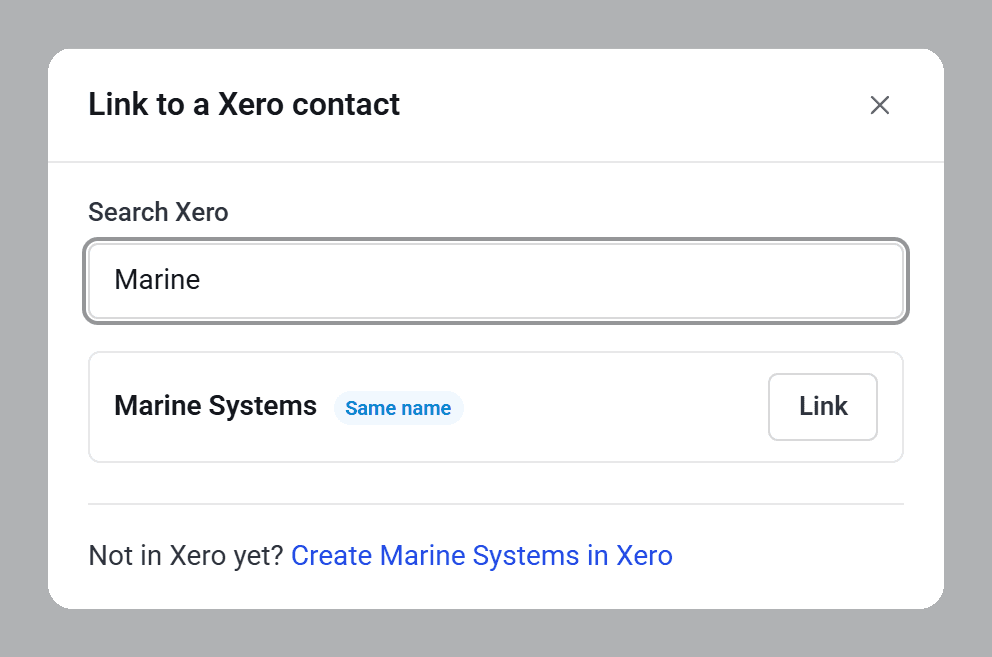
Client not in Xero yet? Click Create … in Xero at the bottom and SaveTrees adds them, with just their name and website. You can fill in the rest in Xero.
Once it’s linked, the client’s page shows the Xero contact. Click it to open the contact in Xero.
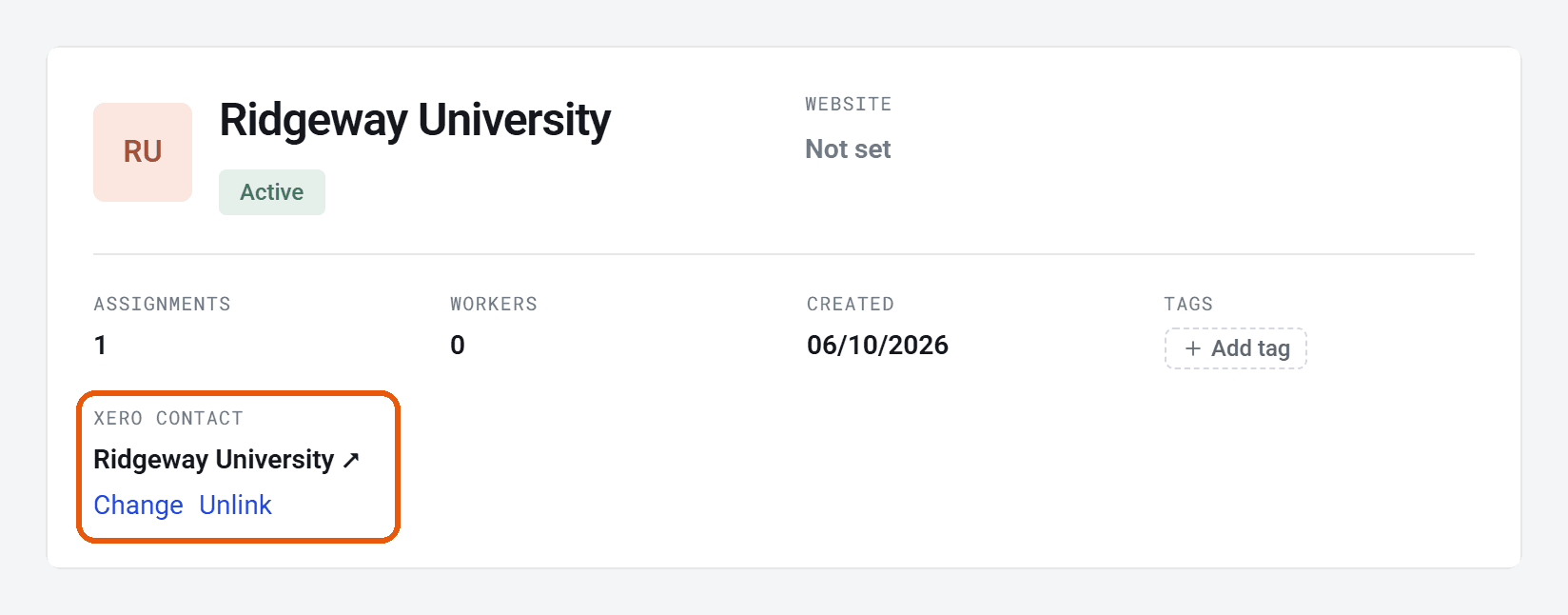
To point a client at a different contact, click Change. Unlink stops their invoices until you link them again. Invoices already in Xero stay where they are.
Choose a Xero account for each field
Every timesheet field that has a charge rate needs a Xero income account, so each line on the invoice is coded properly. Xero then adds VAT using that account’s tax rate.
- 1Open Timesheet templates in your account(opens SaveTrees in a new tab)
Go to Settings > Timesheets and click Timesheet templates.
- 2
Click Edit next to a field.
- 3
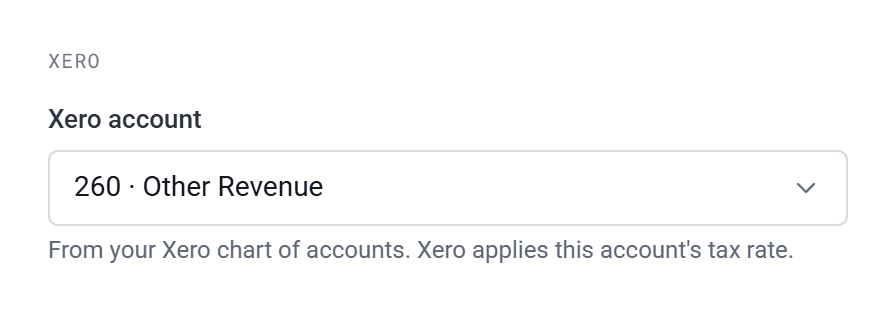
Under Xero, choose the account from Xero account. It saves straight away.
Expense fields work the same way, from Settings > Expenses > Expense templates, with one extra switch: Rechargeable. Turn it on for expenses you bill back to clients, then choose the account. Leave it off for costs you don’t pass on, like your own staff’s mileage, and they’ll never go on an invoice.
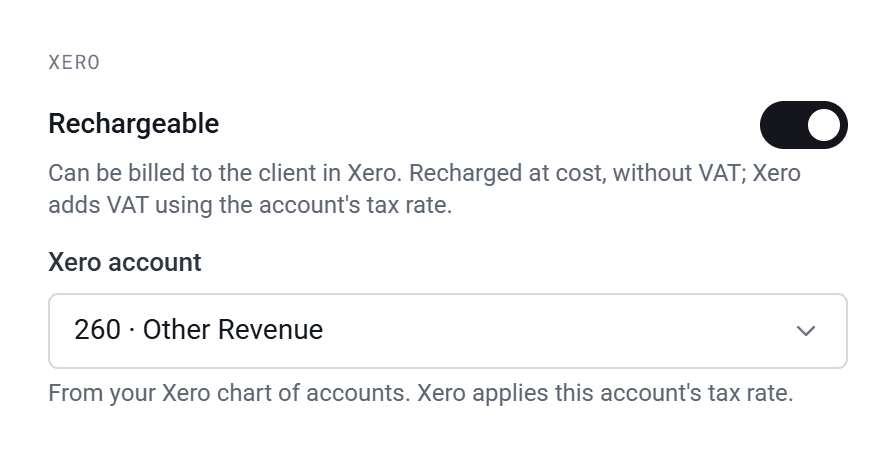
Rechargeable expenses are billed at cost, without VAT, and Xero adds VAT using the account’s tax rate.
- The Xero section only appears once a field has been saved, so add a new field first, then open it again.
- The list only shows active income accounts. If you can’t see the one you need, check it’s set up as revenue and not archived in Xero.
Who can do this
Your account owner, and admins whose permission group includes Send invoices to Xero and manage the Xero connection. Other admins can see which Xero contact a client is linked to, but can’t change it.